
Arduino - Reloj OLED
En este tutorial, vamos a aprender cómo hacer un reloj OLED mediante:
- Lectura de la hora (horas, minutos y segundos) desde el módulo RTC DS3231 y mostrarla en una pantalla OLED
- Lectura de la hora (horas, minutos y segundos) desde el módulo RTC DS1307 y mostrarla en una pantalla OLED
Puede elegir uno de los dos módulos RTC: DS3231 y DS1307. Consulte DS3231 vs DS1307
Hardware Requerido
Or you can buy the following kits:
| 1 | × | DIYables STEM V3 Starter Kit (Arduino included) | |
| 1 | × | DIYables Sensor Kit (18 sensors/displays) |
Divulgación: Algunos de los enlaces proporcionados en esta sección son enlaces de afiliado de Amazon. Podemos recibir una comisión por las compras realizadas a través de estos enlaces sin costo adicional para usted. Apreciamos su apoyo.
Buy Note: If you want a bigger OLED display, use the 2.42 inch OLED Display 128x64 .
Acerca de OLED, DS3231 y DS1307: módulo RTC
Si no conoces OLED, DS3231 y DS1307 (disposición de pines, cómo funciona, cómo programar ...), aprende sobre ellos en los siguientes tutoriales:
Instalar bibliotecas OLED y RTC
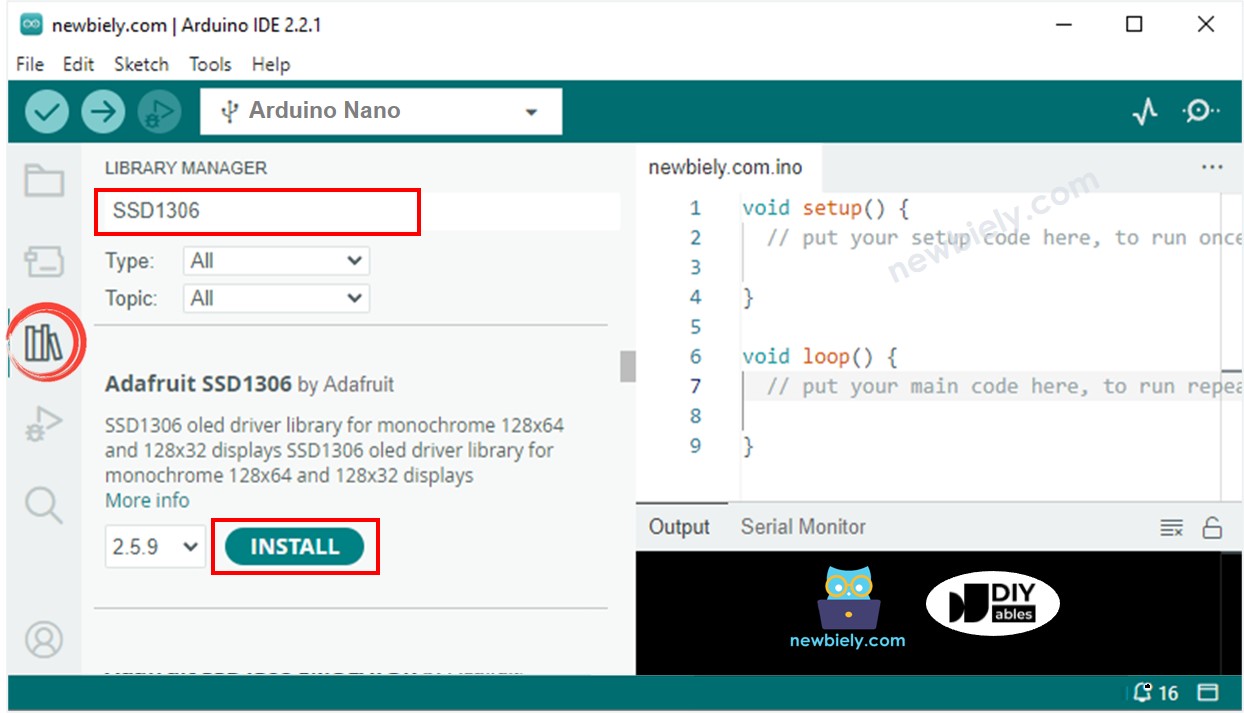
- Navega hasta el icono de Bibliotecas en la barra izquierda del IDE de Arduino.
- Busca “SSD1306”, luego encuentra la biblioteca SSD1306 de Adafruit
- Haz clic en el botón Instalar para instalar la biblioteca.
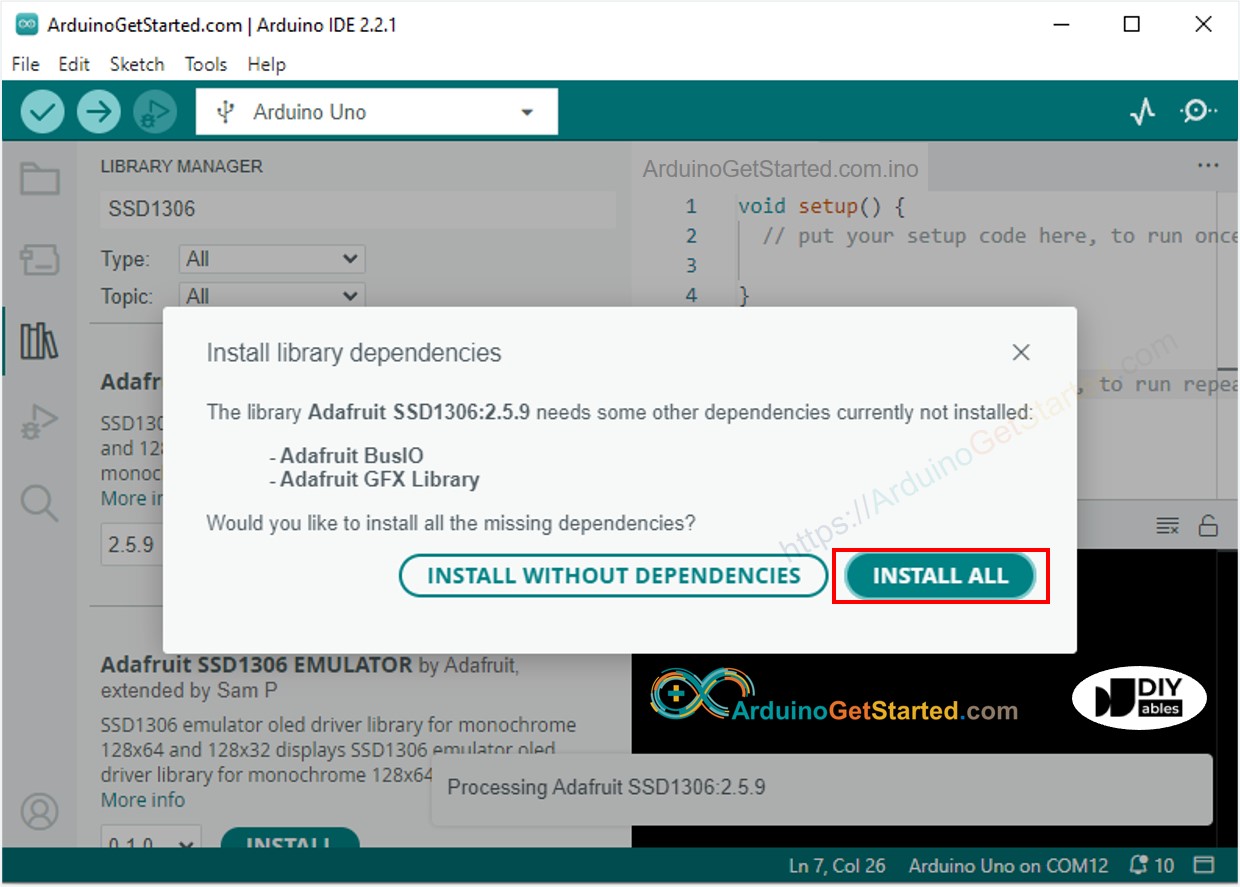
- Se le pedirá instalar algunas dependencias de otras bibliotecas.
- Haga clic en el botón Instalar todo para instalar todas las dependencias de la biblioteca.
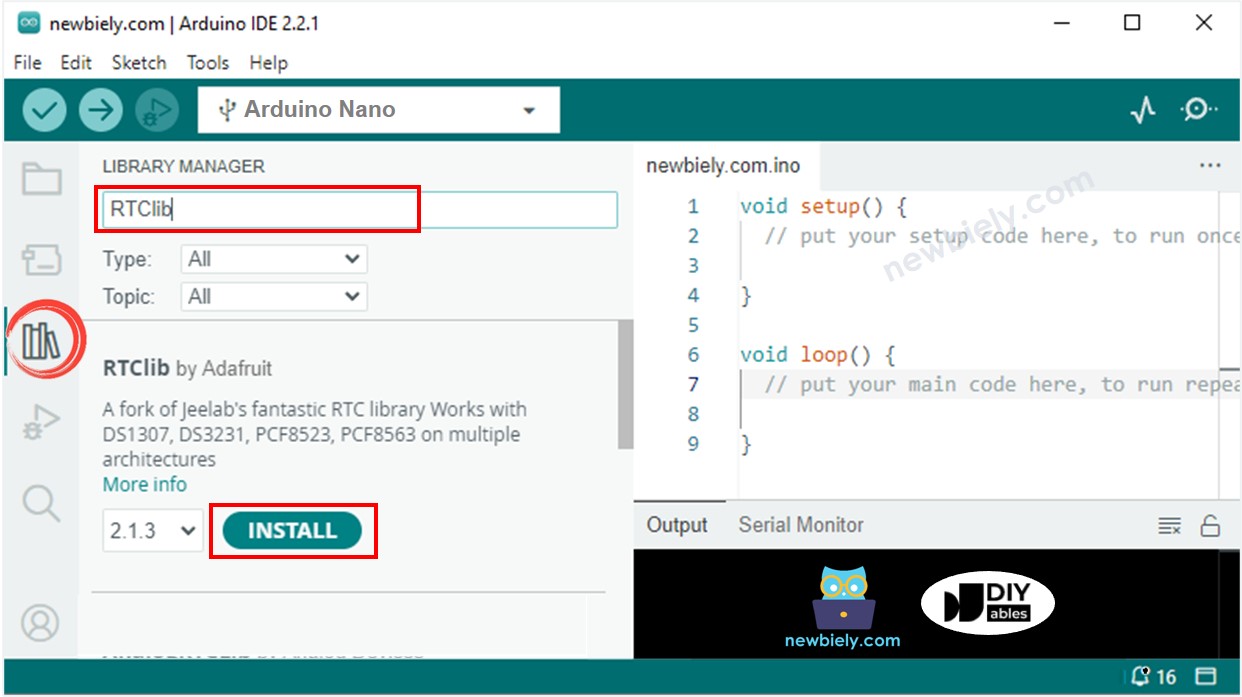
- Busca “RTClib”, luego encuentra la biblioteca RTC de Adafruit. Esta biblioteca funciona con ambos DS3231 y DS1307
- Haz clic en el botón Instalar para instalar la biblioteca RTC.
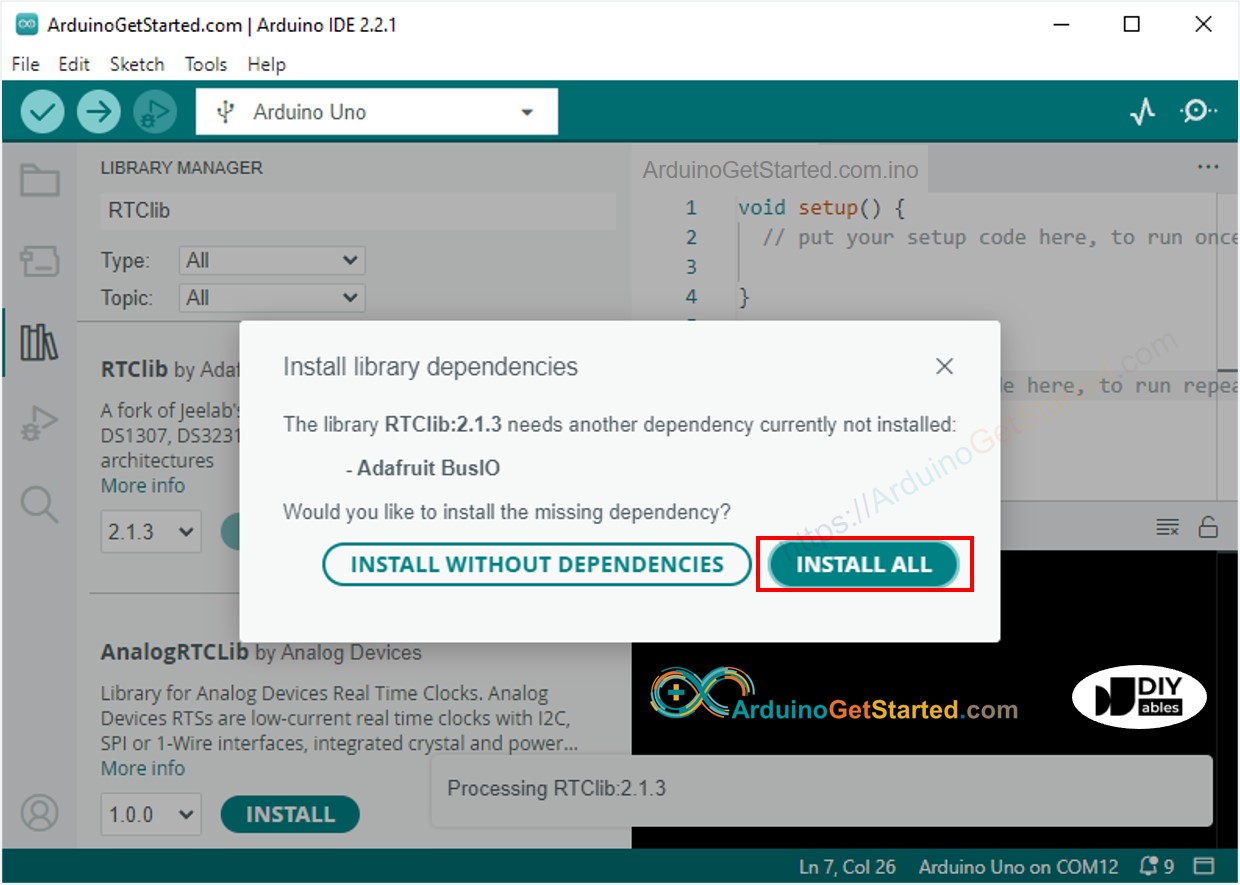
- Es posible que se le solicite instalar algunas dependencias de bibliotecas adicionales
- Haga clic en Instalar Todo para instalar todas las dependencias de las bibliotecas.
Lectura de la hora desde el módulo RTC DS3231 y mostrarla en la pantalla OLED
Diagrama de Cableado
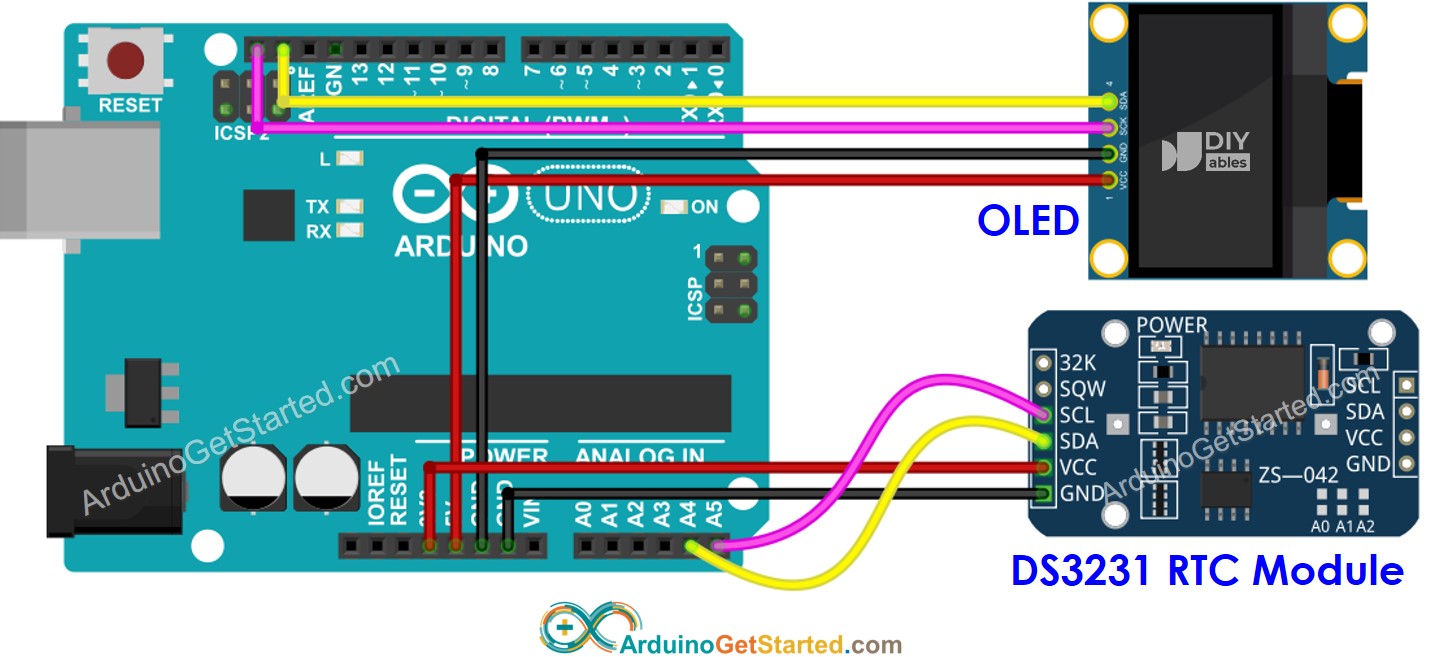
This image is created using Fritzing. Click to enlarge image
Código de Arduino - DS3231 y OLED
/*
* Este código de Arduino fue desarrollado por es.newbiely.com
* Este código de Arduino se proporciona al público sin ninguna restricción.
* Para tutoriales completos y diagramas de cableado, visite:
* https://es.newbiely.com/tutorials/arduino/arduino-oled-clock
*/
#include <Wire.h>
#include <Adafruit_GFX.h>
#include <Adafruit_SSD1306.h>
#include <RTClib.h>
#define SCREEN_WIDTH 128 // OLED display width, in pixels
#define SCREEN_HEIGHT 64 // OLED display height, in pixels
Adafruit_SSD1306 oled(SCREEN_WIDTH, SCREEN_HEIGHT, &Wire, -1); // // create SSD1306 display object connected to I2C
RTC_DS3231 rtc;
String time;
void setup() {
Serial.begin(9600);
// initialize OLED display with address 0x3C for 128x64
if (!oled.begin(SSD1306_SWITCHCAPVCC, 0x3C)) {
Serial.println(F("SSD1306 allocation failed"));
while (true);
}
delay(2000); // wait for initializing
oled.clearDisplay(); // clear display
oled.setTextSize(1); // text size
oled.setTextColor(WHITE); // text color
oled.setCursor(0, 10); // position to display
// SETUP RTC MODULE
if (! rtc.begin()) {
Serial.println("Couldn't find RTC");
Serial.flush();
while (true);
}
// automatically sets the RTC to the date & time on PC this sketch was compiled
rtc.adjust(DateTime(F(__DATE__), F(__TIME__)));
time.reserve(10); // to avoid fragmenting memory when using String
}
void loop() {
DateTime now = rtc.now();
time = "";
time += now.hour();
time += ':';
time += now.minute();
time += ':';
time += now.second();
oledDisplayCenter(time);
}
void oledDisplayCenter(String text) {
int16_t x1;
int16_t y1;
uint16_t width;
uint16_t height;
oled.getTextBounds(text, 0, 0, &x1, &y1, &width, &height);
// display on horizontal and vertical center
oled.clearDisplay(); // clear display
oled.setCursor((SCREEN_WIDTH - width) / 2, (SCREEN_HEIGHT - height) / 2);
oled.println(text); // text to display
oled.display();
}
Pasos R\u00e1pidos
- Copia el código anterior y ábrelo con Arduino IDE
- Haz clic en el botón Subir en Arduino IDE para subir el código a Arduino
- Ver el resultado en la pantalla OLED
Lectura de la hora desde el módulo RTC DS1307 y mostrarla en la pantalla OLED
Diagrama de cableado

This image is created using Fritzing. Click to enlarge image
Código de Arduino - DS1307 y OLED
/*
* Este código de Arduino fue desarrollado por es.newbiely.com
* Este código de Arduino se proporciona al público sin ninguna restricción.
* Para tutoriales completos y diagramas de cableado, visite:
* https://es.newbiely.com/tutorials/arduino/arduino-oled-clock
*/
#include <Wire.h>
#include <Adafruit_GFX.h>
#include <Adafruit_SSD1306.h>
#include <RTClib.h>
#define SCREEN_WIDTH 128 // OLED display width, in pixels
#define SCREEN_HEIGHT 64 // OLED display height, in pixels
Adafruit_SSD1306 oled(SCREEN_WIDTH, SCREEN_HEIGHT, &Wire, -1); // // create SSD1306 display object connected to I2C
RTC_DS1307 rtc;
String time;
void setup() {
Serial.begin(9600);
// initialize OLED display with address 0x3C for 128x64
if (!oled.begin(SSD1306_SWITCHCAPVCC, 0x3C)) {
Serial.println(F("SSD1306 allocation failed"));
while (true);
}
delay(2000); // wait for initializing
oled.clearDisplay(); // clear display
oled.setTextSize(1); // text size
oled.setTextColor(WHITE); // text color
oled.setCursor(0, 10); // position to display
// SETUP RTC MODULE
if (! rtc.begin()) {
Serial.println("Couldn't find RTC");
Serial.flush();
while (true);
}
// automatically sets the RTC to the date & time on PC this sketch was compiled
rtc.adjust(DateTime(F(__DATE__), F(__TIME__)));
time.reserve(10); // to avoid fragmenting memory when using String
}
void loop() {
DateTime now = rtc.now();
time = "";
time += now.hour();
time += ':';
time += now.minute();
time += ':';
time += now.second();
oledDisplayCenter(time);
}
void oledDisplayCenter(String text) {
int16_t x1;
int16_t y1;
uint16_t width;
uint16_t height;
oled.getTextBounds(text, 0, 0, &x1, &y1, &width, &height);
// display on horizontal and vertical center
oled.clearDisplay(); // clear display
oled.setCursor((SCREEN_WIDTH - width) / 2, (SCREEN_HEIGHT - height) / 2);
oled.println(text); // text to display
oled.display();
}
Pasos R\u00e1pidos
- Copiar el código anterior y abrirlo con el IDE de Arduino
- Haz clic en el botón Subir en el IDE de Arduino para cargar el código al Arduino
- Ver el resultado en la pantalla OLED
Video Tutorial
Estamos considerando crear tutoriales en video. Si considera que los tutoriales en video son importantes, suscríbase a nuestro canal de YouTube para motivarnos a crear los videos.