Arduino - DHT22 - OLED

En este tutorial, vamos a aprender cómo leer la temperatura y la humedad del módulo DHT22 y mostrarlas en una pantalla OLED.

Acerca de la pantalla OLED, sensor de temperatura y humedad DHT22

Si no sabes nada sobre la pantalla OLED y el sensor de temperatura y humedad DHT22 (disposición de pines, cómo funciona, cómo programar ...), apréndelos en los siguientes tutoriales:

Diagrama de Cableado

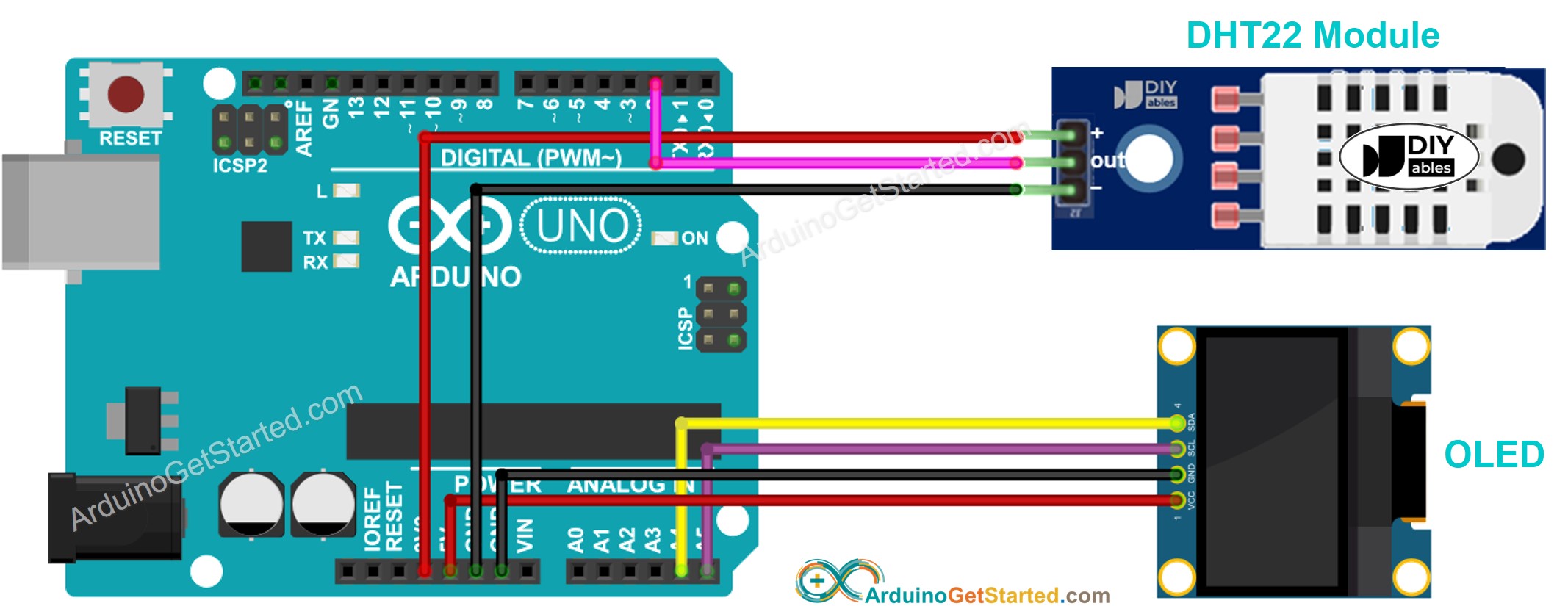
Diagrama de cableado del módulo OLED para Arduino DHT22

This image is created using Fritzing. Click to enlarge image

Código de Arduino - Sensor DHT22 - OLED

/* * Este código de Arduino fue desarrollado por es.newbiely.com * Este código de Arduino se proporciona al público sin ninguna restricción. * Para tutoriales completos y diagramas de cableado, visite: * https://es.newbiely.com/tutorials/arduino/arduino-dht22-oled */ #include <Wire.h> #include <Adafruit_GFX.h> #include <Adafruit_SSD1306.h> #include <DHT.h> #define SCREEN_WIDTH 128 // OLED display width, in pixels #define SCREEN_HEIGHT 64 // OLED display height, in pixels #define DHT22_PIN 2 // pin connected to DHT22 sensor Adafruit_SSD1306 oled(SCREEN_WIDTH, SCREEN_HEIGHT, &Wire, -1); // create SSD1306 display object connected to I2C DHT dht22(DHT22_PIN, DHT22); String temperature; String humidity; void setup() { Serial.begin(9600); // initialize OLED display with address 0x3C for 128x64 if (!oled.begin(SSD1306_SWITCHCAPVCC, 0x3C)) { Serial.println(F("SSD1306 allocation failed")); while (true); } delay(2000); // wait for initializing oled.clearDisplay(); // clear display oled.setTextSize(3); // text size oled.setTextColor(WHITE); // text color oled.setCursor(0, 10); // position to display dht22.begin(); // initialize DHT22 the temperature and humidity sensor temperature.reserve(10); // to avoid fragmenting memory when using String humidity.reserve(10); // to avoid fragmenting memory when using String } void loop() { float humi = dht22.readHumidity(); // read humidity float tempC = dht22.readTemperature(); // read temperature // check if any reads failed if (isnan(humi) || isnan(tempC)) { temperature = "Failed"; humidity = "Failed"; } else { temperature = String(tempC, 1); // one decimal places temperature += char (247); // degree character temperature += "C"; humidity = String(humi, 1); // one decimal places humidity += "%"; Serial.print(tempC); // print to Serial Monitor Serial.print("°C | " ); // print to Serial Monitor Serial.print(humi); // print to Serial Monitor Serial.println("%"); // print to Serial Monitor } oledDisplayCenter(temperature, humidity); // display temperature and humidity on OLED } void oledDisplayCenter(String temperature, String humidity) { int16_t x1; int16_t y1; uint16_t width_T; uint16_t height_T; uint16_t width_H; uint16_t height_H; oled.getTextBounds(temperature, 0, 0, &x1, &y1, &width_T, &height_T); oled.getTextBounds(temperature, 0, 0, &x1, &y1, &width_H, &height_H); // display on horizontal and vertical center oled.clearDisplay(); // clear display oled.setCursor((SCREEN_WIDTH - width_T) / 2, SCREEN_HEIGHT/2 - height_T - 5); oled.println(temperature); // text to display oled.setCursor((SCREEN_WIDTH - width_H) / 2, SCREEN_HEIGHT/2 + 5); oled.println(humidity); // text to display oled.display(); }

Pasos R\u00e1pidos

  • Abre el IDE de Arduino en tu PC.
  • Navega al icono de Bibliotecas en la barra izquierda del IDE de Arduino.
  • Busca “SSD1306”, luego encuentra la biblioteca SSD1306 de Adafruit
  • Haz clic en el botón Instalar para instalar la biblioteca.
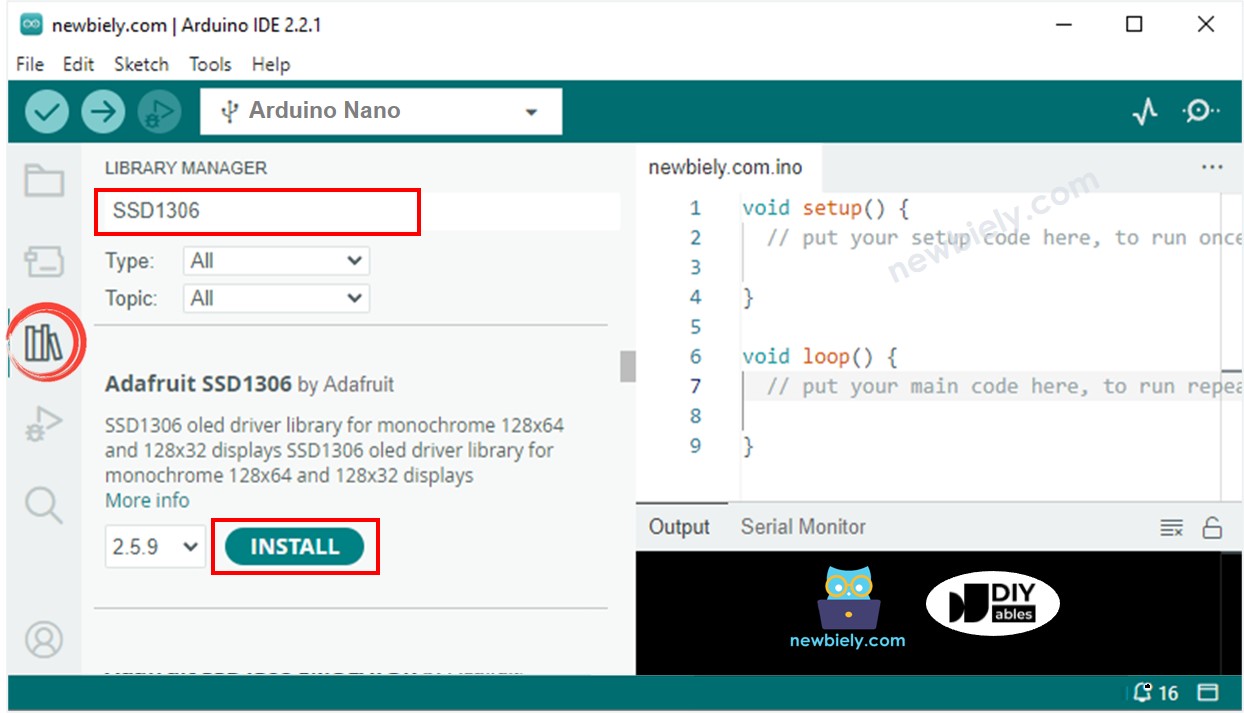
Biblioteca OLED para Arduino
  • Se le pedirá que instale algunas otras dependencias de bibliotecas.
  • Haga clic en el botón Instalar Todo para instalar todas las dependencias de la biblioteca.
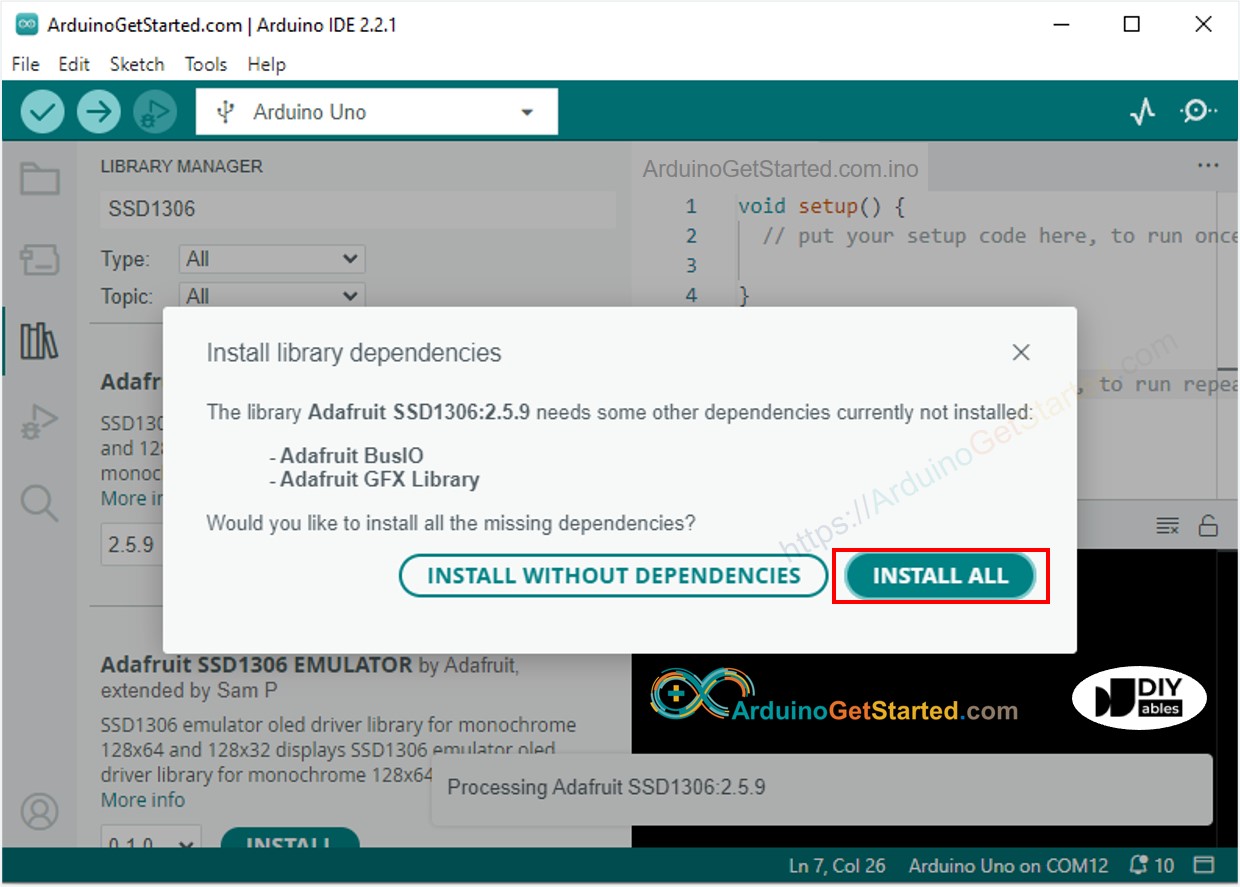
Librería de sensores de Arduino Adafruit GFX
  • Buscar “DHT”, luego encuentra la biblioteca de sensores DHT de Adafruit
  • Haz clic en el botón Instalar para instalar la biblioteca.
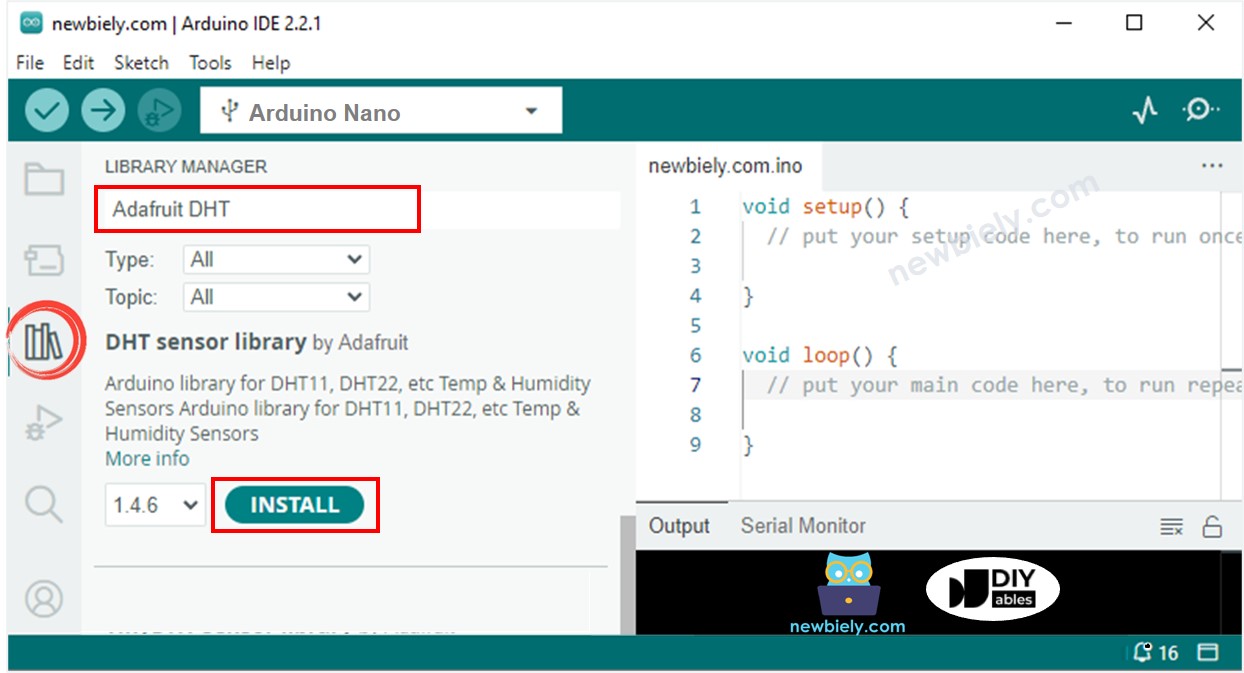
Biblioteca de sensores DHT para Arduino
  • Se le pedirá que instale algunas dependencias de otras bibliotecas.
  • Haga clic en el botón Instalar todo para instalar todas las dependencias de la biblioteca.
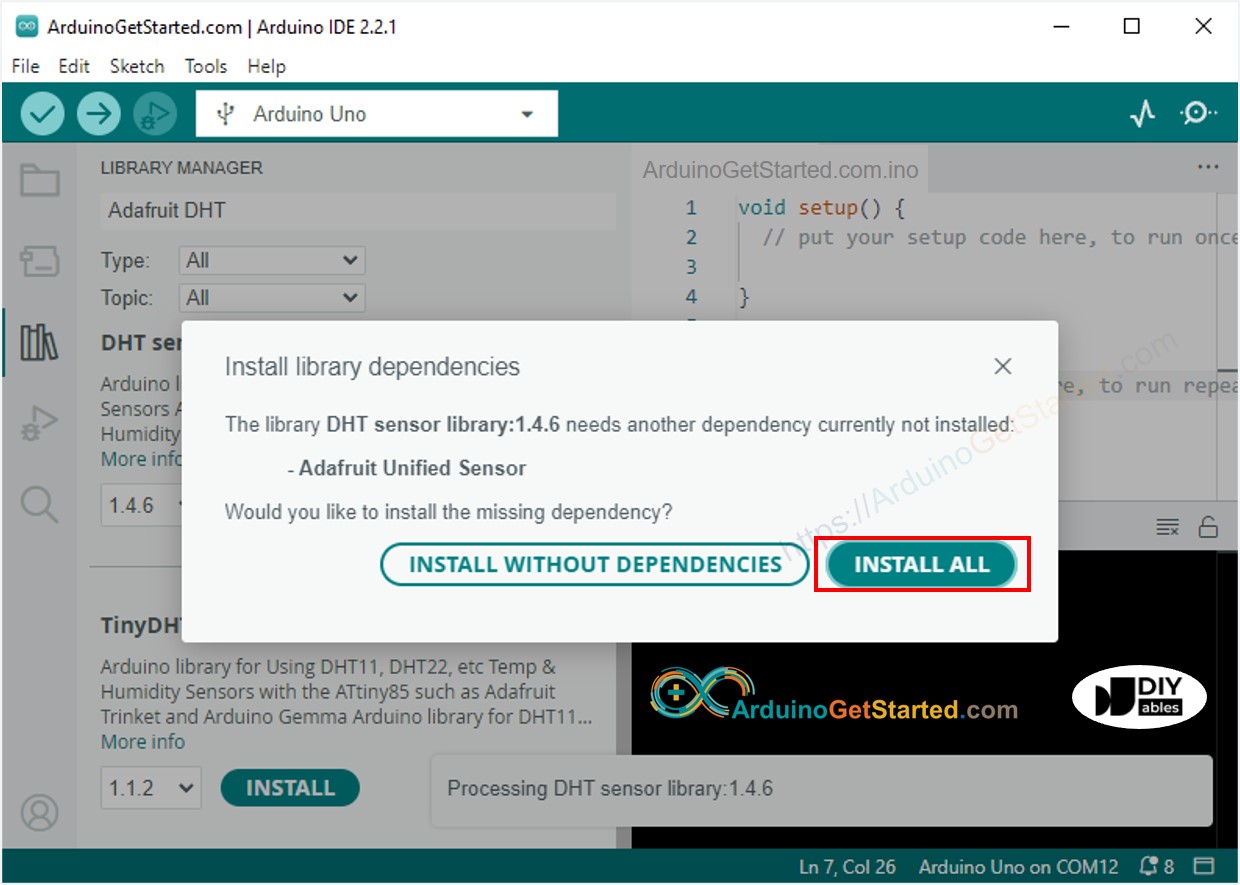
Biblioteca de sensores unificados de Adafruit para Arduino
  • Copia el código anterior y ábrelo con Arduino IDE
  • Haz clic en el botón Subir en Arduino IDE para subir el código a Arduino
  • Coloca el sensor en agua caliente y fría, o sujétalo con tu mano
  • Mira el resultado en el OLED y en el Monitor Serial

※ Nota:

El código About alinea automáticamente el texto horizontal y verticalmente en la pantalla OLED.

Video Tutorial

Estamos considerando crear tutoriales en video. Si considera que los tutoriales en video son importantes, suscríbase a nuestro canal de YouTube para motivarnos a crear los videos.

※ NUESTROS MENSAJES

  • No dude en compartir el enlace de este tutorial. Sin embargo, por favor no use nuestro contenido en otros sitios web. Hemos invertido mucho esfuerzo y tiempo en crear el contenido, ¡por favor respete nuestro trabajo!