Arduino - Ethernet
Este tutorial te muestra cómo usar Arduino y el módulo Ethernet para conectarte a Internet o a tu red LAN. Esto es lo que vamos a cubrir:
- Conectar el Arduino a un módulo Ethernet W5500
- Programar el Arduino para enviar solicitudes HTTP a través de Ethernet
- Programar el Arduino para crear un servidor web a través de Ethernet
Hardware Requerido
Or you can buy the following kits:
| 1 | × | DIYables STEM V3 Starter Kit (Arduino included) | |
| 1 | × | DIYables Sensor Kit (18 sensors/displays) |
Divulgación: Algunos de los enlaces proporcionados en esta sección son enlaces de afiliado de Amazon. Podemos recibir una comisión por las compras realizadas a través de estos enlaces sin costo adicional para usted. Apreciamos su apoyo.
Acerca del módulo Ethernet W5500
El módulo Ethernet W5500 tiene dos formas de conectarse:
- Interfaz Ethernet RJ45: Utilice un cable Ethernet para conectar a un enrutador o conmutador.
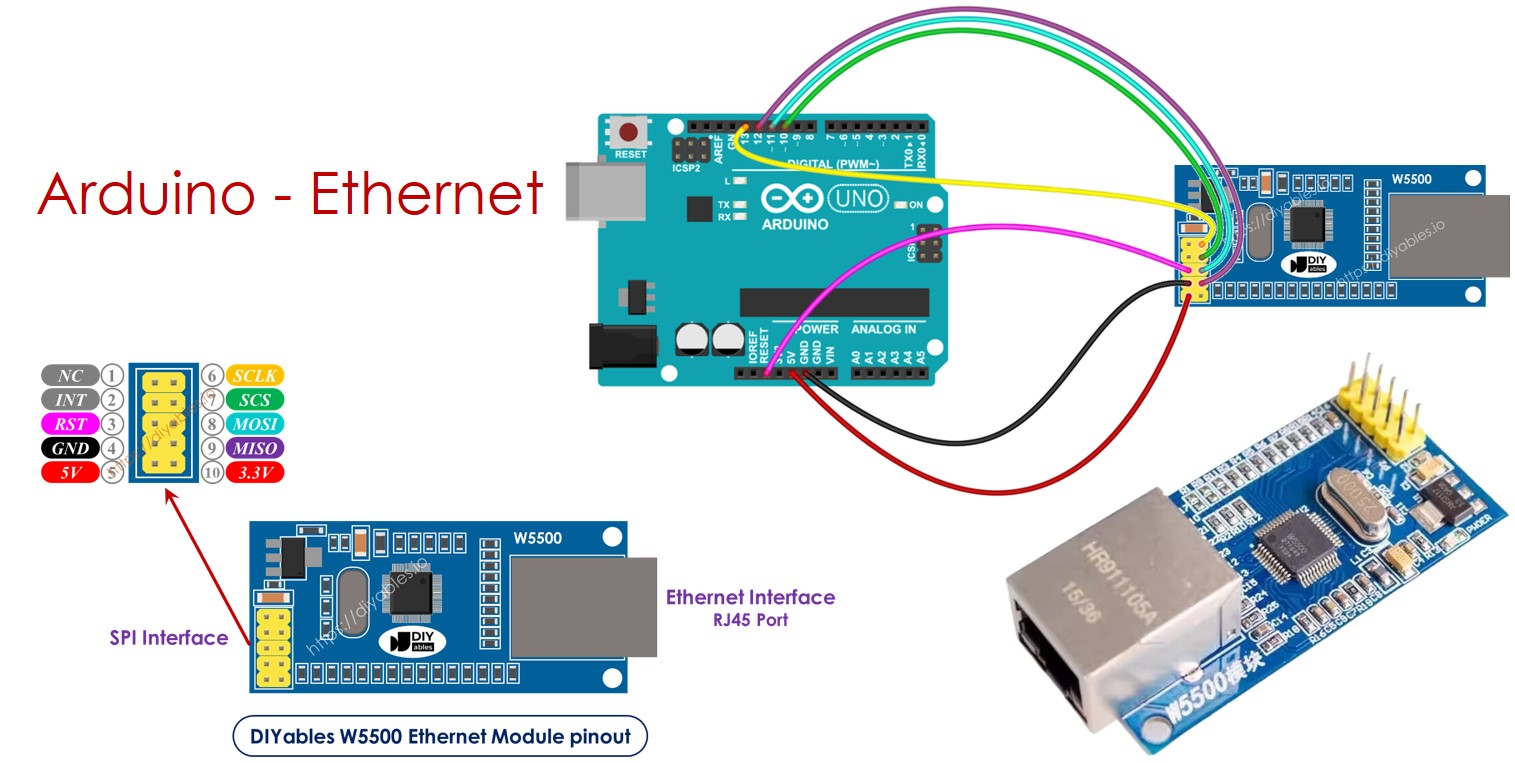
- Interfaz SPI: Utilice esto para conectar a una placa Arduino. Tiene 10 pines. Estos pines deben conectarse a Arduino según la tabla que se muestra a continuación:
| Ethenet Module Pins | Arduino Pins |
|---|---|
| NC pin | NOT connected |
| INT pin | NOT connected |
| RST pin | Reset pin |
| GND pin | GND pin |
| 5V pin | 5V pin |
| 3.3V pin | NOT connected |
| MISO pin | 12 (MISO) |
| MOSI pin | 11 (MOSI) |
| SCS pin | 10 (SS) |
| SCLK pin | 13 (SCK) |
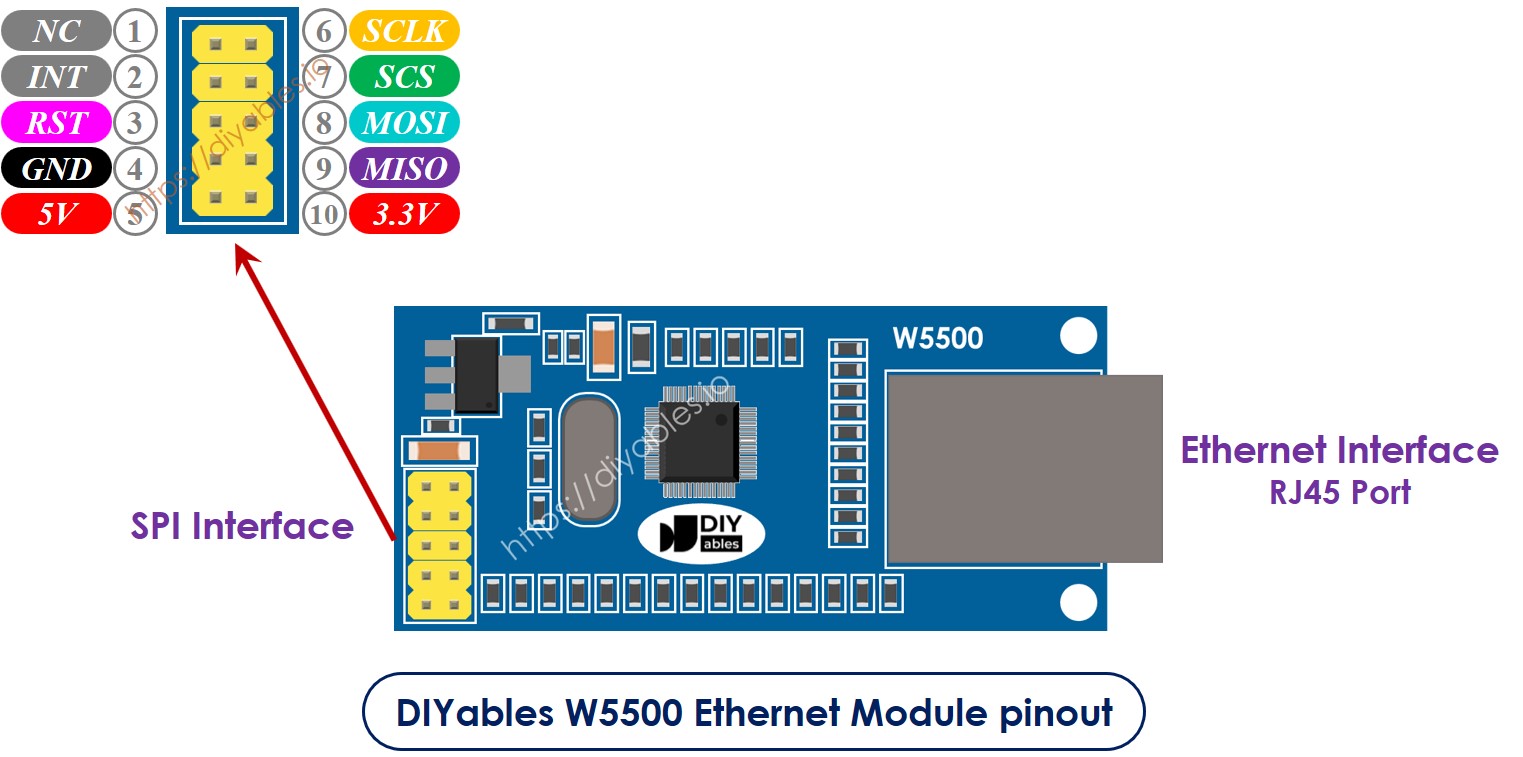
image source: diyables.io
Diagrama de cableado entre Arduino y el módulo Ethernet W5500
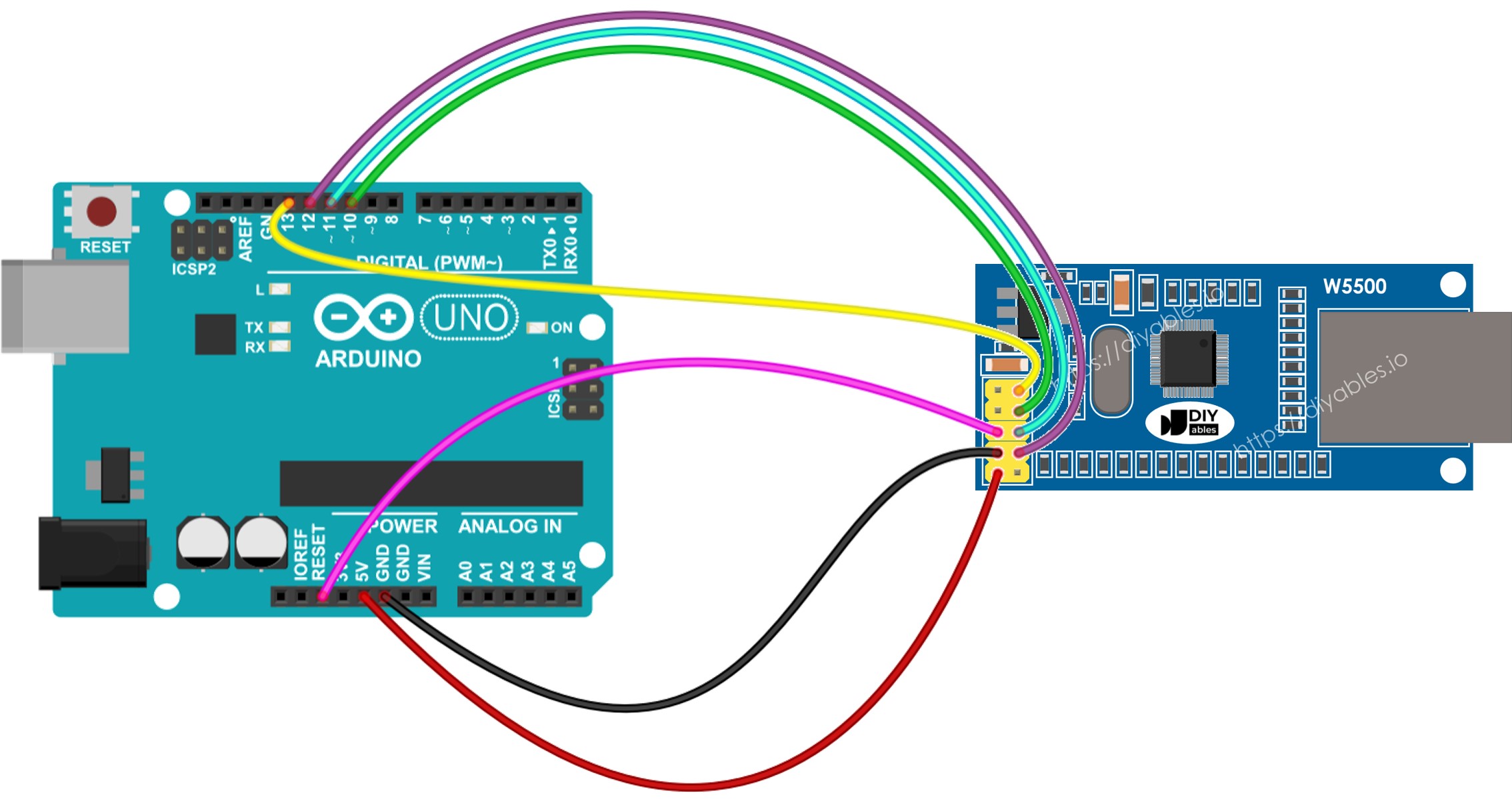
This image is created using Fritzing. Click to enlarge image
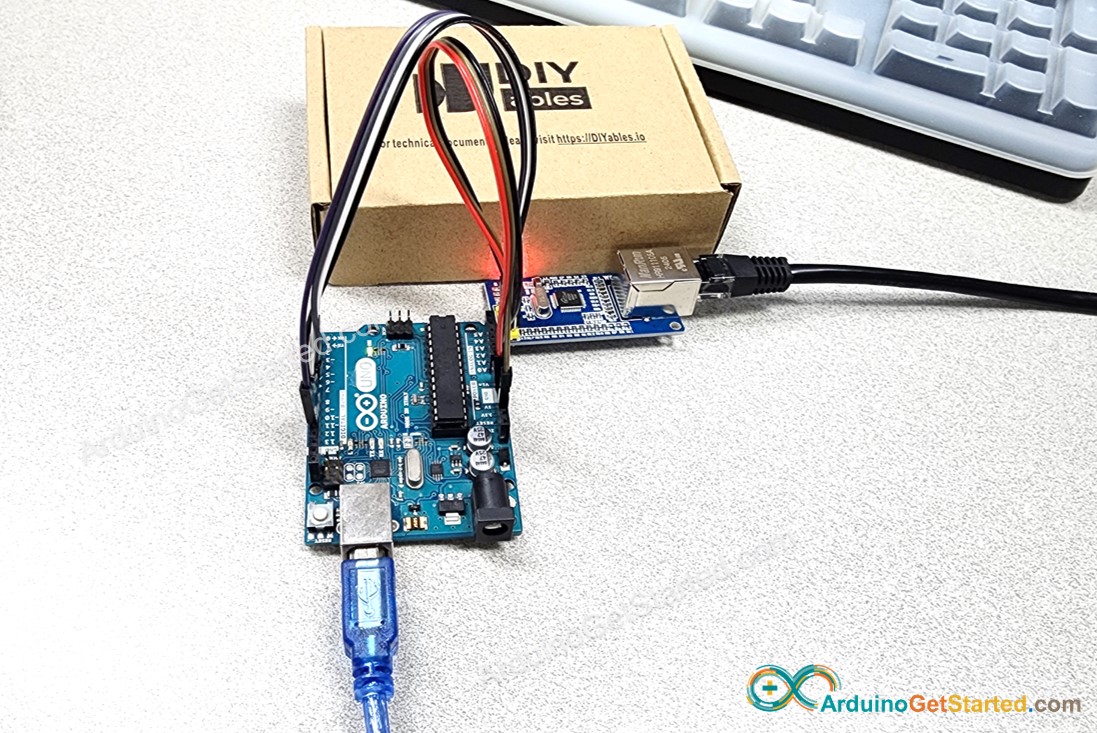
Lo siguiente es la conexión real entre Arduino y el módulo Ethernet W5500.
Código de Arduino para el módulo Ethernet - Realizar una solicitud HTTP a través de Ethernet
Este código actúa como un cliente web. Envía solicitudes HTTP al servidor web ubicado en http://example.com/.
/*
* Este código de Arduino fue desarrollado por es.newbiely.com
* Este código de Arduino se proporciona al público sin ninguna restricción.
* Para tutoriales completos y diagramas de cableado, visite:
* https://es.newbiely.com/tutorials/arduino/arduino-ethernet-module
*/
#include <SPI.h>
#include <Ethernet.h>
// replace the MAC address below by the MAC address printed on a sticker on the Arduino Shield 2
byte mac[] = { 0xDE, 0xAD, 0xBE, 0xEF, 0xFE, 0xED };
EthernetClient client;
int HTTP_PORT = 80;
String HTTP_METHOD = "GET"; // or POST
char HOST_NAME[] = "example.com";
String PATH_NAME = "/";
void setup() {
Serial.begin(9600);
delay(1000);
Serial.println("Arduino - Ethernet Tutorial");
// initialize the Ethernet shield using DHCP:
if (Ethernet.begin(mac) == 0) {
Serial.println("Failed to obtaining an IP address");
// check for Ethernet hardware present
if (Ethernet.hardwareStatus() == EthernetNoHardware)
Serial.println("Ethernet shield was not found");
// check for Ethernet cable
if (Ethernet.linkStatus() == LinkOFF)
Serial.println("Ethernet cable is not connected.");
while (true)
;
}
// connect to web server on port 80:
if (client.connect(HOST_NAME, HTTP_PORT)) {
// if connected:
Serial.println("Connected to server");
// make a HTTP request:
// send HTTP header
client.println(HTTP_METHOD + " " + PATH_NAME + " HTTP/1.1");
client.println("Host: " + String(HOST_NAME));
client.println("Connection: close");
client.println(); // end HTTP header
while (client.connected()) {
if (client.available()) {
// read an incoming byte from the server and print it to serial monitor:
char c = client.read();
Serial.print(c);
}
}
// the server's disconnected, stop the client:
client.stop();
Serial.println();
Serial.println("disconnected");
} else { // if not connected:
Serial.println("connection failed");
}
}
void loop() {
}
Pasos R\u00e1pidos
Por favor, siga estos pasos uno por uno:
- Conecta el módulo Ethernet a tu Arduino tal como se muestra en el diagrama proporcionado.
- Utiliza un cable Ethernet para conectar el módulo Ethernet a tu router o conmutador.
- Utiliza un cable USB para conectar la placa Arduino a tu computadora.
- Abre el IDE de Arduino en tu ordenador.
- Selecciona la placa de Arduino correcta y el puerto COM.
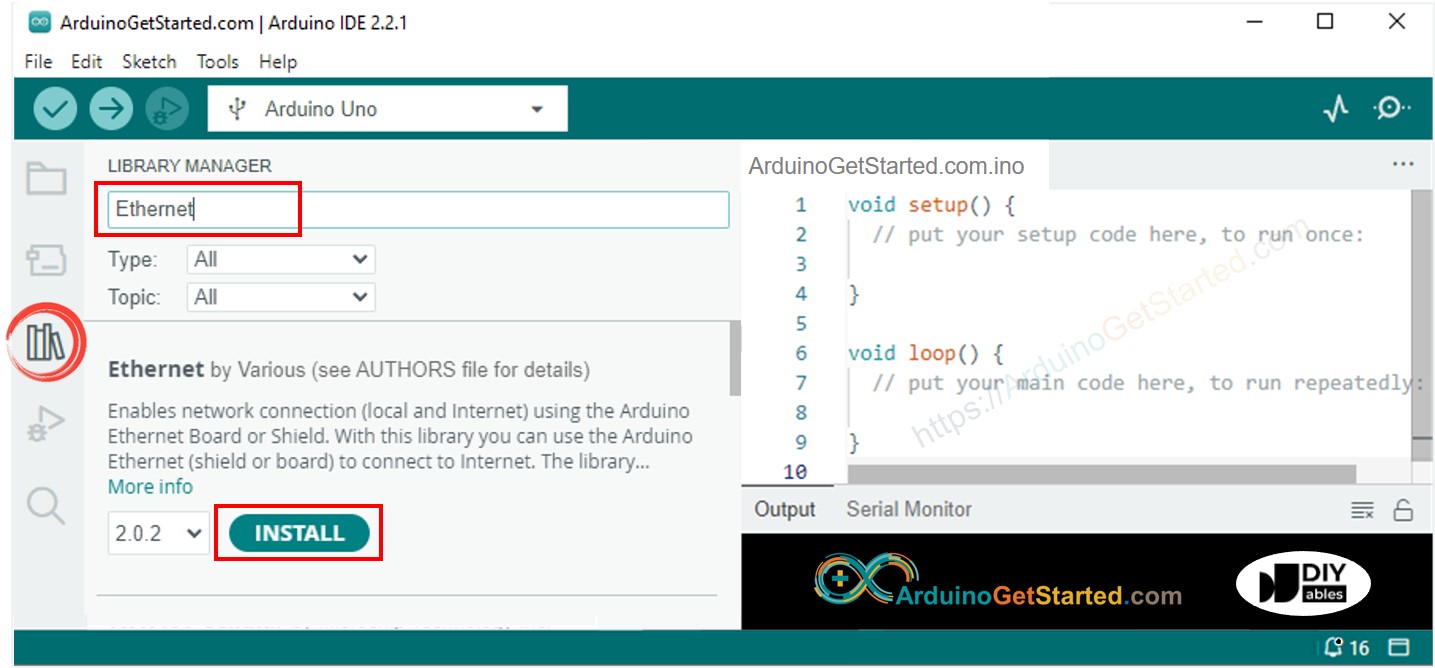
- Haz clic en el icono de Bibliotecas en el lado izquierdo del IDE de Arduino.
- En el cuadro de búsqueda, escribe “Ethernet” y encuentra la biblioteca Ethernet de Various.
- Haz clic en el botón Instalar para agregar la biblioteca Ethernet.
- Abre el Monitor Serial en el IDE de Arduino.
- Copia el código proporcionado y pégalo en el IDE de Arduino.
- Haz clic en el botón Subir en el IDE de Arduino para transferir el código al Arduino.
- Consulta el Monitor Serial, donde los resultados se muestran a continuación.
8
Serial.println("Hello World!");
Message (Enter to send message to 'Arduino Uno' on 'COM15')
New Line
9600 baud
Arduino - Ethernet Tutorial
Connected to server
HTTP/1.1 200 OK
Accept-Ranges: bytes
Age: 208425
Cache-Control: max-age=604800
Content-Type: text/html; charset=UTF-8
Date: Fri, 12 Jul 2024 07:08:42 GMT
Etag: "3147526947"
Expires: Fri, 19 Jul 2024 07:08:42 GMT
Last-Modified: Thu, 17 Oct 2019 07:18:26 GMT
Server: ECAcc (lac/55B8)
Vary: Accept-Encoding
X-Cache: HIT
Content-Length: 1256
Connection: close
<!doctype html>
<html>
<head>
<title>Example Domain</title>
<meta charset="utf-8" />
<meta http-equiv="Content-type" content="text/html; charset=utf-8" />
<meta name="viewport" content="width=device-width, initial-scale=1" />
</head>
<body>
<div>
<h1>Example Domain</h1>
<p>This domain is for use in illustrative examples in documents. You may use this
domain in literature without prior coordination or asking for permission.</p>
<p><a href="https://www.iana.org/domains/example">More information...</a></p>
</div>
</body>
</html>
disconnected
※ Nota:
Si otro dispositivo en la misma red comparte tu dirección MAC, podrían surgir problemas.
Código de Arduino para el módulo Ethernet - Servidor web
El código que se muestra abajo crea un servidor web en Arduino. Este servidor web envía una página web simple a los navegadores web.
/*
* Este código de Arduino fue desarrollado por es.newbiely.com
* Este código de Arduino se proporciona al público sin ninguna restricción.
* Para tutoriales completos y diagramas de cableado, visite:
* https://es.newbiely.com/tutorials/arduino/arduino-ethernet-module
*/
#include <SPI.h>
#include <Ethernet.h>
// replace the MAC address below by the MAC address printed on a sticker on the Arduino Shield 2
byte mac[] = { 0xDE, 0xAD, 0xBE, 0xEF, 0xFE, 0xED };
EthernetServer server(80);
void setup() {
Serial.begin(9600);
delay(1000);
Serial.println("Arduino - Ethernet Tutorial");
// initialize the Ethernet shield using DHCP:
if (Ethernet.begin(mac) == 0) {
Serial.println("Failed to obtaining an IP address");
// check for Ethernet hardware present
if (Ethernet.hardwareStatus() == EthernetNoHardware)
Serial.println("Ethernet shield was not found");
// check for Ethernet cable
if (Ethernet.linkStatus() == LinkOFF)
Serial.println("Ethernet cable is not connected.");
while (true)
;
}
server.begin();
Serial.print("Arduino - Web Server IP Address: ");
Serial.println(Ethernet.localIP());
}
void loop() {
// listen for incoming clients
EthernetClient client = server.available();
if (client) {
Serial.println("new client");
// an HTTP request ends with a blank line
bool currentLineIsBlank = true;
while (client.connected()) {
if (client.available()) {
char c = client.read();
Serial.write(c);
// if you've gotten to the end of the line (received a newline
// character) and the line is blank, the HTTP request has ended,
// so you can send a reply
if (c == '\n' && currentLineIsBlank) {
// send a standard HTTP response header
client.println("HTTP/1.1 200 OK");
client.println("Content-Type: text/html");
client.println("Connection: close"); // the connection will be closed after completion of the response
client.println();
client.println("<!DOCTYPE HTML>");
client.println("<html>");
client.println("<body>");
client.println("<h1>Arduino - Web Server with Ethernet</h1>");
client.println("</body>");
client.println("</html>");
break;
}
if (c == '\n') {
// you're starting a new line
currentLineIsBlank = true;
} else if (c != '\r') {
// you've gotten a character on the current line
currentLineIsBlank = false;
}
}
}
// give the web browser time to receive the data
delay(1);
// close the connection:
client.stop();
Serial.println("client disconnected");
}
}
Pasos R\u00e1pidos
- Copie el código anterior y péguelo en el IDE de Arduino.
- Haga clic en el Subir botón en el IDE de Arduino para subir el código al Arduino.
- Verifique el resultado en el Monitor Serial; se mostrará como sigue:
8
Serial.println("Hello World!");
Message (Enter to send message to 'Arduino Uno' on 'COM15')
New Line
9600 baud
Arduino - Ethernet Tutorial
Arduino - Web Server IP Address: 192.168.0.2
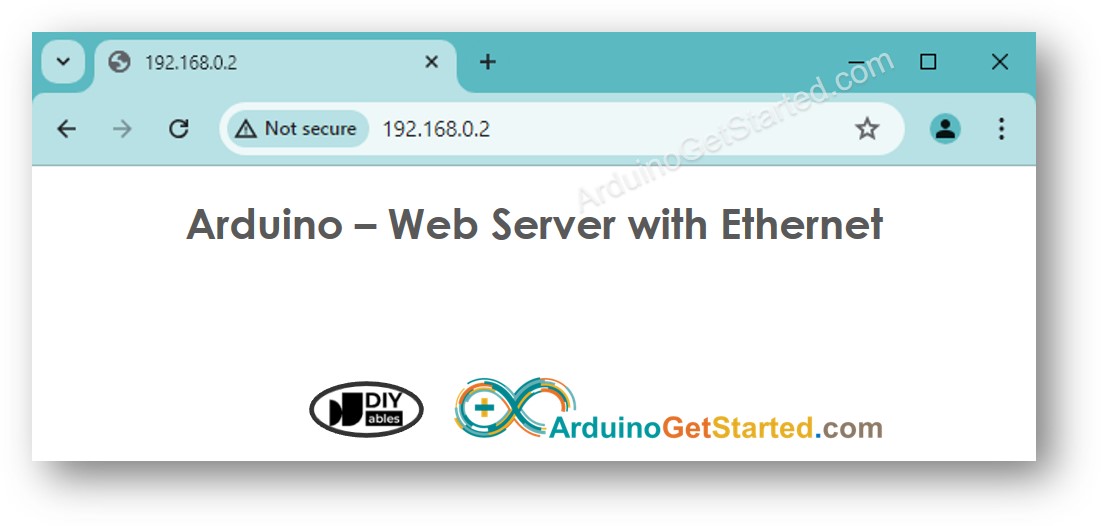
- Copie la dirección IP mencionada arriba y péguela en la barra de direcciones de su navegador. Verá una página web simple del Arduino.