Arduino - Sensor de movimiento - zumbador piezoeléctrico
Vamos a aprender cómo usar Arduino para controlar el zumbador piezoeléctrico cuando se detecta el movimiento por el sensor de movimiento HC-SR501. En detalle:
Si se detecta movimiento, emite sonido
Si no se detecta movimiento, deja de emitir sonido
Si se detecta movimiento, crea una melodía de la canción
Or you can buy the following kits:
Divulgación: Algunos de los enlaces proporcionados en esta sección son enlaces de afiliado de Amazon. Podemos recibir una comisión por las compras realizadas a través de estos enlaces sin costo adicional para usted. Apreciamos su apoyo.
Si no conoces el zumbador piezoeléctrico y el sensor de movimiento (disposición de pines, cómo funciona, cómo programarlo...), aprende sobre ellos en los siguientes tutoriales:
Por favor, tenga en cuenta que este tutorial utiliza un zumbador de 3-5V, pero puede adaptarlo a un zumbador de 12V. Puede aprender sobre Tutorial de Arduino - Zumbador
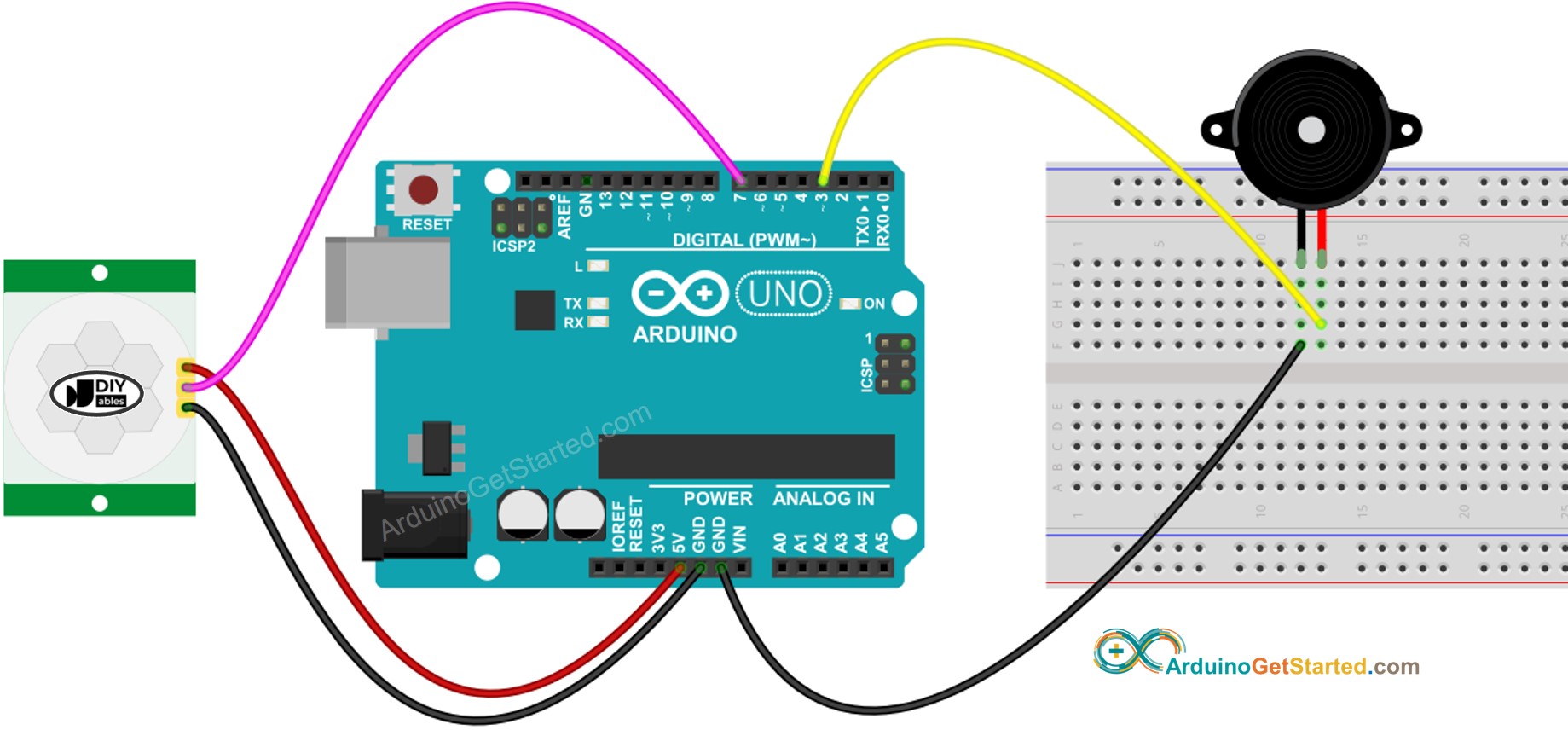
This image is created using Fritzing. Click to enlarge image
| |
|---|
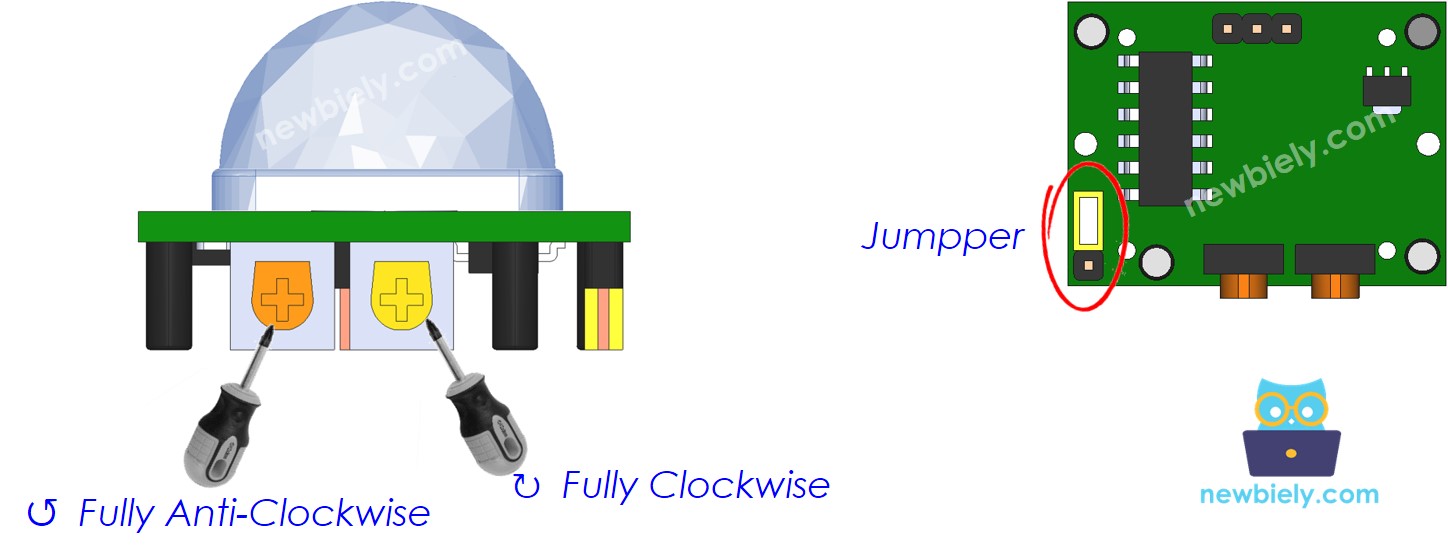
| Time Delay Adjuster | Screw it in anti-clockwise direction fully. |
| Detection Range Adjuster | Screw it in clockwise direction fully. |
| Repeat Trigger Selector | Put jumper as shown on the image. |
const int MOTION_SENSOR_PIN = 7;
const int BUZZER_PIN = 3;
int motionStateCurrent = LOW;
int motionStatePrevious = LOW;
void setup() {
Serial.begin(9600);
pinMode(MOTION_SENSOR_PIN, INPUT);
pinMode(BUZZER_PIN, OUTPUT);
}
void loop() {
motionStatePrevious = motionStateCurrent;
motionStateCurrent = digitalRead(MOTION_SENSOR_PIN);
if (motionStatePrevious == LOW && motionStateCurrent == HIGH) {
Serial.println("Motion detected!");
digitalWrite(BUZZER_PIN, HIGH);
}
else
if (motionStatePrevious == HIGH && motionStateCurrent == LOW) {
Serial.println("Motion stopped!");
digitalWrite(BUZZER_PIN, LOW);
}
}
Conecta Arduino al PC mediante un cable USB
Abre Arduino IDE, selecciona la placa y el puerto correctos
Copia el código de arriba y ábrelo con Arduino IDE
Haz clic en el botón Subir en Arduino IDE para subir el código al Arduino
Mueve tu mano frente al sensor
Escucha el sonido del zumbador piezoeléctrico
Lee la explicación línea por línea en las líneas de comentario del código fuente.
#include "pitches.h"
const int MOTION_SENSOR_PIN = 7;
const int BUZZER_PIN = 8;
int melody[] = {
NOTE_E5, NOTE_E5, NOTE_E5,
NOTE_E5, NOTE_E5, NOTE_E5,
NOTE_E5, NOTE_G5, NOTE_C5, NOTE_D5,
NOTE_E5,
NOTE_F5, NOTE_F5, NOTE_F5, NOTE_F5,
NOTE_F5, NOTE_E5, NOTE_E5, NOTE_E5, NOTE_E5,
NOTE_E5, NOTE_D5, NOTE_D5, NOTE_E5,
NOTE_D5, NOTE_G5
};
int noteDurations[] = {
8, 8, 4,
8, 8, 4,
8, 8, 8, 8,
2,
8, 8, 8, 8,
8, 8, 8, 16, 16,
8, 8, 8, 8,
4, 4
};
void setup() {
Serial.begin(9600);
pinMode(MOTION_SENSOR_PIN, INPUT);
}
void loop() {
int motionState = digitalRead(MOTION_SENSOR_PIN);
if (motionState == HIGH) {
Serial.println("The motion is detected");
buzzer();
}
}
void buzzer() {
int size = sizeof(noteDurations) / sizeof(int);
for (int thisNote = 0; thisNote < size; thisNote++) {
int noteDuration = 1000 / noteDurations[thisNote];
tone(BUZZER_PIN, melody[thisNote], noteDuration);
int pauseBetweenNotes = noteDuration * 1.30;
delay(pauseBetweenNotes);
noTone(BUZZER_PIN);
}
}
Copia el código anterior y ábrelo con el IDE de Arduino
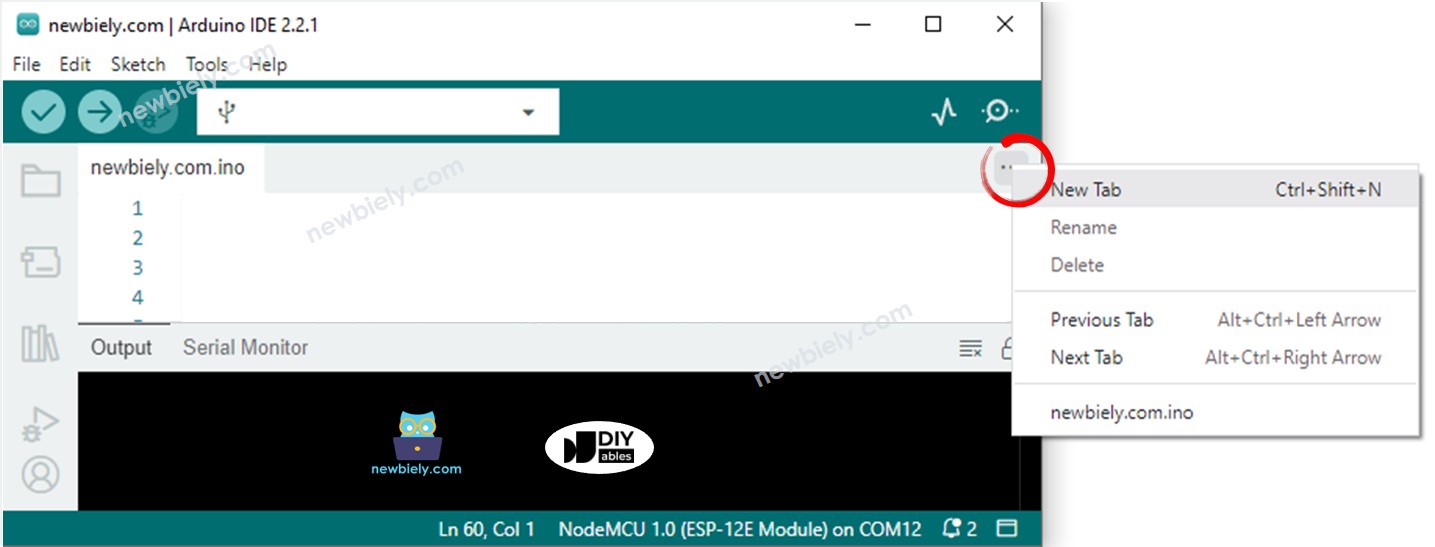
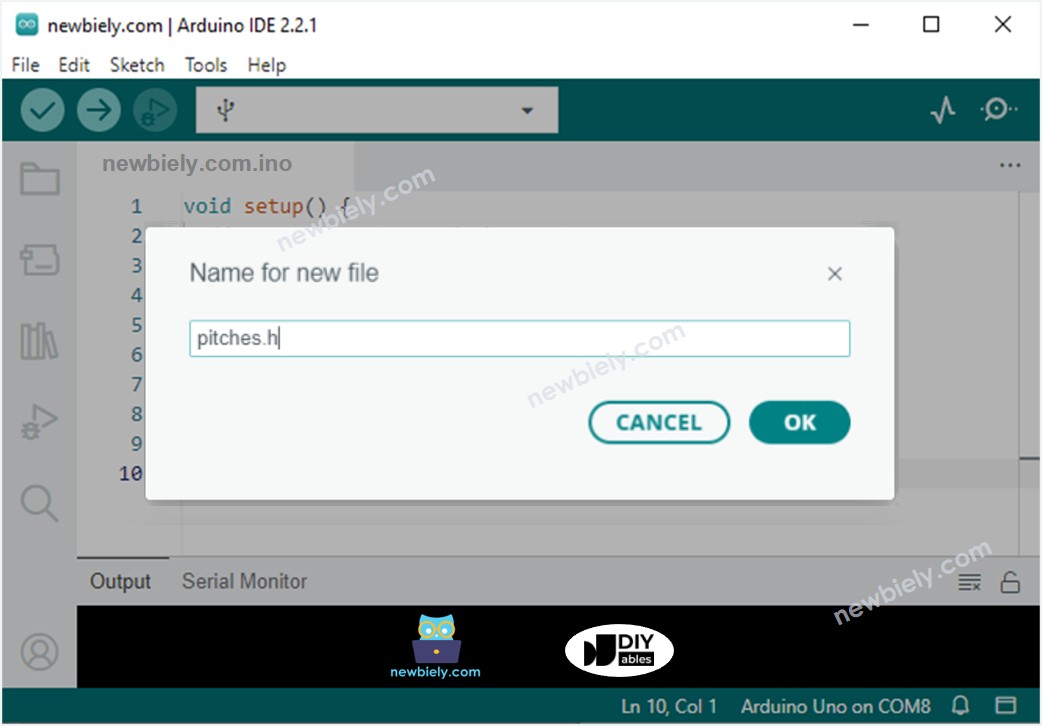
Crea el archivo pitches.h en el IDE de Arduino haciendo:
#define NOTE_B0 31
#define NOTE_C1 33
#define NOTE_CS1 35
#define NOTE_D1 37
#define NOTE_DS1 39
#define NOTE_E1 41
#define NOTE_F1 44
#define NOTE_FS1 46
#define NOTE_G1 49
#define NOTE_GS1 52
#define NOTE_A1 55
#define NOTE_AS1 58
#define NOTE_B1 62
#define NOTE_C2 65
#define NOTE_CS2 69
#define NOTE_D2 73
#define NOTE_DS2 78
#define NOTE_E2 82
#define NOTE_F2 87
#define NOTE_FS2 93
#define NOTE_G2 98
#define NOTE_GS2 104
#define NOTE_A2 110
#define NOTE_AS2 117
#define NOTE_B2 123
#define NOTE_C3 131
#define NOTE_CS3 139
#define NOTE_D3 147
#define NOTE_DS3 156
#define NOTE_E3 165
#define NOTE_F3 175
#define NOTE_FS3 185
#define NOTE_G3 196
#define NOTE_GS3 208
#define NOTE_A3 220
#define NOTE_AS3 233
#define NOTE_B3 247
#define NOTE_C4 262
#define NOTE_CS4 277
#define NOTE_D4 294
#define NOTE_DS4 311
#define NOTE_E4 330
#define NOTE_F4 349
#define NOTE_FS4 370
#define NOTE_G4 392
#define NOTE_GS4 415
#define NOTE_A4 440
#define NOTE_AS4 466
#define NOTE_B4 494
#define NOTE_C5 523
#define NOTE_CS5 554
#define NOTE_D5 587
#define NOTE_DS5 622
#define NOTE_E5 659
#define NOTE_F5 698
#define NOTE_FS5 740
#define NOTE_G5 784
#define NOTE_GS5 831
#define NOTE_A5 880
#define NOTE_AS5 932
#define NOTE_B5 988
#define NOTE_C6 1047
#define NOTE_CS6 1109
#define NOTE_D6 1175
#define NOTE_DS6 1245
#define NOTE_E6 1319
#define NOTE_F6 1397
#define NOTE_FS6 1480
#define NOTE_G6 1568
#define NOTE_GS6 1661
#define NOTE_A6 1760
#define NOTE_AS6 1865
#define NOTE_B6 1976
#define NOTE_C7 2093
#define NOTE_CS7 2217
#define NOTE_D7 2349
#define NOTE_DS7 2489
#define NOTE_E7 2637
#define NOTE_F7 2794
#define NOTE_FS7 2960
#define NOTE_G7 3136
#define NOTE_GS7 3322
#define NOTE_A7 3520
#define NOTE_AS7 3729
#define NOTE_B7 3951
#define NOTE_C8 4186
#define NOTE_CS8 4435
#define NOTE_D8 4699
#define NOTE_DS8 4978
Haz clic en el botón Subir del IDE de Arduino para subir el código al Arduino
Mueve tu mano frente al sensor
Escucha la melodía del zumbador piezoeléctrico
¡Lee la explicación línea por línea en las líneas de comentario del código fuente!
※ Nota:
El código anterior utiliza la función delay(). Esto bloquea el resto del código mientras se reproduce la melodía. Para evitar bloquear el resto del código, utilice la biblioteca ezBuzzer en su lugar. Esta biblioteca está diseñada para que el zumbador emita pitidos o reproduzca una melodía sin bloquear el resto del código.
Estamos considerando crear tutoriales en video. Si considera que los tutoriales en video son importantes, suscríbase a nuestro canal de YouTube para motivarnos a crear los videos.
※ NUESTROS MENSAJES
No dude en compartir el enlace de este tutorial. Sin embargo, por favor no use nuestro contenido en otros sitios web. Hemos invertido mucho esfuerzo y tiempo en crear el contenido, ¡por favor respete nuestro trabajo!