
ESP32 - LED - Parpadeo sin retardo

Uno de los primeros programas que ejecutan los principiantes es parpadear un LED. La forma más simple de parpadear un LED es usar la función delay(). Esta función bloquea al ESP32 y evita que haga otras cosas. Está bien si solo quieres parpadear un único LED. Sin embargo, si quieres parpadear más LEDs o realizar otras tareas en paralelo, no puedes usar la función delay(). Necesitamos otra solución. Este tutorial te enseña cómo realizar múltiples tareas sin usar la función delay. Más específicamente, aprenderemos a parpadear un LED y a comprobar el estado del botón.

Vamos a repasar los tres ejemplos que se muestran a continuación y comparar las diferencias entre ellos.

Este método se puede aplicar para permitir que el ESP32 realice varias tareas al mismo tiempo. El parpadeo del LED es solo un ejemplo.

Hardware Requerido

1×Módulo de Desarrollo ESP32 ESP-WROOM-32
1×Cable USB Tipo-A a Tipo-C (para PC USB-A)
1×Cable USB Tipo-C a Tipo-C (para PC USB-C)
1×LED Kit
1×LED (red)
1×LED Module
1×220Ω Resistor
1×Botón para Protoboard con Tapa
1×Kit de Botón para Protoboard
1×Botón Pulsador de Panel
1×Módulo de Botón Pulsador
1×Protoboard
1×Cables Puente
1×(Opcional) Conector de Alimentación DC
1×(Recomendado) Placa de Expansión de Terminales de Tornillo para ESP32
1×(Recomendado) Breakout Expansion Board for ESP32
1×(Recomendado) Divisor de Alimentación para ESP32

Or you can buy the following kits:

1×DIYables ESP32 Starter Kit (ESP32 included)
1×DIYables Sensor Kit (30 sensors/displays)
1×DIYables Sensor Kit (18 sensors/displays)
Divulgación: Algunos de los enlaces proporcionados en esta sección son enlaces de afiliado de Amazon. Podemos recibir una comisión por las compras realizadas a través de estos enlaces sin costo adicional para usted. Apreciamos su apoyo.

Buy Note: Use the LED Module for easier wiring. It includes an integrated resistor.

Acerca de LED y Botón

Tenemos tutoriales específicos sobre LED y botón. Cada tutorial contiene información detallada e instrucciones paso a paso sobre el pinout del hardware, el principio de funcionamiento, la conexión de cableado al ESP32, el código para ESP32... Obtén más información sobre ellos en los siguientes enlaces:

Diagrama de Cableado
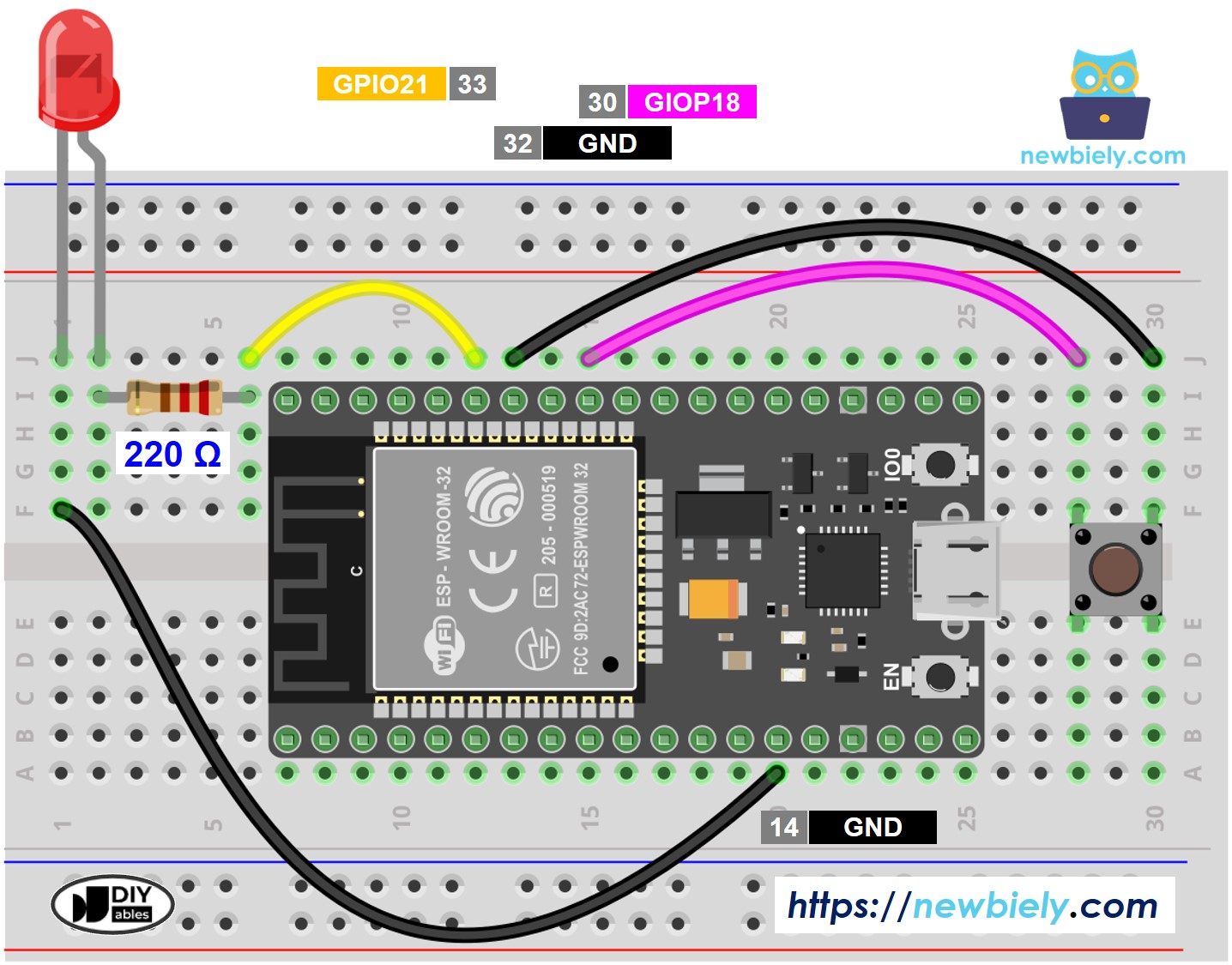
Diagrama de cableado de LED y botón ESP32

This image is created using Fritzing. Click to enlarge image

Si no sabe c\u00f3mo alimentar ESP32 y otros componentes, encuentre instrucciones en el siguiente tutorial: C\u00f3mo alimentar ESP32.

Comparémos el código de ESP32 que hace parpadear un LED con y sin usar la función delay()

Código ESP32 - Con Retraso

/* * Este código de ESP32 fue desarrollado por es.newbiely.com * Este código de ESP32 se proporciona al público sin ninguna restricción. * Para tutoriales completos y diagramas de cableado, visite: * https://es.newbiely.com/tutorials/esp32/esp32-led-blink-without-delay */ #define LED_PIN 21 // ESP32 pin GPIO21 connected to LED #define BUTTON_PIN 18 // ESP32 pin GPIO18 connected to button #define BLINK_INTERVAL 1000 // interval at which to blink LED (milliseconds) // Variables will change: int ledState = LOW; // ledState used to set the LED int previousButtonState = LOW; // will store last time button was updated void setup() { Serial.begin(9600); // set the digital pin as output: pinMode(LED_PIN, OUTPUT); // set the digital pin as an input: pinMode(BUTTON_PIN, INPUT_PULLUP); } void loop() { // if the LED is off turn it on and vice-versa: ledState = (ledState == LOW) ? HIGH : LOW; // set the LED with the ledState of the variable: digitalWrite(LED_PIN, ledState); delay(BLINK_INTERVAL); // If button is pressed during this time, Arduino CANNOT detect int currentButtonState = digitalRead(BUTTON_PIN); if (currentButtonState != previousButtonState) { // print out the state of the button: Serial.println(currentButtonState); // save the last state of button previousButtonState = currentButtonState; } // DO OTHER WORKS HERE }

Pasos R\u00e1pidos

  • Si es la primera vez que usas ESP32, consulta cómo configurar el entorno para ESP32 en Arduino IDE.
  • Realiza el cableado como se muestra en la imagen anterior.
  • Conecta la placa ESP32 a tu PC mediante un cable micro USB.
  • Abre Arduino IDE en tu PC.
  • Selecciona la placa ESP32 correcta (p. ej. ESP32 Dev Module) y el puerto COM.
  • Copia el código anterior y pégalo en Arduino IDE.
  • Compila y sube el código a la placa ESP32 haciendo clic en el botón Subir en Arduino IDE.
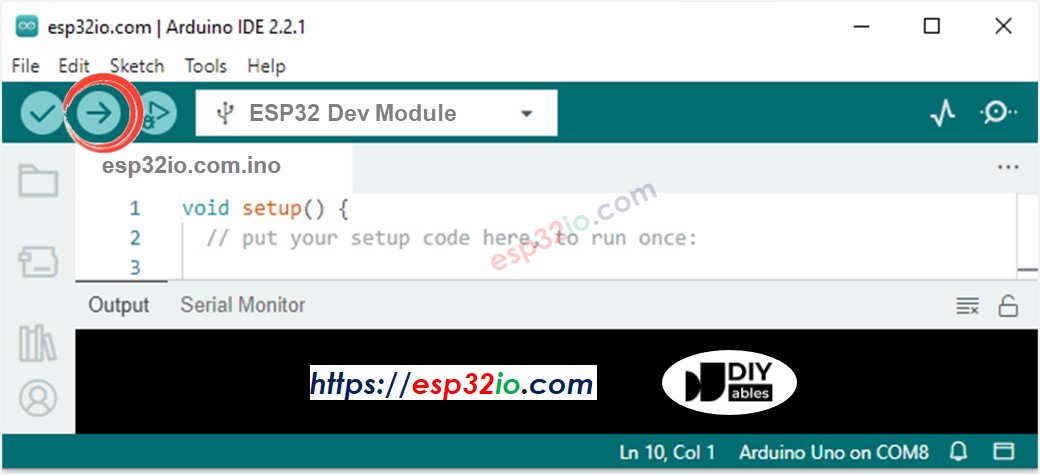
Cómo subir código ESP32 al IDE de Arduino
  • Abrir el Monitor Serial en el IDE de Arduino
Cómo abrir el monitor serial en el IDE de Arduino
  • Presiona el botón 4 veces
  • Observa el LED: El LED alterna entre ENCENDIDO y APAGADO periódicamente cada segundo
  • Observa la salida en el Monitor serie
COM6
Send
1 0
Autoscroll Show timestamp
Clear output
9600 baud  
Newline  
  • En el Monitor Serial, no verás que el estado cambie a 0 cuatro veces. Eso se debe a que, durante el tiempo de retardo, el ESP32 NO PUEDE detectar el cambio.

Código ESP32 - Sin retraso

/* * Este código de ESP32 fue desarrollado por es.newbiely.com * Este código de ESP32 se proporciona al público sin ninguna restricción. * Para tutoriales completos y diagramas de cableado, visite: * https://es.newbiely.com/tutorials/esp32/esp32-led-blink-without-delay */ #define LED_PIN 21 // ESP32 pin GPIO21 connected to LED #define BUTTON_PIN 18 // ESP32 pin GPIO18 connected to button #define BLINK_INTERVAL 1000 // interval at which to blink LED (milliseconds) // Variables will change: int ledState = LOW; // ledState used to set the LED int previousButtonState = LOW; // will store last time button was updated unsigned long previousMillis = 0; // will store last time LED was updated void setup() { Serial.begin(9600); // set the digital pin as output: pinMode(LED_PIN, OUTPUT); // set the digital pin as an input: pinMode(BUTTON_PIN, INPUT_PULLUP); } void loop() { // check to see if it's time to blink the LED; that is, if the difference // between the current time and last time you blinked the LED is bigger than // the interval at which you want to blink the LED. unsigned long currentMillis = millis(); if (currentMillis - previousMillis >= BLINK_INTERVAL) { // if the LED is off turn it on and vice-versa: ledState = (ledState == LOW) ? HIGH : LOW; // set the LED with the ledState of the variable: digitalWrite(LED_PIN, ledState); // save the last time you blinked the LED previousMillis = currentMillis; } // check button state's change int currentButtonState = digitalRead(BUTTON_PIN); if (currentButtonState != previousButtonState) { // print out the state of the button: Serial.println(currentButtonState); // save the last state of button previousButtonState = currentButtonState; } // DO OTHER WORKS HERE }

Pasos R\u00e1pidos

COM6
Send
1 0 1 0 1 0 1 0
Autoscroll Show timestamp
Clear output
9600 baud  
Newline  
  • Todos los eventos urgentes fueron detectados.

Explicación del código línea por línea

El código ESP32 anterior contiene una explicación línea por línea. Por favor, lea los comentarios en el código.

Añadir Más Tareas

El código de abajo parpadea dos LEDs con intervalos diferentes y verifica el estado del botón.
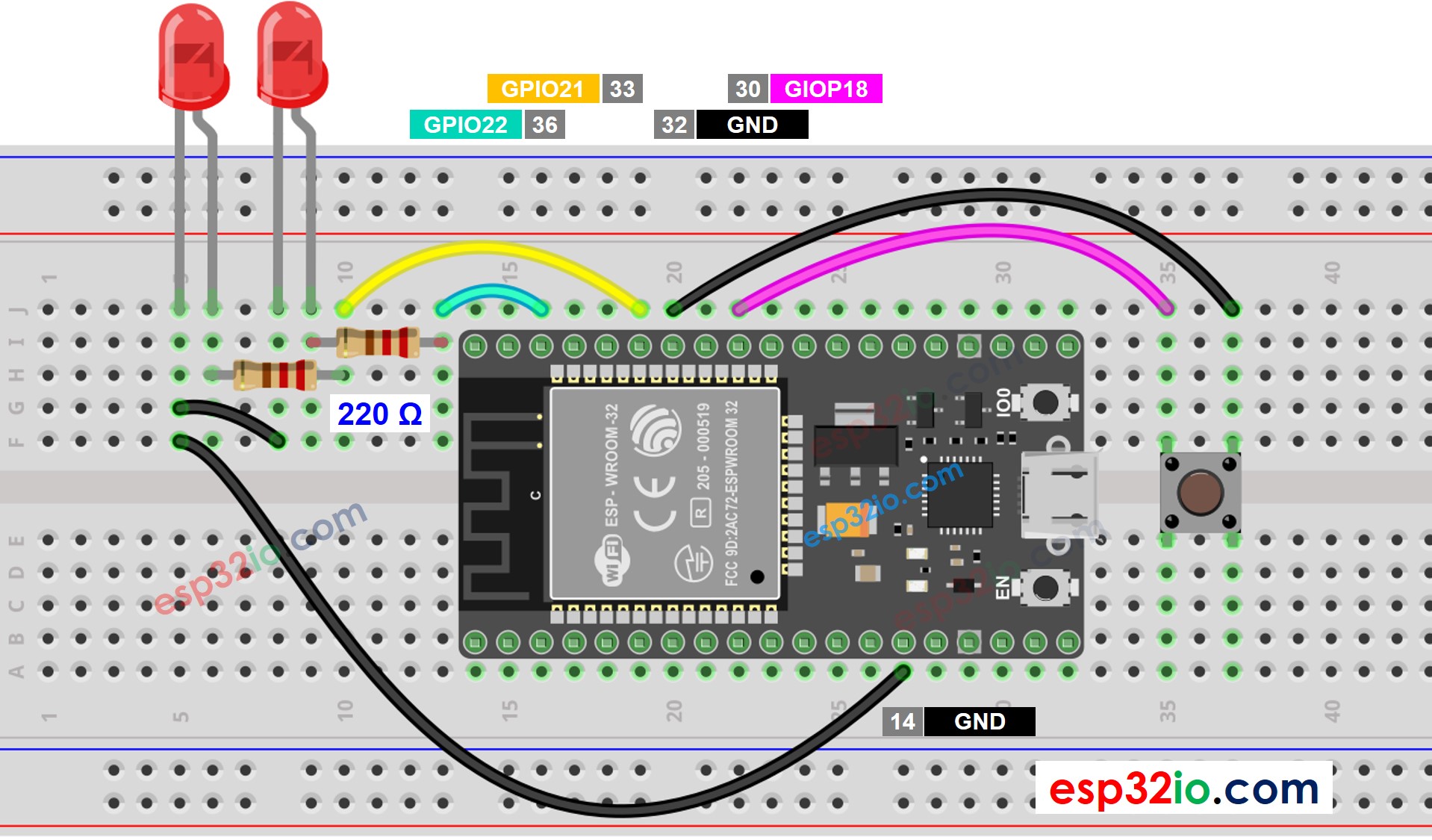
Diagrama de cableado de ESP32 con LED y dos botones

This image is created using Fritzing. Click to enlarge image

/* * Este código de ESP32 fue desarrollado por es.newbiely.com * Este código de ESP32 se proporciona al público sin ninguna restricción. * Para tutoriales completos y diagramas de cableado, visite: * https://es.newbiely.com/tutorials/esp32/esp32-led-blink-without-delay */ #define LED_PIN_1 22 // ESP32 pin GPIO22 connected to LED #define LED_PIN_2 21 // ESP32 pin GPIO21 connected to LED #define BUTTON_PIN 18 // ESP32 pin GPIO18 connected to button #define BLINK_INTERVAL_1 1000 // interval at which to blink LED 1 (milliseconds) #define BLINK_INTERVAL_2 500 // interval at which to blink LED 2 (milliseconds) // Variables will change: int ledState_1 = LOW; // ledState used to set the LED 1 int ledState_2 = LOW; // ledState used to set the LED 2 int previousButtonState = LOW; // will store last time button was updated unsigned long previousMillis_1 = 0; // will store last time LED 1 was updated unsigned long previousMillis_2 = 0; // will store last time LED 2 was updated void setup() { Serial.begin(9600); // set the digital pin as output: pinMode(LED_PIN_1, OUTPUT); pinMode(LED_PIN_2, OUTPUT); // set the digital pin as an input: pinMode(BUTTON_PIN, INPUT_PULLUP); } void loop() { unsigned long currentMillis = millis(); // check to see if it's time to blink the LED 1 if (currentMillis - previousMillis_1 >= BLINK_INTERVAL_1) { // if the LED is off turn it on and vice-versa: ledState_1 = (ledState_1 == LOW) ? HIGH : LOW; // set the LED with the ledState of the variable: digitalWrite(LED_PIN_1, ledState_1); // save the last time you blinked the LED previousMillis_1 = currentMillis; } // check to see if it's time to blink the LED 2 if (currentMillis - previousMillis_2 >= BLINK_INTERVAL_2) { // if the LED is off turn it on and vice-versa: ledState_2 = (ledState_2 == LOW) ? HIGH : LOW; // set the LED with the ledState of the variable: digitalWrite(LED_PIN_2, ledState_2); // save the last time you blinked the LED previousMillis_2 = currentMillis; } // check button state's change int currentButtonState = digitalRead(BUTTON_PIN); if (currentButtonState != previousButtonState) { // print out the state of the button: Serial.println(currentButtonState); // save the last state of button previousButtonState = currentButtonState; } // DO OTHER WORKS HERE }

Video Tutorial

Estamos considerando crear tutoriales en video. Si considera que los tutoriales en video son importantes, suscríbase a nuestro canal de YouTube para motivarnos a crear los videos.

Referencias de Idiomas

※ NUESTROS MENSAJES

  • No dude en compartir el enlace de este tutorial. Sin embargo, por favor no use nuestro contenido en otros sitios web. Hemos invertido mucho esfuerzo y tiempo en crear el contenido, ¡por favor respete nuestro trabajo!