ESP32 - Botón - Zumbador piezoeléctrico

Este tutorial le explica cómo usar el ESP32, un botón y un zumbador piezoeléctrico para hacer lo siguiente:

Acerca del zumbador piezoeléctrico y del botón

Tenemos tutoriales específicos sobre el zumbador piezoeléctrico y el botón. Cada tutorial contiene información detallada e instrucciones paso a paso sobre la distribución de pines de hardware, el principio de funcionamiento, la conexión de cableado al ESP32 y el código para ESP32... Obtén más información sobre ellos en los siguientes enlaces:

Por favor, tenga en cuenta que este tutorial utiliza un zumbador de 3-5 V, pero puede adaptarlo para un zumbador de 12 V. Puede aprender sobre Tutorial de Zumbador ESP32

Diagrama de Cableado
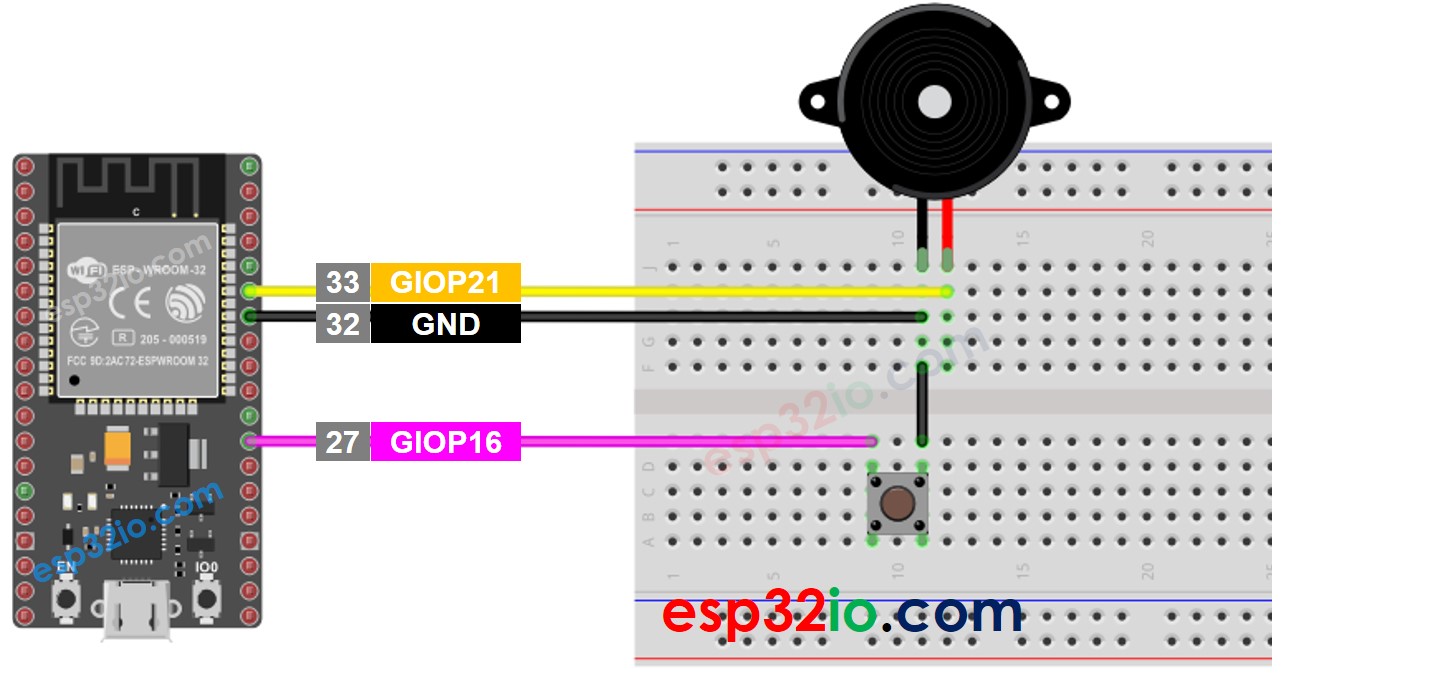
Esquema de cableado del ESP32, botón y zumbador piezoeléctrico

This image is created using Fritzing. Click to enlarge image

Si no sabe c\u00f3mo alimentar ESP32 y otros componentes, encuentre instrucciones en el siguiente tutorial: C\u00f3mo alimentar ESP32.

Código ESP32 - Sonido Simple

/* * Este código de ESP32 fue desarrollado por es.newbiely.com * Este código de ESP32 se proporciona al público sin ninguna restricción. * Para tutoriales completos y diagramas de cableado, visite: * https://es.newbiely.com/tutorials/esp32/esp32-button-piezo-buzzer */ #define BUTTON_PIN 16 // ESP32 GPIO16 pin connected to button's pin #define BUZZER_PIN 21 // ESP32 GPIO21 pin connected to Buzzer's pin void setup() { Serial.begin(9600); // initialize serial pinMode(BUTTON_PIN, INPUT_PULLUP); // set ESP32 pin to input pull-up mode pinMode(BUZZER_PIN, OUTPUT); // set ESP32 pin to output mode } void loop() { int buttonState = digitalRead(BUTTON_PIN); // read new state if (buttonState == LOW) { Serial.println("The button is being pressed"); digitalWrite(BUZZER_PIN, HIGH); // turn on } else if (buttonState == HIGH) { Serial.println("The button is unpressed"); digitalWrite(BUZZER_PIN, LOW); // turn off } }

Pasos R\u00e1pidos

  • Si es la primera vez que usas ESP32, consulta cómo configurar el entorno para ESP32 en Arduino IDE.
  • Realiza el cableado tal como se muestra en la imagen de arriba.
  • Conecta la placa ESP32 a tu PC mediante un cable USB micro.
  • Abre Arduino IDE en tu PC.
  • Selecciona la placa ESP32 adecuada (p. ej. ESP32 Dev Module) y el puerto COM.
  • Copia el código anterior y pégalo en Arduino IDE.
  • Compila y sube el código a la placa ESP32 haciendo clic en el botón Upload en Arduino IDE.
  • Presiona y mantén presionado el botón durante varios segundos.
  • Escucha el sonido del zumbador piezoeléctrico.

Explicación línea por línea del código

El código ESP32 anterior contiene una explicación línea por línea. ¡Por favor lea los comentarios del código!

ESP32 Código - Melodía

/* * Este código de ESP32 fue desarrollado por es.newbiely.com * Este código de ESP32 se proporciona al público sin ninguna restricción. * Para tutoriales completos y diagramas de cableado, visite: * https://es.newbiely.com/tutorials/esp32/esp32-button-piezo-buzzer */ #include "pitches.h" #define BUTTON_PIN 16 // ESP32 GPIO16 pin connected to button's pin #define BUZZER_PIN 21 // ESP32 GPIO21 pin connected to Buzzer's pin // notes in the melody: int melody[] = { NOTE_E5, NOTE_E5, NOTE_E5, NOTE_E5, NOTE_E5, NOTE_E5, NOTE_E5, NOTE_G5, NOTE_C5, NOTE_D5, NOTE_E5, NOTE_F5, NOTE_F5, NOTE_F5, NOTE_F5, NOTE_F5, NOTE_E5, NOTE_E5, NOTE_E5, NOTE_E5, NOTE_E5, NOTE_D5, NOTE_D5, NOTE_E5, NOTE_D5, NOTE_G5 }; // note durations: 4 = quarter note, 8 = eighth note, etc, also called tempo: int noteDurations[] = { 8, 8, 4, 8, 8, 4, 8, 8, 8, 8, 2, 8, 8, 8, 8, 8, 8, 8, 16, 16, 8, 8, 8, 8, 4, 4 }; void setup() { Serial.begin(9600); // initialize serial pinMode(BUTTON_PIN, INPUT_PULLUP); // set ESP32 pin to input pull-up mode } void loop() { int buttonState = digitalRead(BUTTON_PIN); // read new state if (buttonState == LOW) { // button is pressed Serial.println("The button is being pressed"); buzzer(); } } void buzzer() { // iterate over the notes of the melody: int size = sizeof(noteDurations) / sizeof(int); for (int thisNote = 0; thisNote < size; thisNote++) { // to calculate the note duration, take one second divided by the note type. //e.g. quarter note = 1000 / 4, eighth note = 1000/8, etc. int noteDuration = 1000 / noteDurations[thisNote]; tone(BUZZER_PIN, melody[thisNote], noteDuration); // to distinguish the notes, set a minimum time between them. // the note's duration + 30% seems to work well: int pauseBetweenNotes = noteDuration * 1.30; delay(pauseBetweenNotes); // stop the tone playing: noTone(BUZZER_PIN); } }

Pasos R\u00e1pidos

  • Copie el código anterior y péguelo en Arduino IDE.
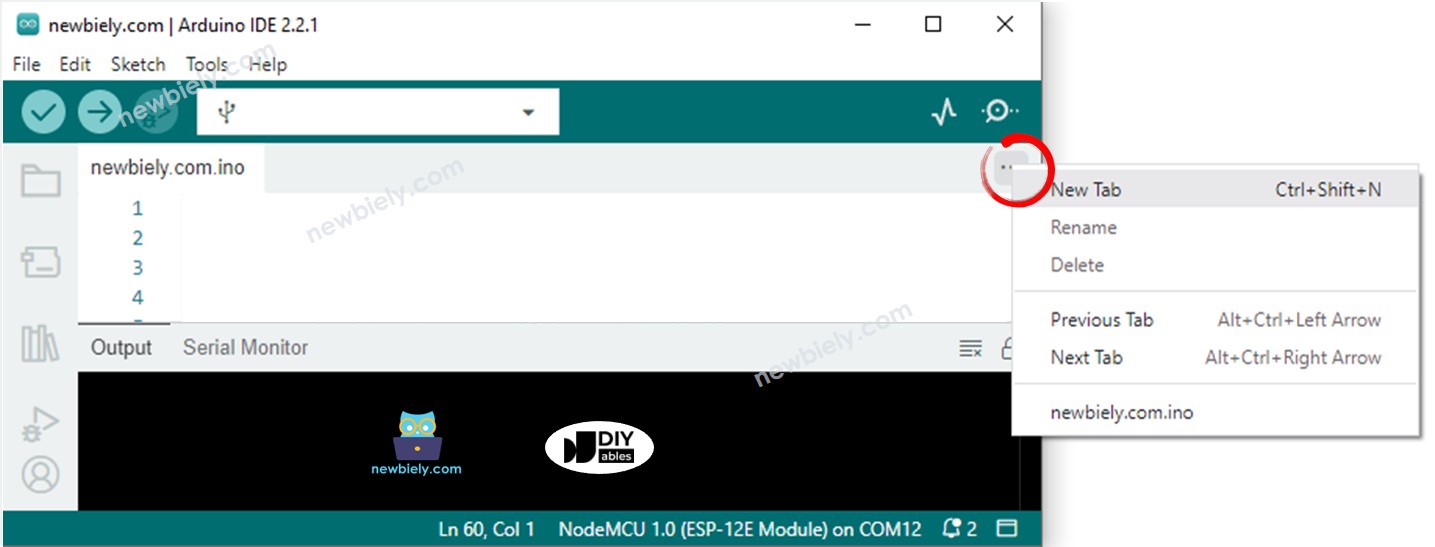
  • Cree el archivo pitches.h en Arduino IDE haciendo:
    • Haga clic en el botón justo debajo del icono del monitor serie y elija Nueva pestaña, o use las teclas Ctrl+Shift+N.
    Arduino IDE 2 añade archivo
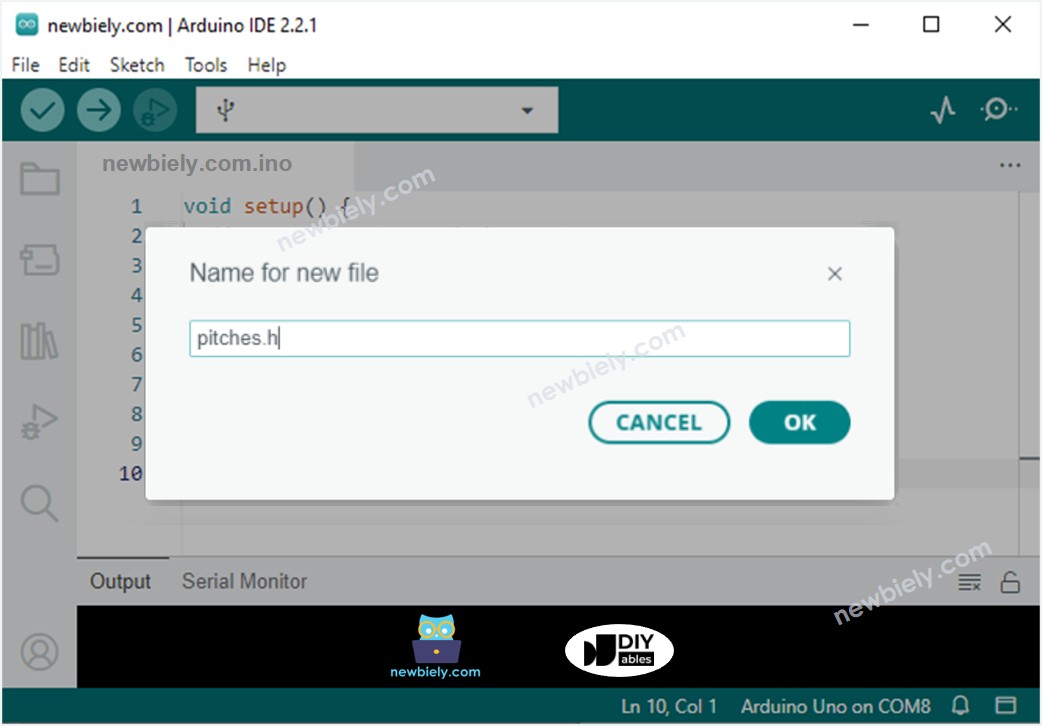
    • Asigna el nombre del archivo pitches.h y haz clic en el botón OK
    Arduino IDE 2 añade el archivo pitches.h
    • Copie el código que se muestra a continuación y péguelo en el archivo pitches.h creado.
    /************************************************* * Public Constants *************************************************/ #define NOTE_B0 31 #define NOTE_C1 33 #define NOTE_CS1 35 #define NOTE_D1 37 #define NOTE_DS1 39 #define NOTE_E1 41 #define NOTE_F1 44 #define NOTE_FS1 46 #define NOTE_G1 49 #define NOTE_GS1 52 #define NOTE_A1 55 #define NOTE_AS1 58 #define NOTE_B1 62 #define NOTE_C2 65 #define NOTE_CS2 69 #define NOTE_D2 73 #define NOTE_DS2 78 #define NOTE_E2 82 #define NOTE_F2 87 #define NOTE_FS2 93 #define NOTE_G2 98 #define NOTE_GS2 104 #define NOTE_A2 110 #define NOTE_AS2 117 #define NOTE_B2 123 #define NOTE_C3 131 #define NOTE_CS3 139 #define NOTE_D3 147 #define NOTE_DS3 156 #define NOTE_E3 165 #define NOTE_F3 175 #define NOTE_FS3 185 #define NOTE_G3 196 #define NOTE_GS3 208 #define NOTE_A3 220 #define NOTE_AS3 233 #define NOTE_B3 247 #define NOTE_C4 262 #define NOTE_CS4 277 #define NOTE_D4 294 #define NOTE_DS4 311 #define NOTE_E4 330 #define NOTE_F4 349 #define NOTE_FS4 370 #define NOTE_G4 392 #define NOTE_GS4 415 #define NOTE_A4 440 #define NOTE_AS4 466 #define NOTE_B4 494 #define NOTE_C5 523 #define NOTE_CS5 554 #define NOTE_D5 587 #define NOTE_DS5 622 #define NOTE_E5 659 #define NOTE_F5 698 #define NOTE_FS5 740 #define NOTE_G5 784 #define NOTE_GS5 831 #define NOTE_A5 880 #define NOTE_AS5 932 #define NOTE_B5 988 #define NOTE_C6 1047 #define NOTE_CS6 1109 #define NOTE_D6 1175 #define NOTE_DS6 1245 #define NOTE_E6 1319 #define NOTE_F6 1397 #define NOTE_FS6 1480 #define NOTE_G6 1568 #define NOTE_GS6 1661 #define NOTE_A6 1760 #define NOTE_AS6 1865 #define NOTE_B6 1976 #define NOTE_C7 2093 #define NOTE_CS7 2217 #define NOTE_D7 2349 #define NOTE_DS7 2489 #define NOTE_E7 2637 #define NOTE_F7 2794 #define NOTE_FS7 2960 #define NOTE_G7 3136 #define NOTE_GS7 3322 #define NOTE_A7 3520 #define NOTE_AS7 3729 #define NOTE_B7 3951 #define NOTE_C8 4186 #define NOTE_CS8 4435 #define NOTE_D8 4699 #define NOTE_DS8 4978
    • Compilar y subir código a la placa ESP32 haciendo clic en el botón Subir en la IDE de Arduino
    • Pulsa el botón
    • Escucha la melodía del zumbador piezoeléctrico
    Explicación del código línea por línea

    El código ESP32 anterior contiene una explicación línea por línea. ¡Por favor lea los comentarios del código!

    ※ Nota:

    El código anterior usa la función delay(). Esto bloquea el resto del código durante la reproducción de la melodía. Para evitar bloquear el resto del código, use la biblioteca ezBuzzer en su lugar. Esta biblioteca está diseñada para que el zumbador emita pitidos o reproduzca melodía sin bloquear el resto del código.

Video Tutorial

Estamos considerando crear tutoriales en video. Si considera que los tutoriales en video son importantes, suscríbase a nuestro canal de YouTube para motivarnos a crear los videos.

※ NUESTROS MENSAJES

  • No dude en compartir el enlace de este tutorial. Sin embargo, por favor no use nuestro contenido en otros sitios web. Hemos invertido mucho esfuerzo y tiempo en crear el contenido, ¡por favor respete nuestro trabajo!