
Arduino Nano - Reloj OLED

Este tutorial le enseña cómo crear un reloj OLED utilizando Arduino Nano, un módulo RTC y una pantalla OLED. El tutorial proporciona instrucciones para ambos módulos RTC DS3231 y DS1307. En detalle:

Puede elegir entre dos módulos RTC: DS3231 y DS1307. Para obtener más información, consulte DS3231 vs DS1307.

Acerca del módulo RTC OLED, DS3231 y DS1307

Si no estás familiarizado con OLED, DS3231 y DS1307 (disposición de pines, cómo funcionan y cómo programarlos...), los siguientes tutoriales pueden ayudarte:

Instalar bibliotecas OLED y RTC

  • Haz clic en el icono Bibliotecas en la barra lateral izquierda del IDE de Arduino.
  • Busca “SSD1306” y localiza la biblioteca SSD1306 de Adafruit.
  • Presiona el botón Instalar para completar la instalación.
librería OLED para Arduino Nano
  • Se le pedirá que instale algunas otras dependencias de la biblioteca.
  • Para instalarlas todas, haga clic en el botón Instalar todo.
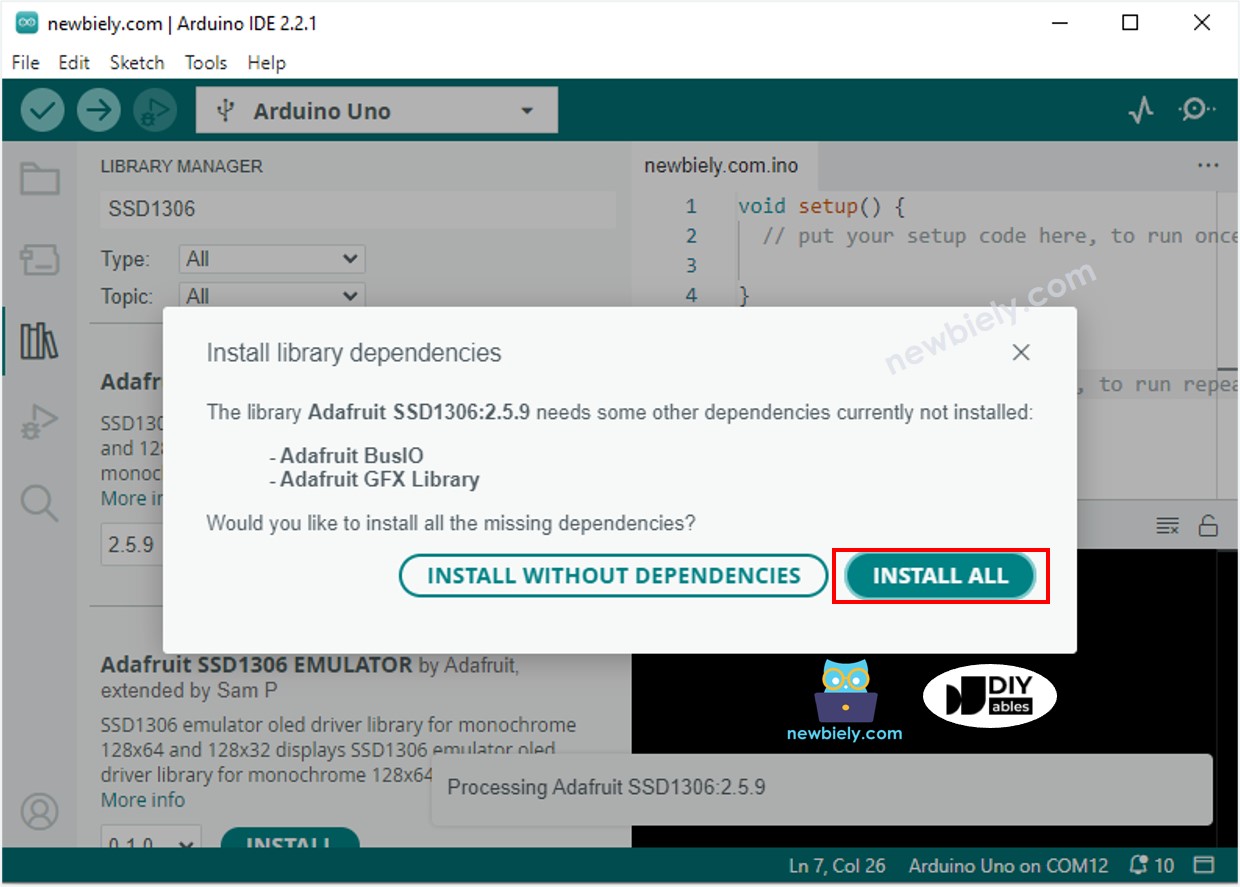
Biblioteca de sensores Adafruit GFX para Arduino Nano
  • Busca “RTClib” y localiza la librería RTC creada por Adafruit. Esta librería es compatible con ambos DS3231 y DS1307.
  • Presiona el botón Instalar para instalar la librería RTC.
Biblioteca RTC para Arduino Nano

Lectura de la hora desde el módulo RTC DS3231 y mostrarla en OLED

Diagrama de cableado
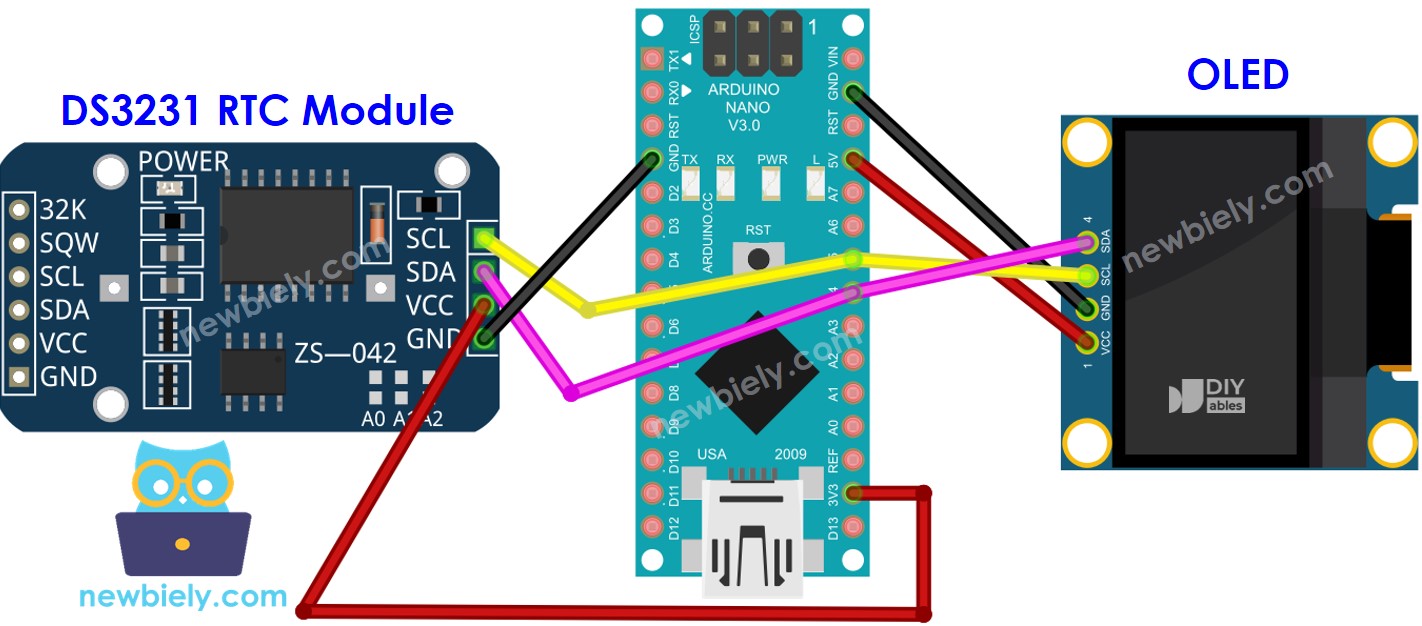
Diagrama de cableado de Arduino Nano DS3231 OLED

This image is created using Fritzing. Click to enlarge image

Código para Arduino Nano - DS3231 y OLED

/* * Este código de Arduino Nano fue desarrollado por es.newbiely.com * Este código de Arduino Nano se proporciona al público sin ninguna restricción. * Para tutoriales completos y diagramas de cableado, visite: * https://es.newbiely.com/tutorials/arduino-nano/arduino-nano-oled-clock */ #include <Wire.h> #include <Adafruit_GFX.h> #include <Adafruit_SSD1306.h> #include <RTClib.h> #define OLED_WIDTH 128 // OLED display width, in pixels #define OLED_HEIGHT 64 // OLED display height, in pixels Adafruit_SSD1306 oled(OLED_WIDTH, OLED_HEIGHT, &Wire, -1); // // create SSD1306 display object connected to I2C RTC_DS3231 rtc; String time; void setup() { Serial.begin(9600); // initialize OLED display with address 0x3C for 128x64 if (!oled.begin(SSD1306_SWITCHCAPVCC, 0x3C)) { Serial.println(F("SSD1306 allocation failed")); while (true); } delay(2000); // wait for initializing oled.clearDisplay(); // clear display oled.setTextSize(1); // text size oled.setTextColor(WHITE); // text color oled.setCursor(0, 10); // position to display // SETUP RTC MODULE if (! rtc.begin()) { Serial.println("Couldn't find RTC"); Serial.flush(); while (true); } // automatically sets the RTC to the date & time on PC this sketch was compiled rtc.adjust(DateTime(F(__DATE__), F(__TIME__))); time.reserve(10); // to avoid fragmenting memory when using String } void loop() { DateTime now = rtc.now(); time = ""; time += now.hour(); time += ':'; time += now.minute(); time += ':'; time += now.second(); oled_display_center(time); } void oled_display_center(String text) { int16_t x1; int16_t y1; uint16_t width; uint16_t height; oled.getTextBounds(text, 0, 0, &x1, &y1, &width, &height); // center the display both horizontally and vertically oled.clearDisplay(); // clear display oled.setCursor((OLED_WIDTH - width) / 2, (OLED_HEIGHT - height) / 2); oled.println(text); // text to display oled.display(); }

Pasos R\u00e1pidos

  • Copia el código y ábrelo con el IDE de Arduino.
  • Haz clic en el botón Subir en el IDE de Arduino para enviar el código al Arduino Nano.
  • Coloca el sensor en agua caliente y fría o sosténlo en la mano.
  • Consulta los resultados en la pantalla OLED.

Lectura de la hora desde el módulo RTC DS1307 y mostrarla en la pantalla OLED

Diagrama de cableado

Diagrama de cableado de Arduino Nano DS1307 OLED

This image is created using Fritzing. Click to enlarge image

Ver La mejor forma de alimentar Arduino Nano y otros componentes.

Código para Arduino Nano - DS1307 y OLED

/* * Este código de Arduino Nano fue desarrollado por es.newbiely.com * Este código de Arduino Nano se proporciona al público sin ninguna restricción. * Para tutoriales completos y diagramas de cableado, visite: * https://es.newbiely.com/tutorials/arduino-nano/arduino-nano-oled-clock */ #include <Wire.h> #include <Adafruit_GFX.h> #include <Adafruit_SSD1306.h> #include <RTClib.h> #define OLED_WIDTH 128 // OLED display width, in pixels #define OLED_HEIGHT 64 // OLED display height, in pixels Adafruit_SSD1306 oled(OLED_WIDTH, OLED_HEIGHT, &Wire, -1); // // create SSD1306 display object connected to I2C RTC_DS1307 rtc; String time; void setup() { Serial.begin(9600); // initialize OLED display with address 0x3C for 128x64 if (!oled.begin(SSD1306_SWITCHCAPVCC, 0x3C)) { Serial.println(F("SSD1306 allocation failed")); while (true); } delay(2000); // wait for initializing oled.clearDisplay(); // clear display oled.setTextSize(1); // text size oled.setTextColor(WHITE); // text color oled.setCursor(0, 10); // position to display // SETUP RTC MODULE if (! rtc.begin()) { Serial.println("Couldn't find RTC"); Serial.flush(); while (true); } // automatically sets the RTC to the date & time on PC this sketch was compiled rtc.adjust(DateTime(F(__DATE__), F(__TIME__))); time.reserve(10); // to avoid fragmenting memory when using String } void loop() { DateTime now = rtc.now(); time = ""; time += now.hour(); time += ':'; time += now.minute(); time += ':'; time += now.second(); oled_display_center(time); } void oled_display_center(String text) { int16_t x1; int16_t y1; uint16_t width; uint16_t height; oled.getTextBounds(text, 0, 0, &x1, &y1, &width, &height); // center the display both horizontally and vertically oled.clearDisplay(); // clear display oled.setCursor((OLED_WIDTH - width) / 2, (OLED_HEIGHT - height) / 2); oled.println(text); // text to display oled.display(); }

Pasos R\u00e1pidos

  • Copia el código y ábrelo en el IDE de Arduino.
  • Haz clic en el botón Subir en el IDE de Arduino para enviar el código al Arduino Nano.
  • Coloca el sensor en agua caliente y fría, o sostenlo en tu mano.
  • Consulta el resultado en la pantalla OLED.

Video Tutorial

Estamos considerando crear tutoriales en video. Si considera que los tutoriales en video son importantes, suscríbase a nuestro canal de YouTube para motivarnos a crear los videos.

※ NUESTROS MENSAJES

  • No dude en compartir el enlace de este tutorial. Sin embargo, por favor no use nuestro contenido en otros sitios web. Hemos invertido mucho esfuerzo y tiempo en crear el contenido, ¡por favor respete nuestro trabajo!