Ejemplo de Arduino MultipleWebApps - Tutorial completo del tablero IoT
Visión general
Este ejemplo demuestra cómo usar varias aplicaciones web de forma simultánea con la biblioteca DIYables WebApps. Muestra la integración de varias interfaces web interactivas—como monitoreo, control y comunicación—dentro de un único proyecto. Diseñado para Arduino Uno R4 WiFi y la plataforma IoT STEM V4 de DIYables, este ejemplo es ideal para aprender a combinar y gestionar múltiples características basadas en la web al mismo tiempo, proporcionando una base sólida para proyectos IoT avanzados.
Características
Página de Inicio: Centro de navegación central con enlaces a todas las aplicaciones web
Monitor Web: Comunicación serie en tiempo real y interfaz de depuración
Interfaz de Chat: Sistema de chat interactivo con capacidad de respuesta de Arduino
Control de Pines Digitales: Control y monitorización basados en la web de todos los pines digitales
Control Deslizante Dual: Dos deslizadores independientes para el control de valores analógicos
Joystick Virtual: Control de posición 2D para aplicaciones direccionales
Gestión de Estado Unificada: Todas las interfaces comparten información de estado sincronizada
Actualizaciones en tiempo real: Comunicación WebSocket para respuestas instantáneas
Estructura de Plantilla: Base lista para personalizar para proyectos complejos
Plataforma Extensible: Actualmente implementada para Arduino Uno R4 WiFi, pero puede extenderse a otras plataformas de hardware. Ver DIYables_WebApps_ESP32
Divulgación: Algunos de los enlaces proporcionados en esta sección son enlaces de afiliado de Amazon. Podemos recibir una comisión por las compras realizadas a través de estos enlaces sin costo adicional para usted. Apreciamos su apoyo.
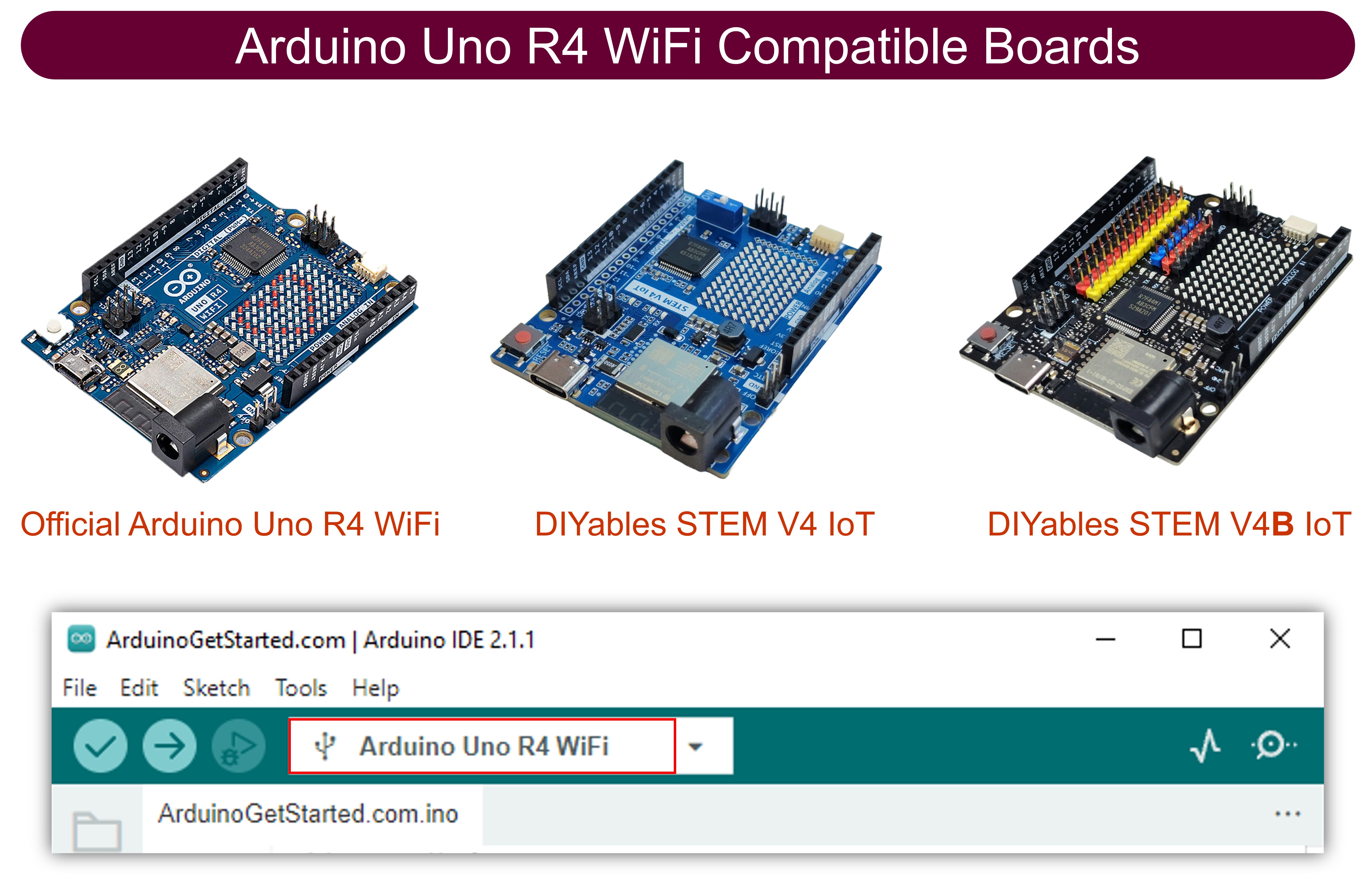
Conecta la placa Arduino Uno R4/DIYables STEM V4 IoT a tu computadora usando un cable USB.
Inicia el IDE de Arduino en tu computadora.
Selecciona la placa Arduino Uno R4 adecuada (p. ej., Arduino Uno R4 WiFi) y el puerto COM.
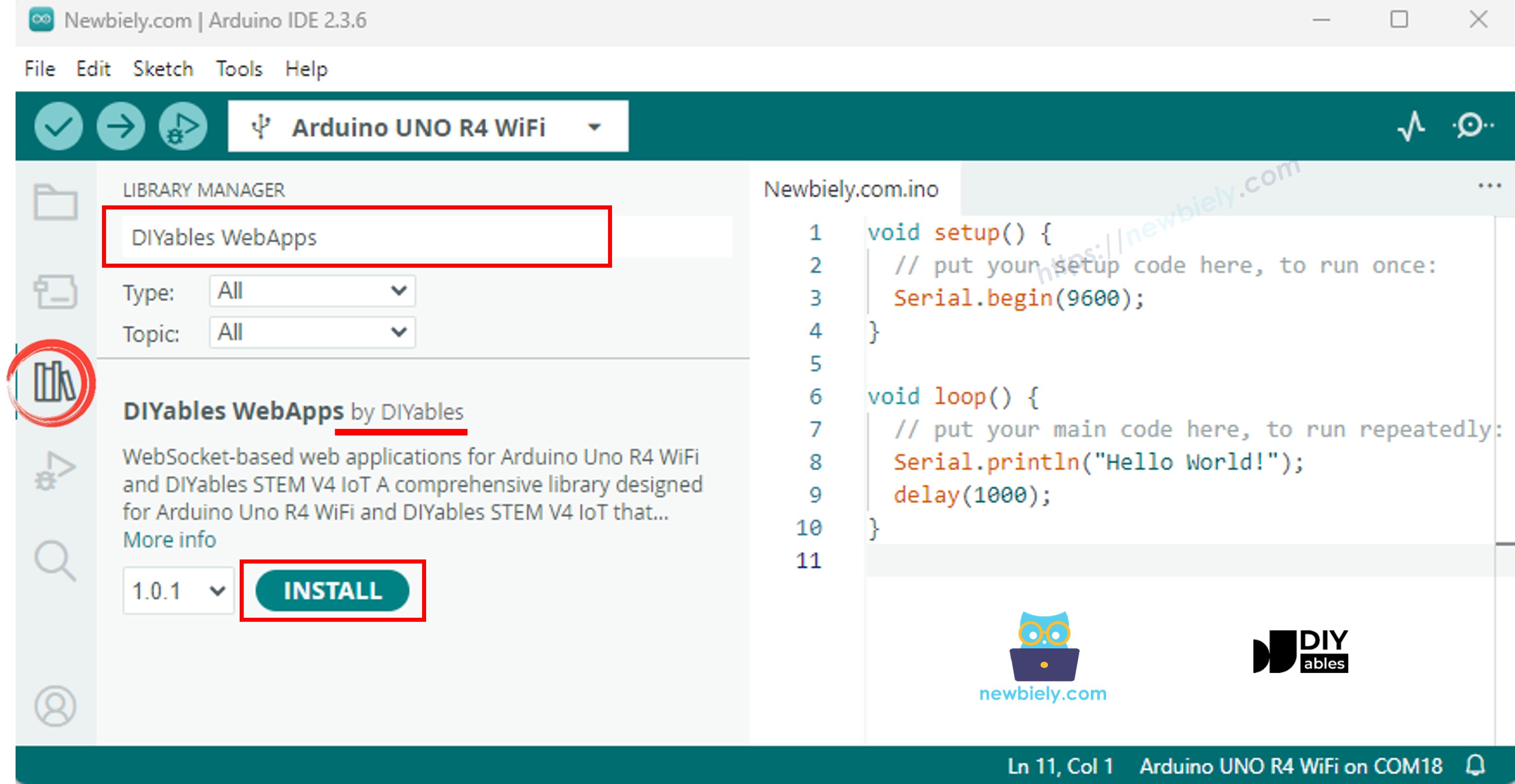
Ve al icono Bibliotecas en la barra izquierda del IDE de Arduino.
Busca "DIYables WebApps", luego encuentra la biblioteca DIYables WebApps de DIYables
Haz clic en el botón Instalar para instalar la biblioteca.
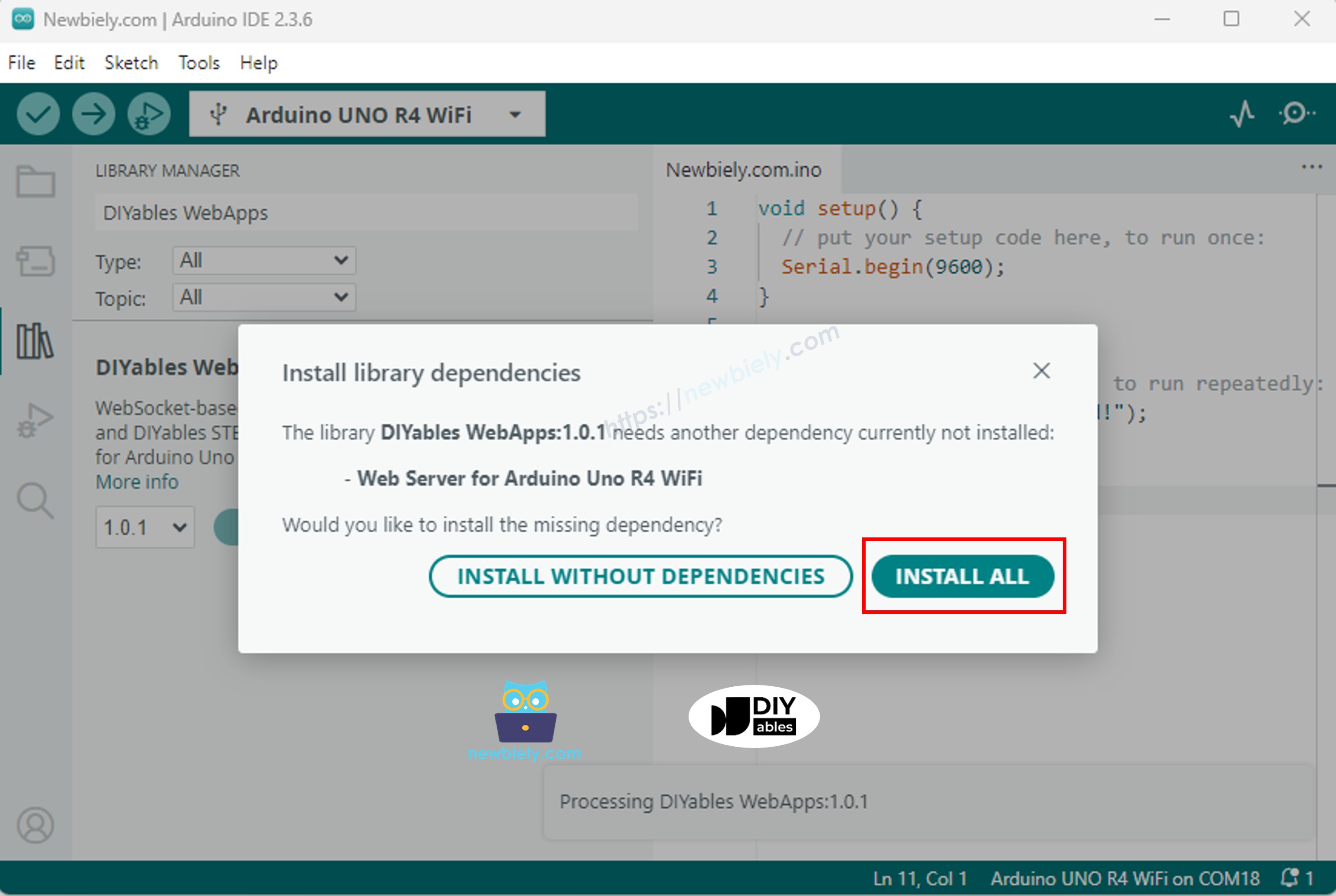
Se le pedirá instalar algunas otras dependencias de bibliotecas
Haga clic en el botón Instalar todo para instalar todas las dependencias de la biblioteca.
En el IDE de Arduino, vaya a Archivo Ejemplos DIYables WebApps MultipleWebApps un ejemplo, o copie el código anterior y péguelo en el editor del IDE de Arduino
/* * DIYables WebApp Library - Multiple WebApps Example * * This example demonstrates multiple web apps of the DIYables WebApp library: * - Home page with links to multiple web apps * - Web Monitor: Real-time serial monitoring via WebSocket * - Web Slider: Dual slider control * - Web Joystick: Interactive joystick control * - Web Rotator: Interactive rotatable disc control * - Web Analog Gauge: Professional circular gauge for sensor monitoring * - Web Table: Two-column data table with real-time updates * - Web Plotter: See WebPlotter example for real-time data visualization * * Features: * - Simplified callback system - no manual command parsing needed * - Automatic state synchronization and JSON handling * - All protocol details handled by the library * - Template for hardware control * * Hardware: Arduino Uno R4 WiFi or DIYables STEM V4 IoT * * Setup: * 1. Update WiFi credentials below * 2. Upload the sketch to your Arduino * 3. Open Serial Monitor to see the IP address * 4. Navigate to the IP address in your web browser */#include <DIYablesWebApps.h>// WiFi credentials - UPDATE THESE WITH YOUR NETWORKconstchar WIFI_SSID[] = "YOUR_WIFI_SSID";constchar WIFI_PASSWORD[] = "YOUR_WIFI_PASSWORD";// Create WebApp server and page instancesUnoR4ServerFactory factory;DIYablesWebAppServerwebAppsServer(factory, 80, 81);DIYablesHomePage homePage;DIYablesWebMonitorPage webMonitorPage;DIYablesWebSliderPage webSliderPage;DIYablesWebJoystickPage webJoystickPage(false, 5); // autoReturn=false, sensitivity=5DIYablesWebRotatorPage webRotatorPage(ROTATOR_MODE_CONTINUOUS); // Continuous rotation mode (0-360°)DIYablesWebAnalogGaugePage webAnalogGaugePage(0.0, 100.0, "%"); // Range: 0-100%, units: %DIYablesWebTablePage webTablePage;// Variables to track statesint currentSlider1 = 64; // Slider 1 value (0-255)int currentSlider2 = 128; // Slider 2 value (0-255)int currentJoystickX = 0; // Current joystick X value (-100 to 100)int currentJoystickY = 0; // Current joystick Y value (-100 to 100)int currentRotatorAngle = 0; // Current rotator angle (0-360°)float currentGaugeValue = 50.0; // Current gauge value (0.0-100.0)voidsetup() {Serial.begin(9600);delay(1000);// TODO: Initialize your hardware pins hereSerial.println("DIYables WebApp - Multiple Apps Example");// Add all web applications to the serverwebAppsServer.addApp(&homePage);webAppsServer.addApp(&webMonitorPage);webAppsServer.addApp(&webSliderPage);webAppsServer.addApp(&webJoystickPage);webAppsServer.addApp(&webRotatorPage);webAppsServer.addApp(&webAnalogGaugePage);webAppsServer.addApp(&webTablePage);// Add more web apps here (e.g., WebPlotter)// Set 404 Not Found page (optional - for better user experience)webAppsServer.setNotFoundPage(DIYablesNotFoundPage());// Configure table structure (only attribute names, values will be updated dynamically) webTablePage.addRow("Arduino Status"); webTablePage.addRow("WiFi Connected"); webTablePage.addRow("Uptime"); webTablePage.addRow("Slider 1"); webTablePage.addRow("Slider 2"); webTablePage.addRow("Joystick X"); webTablePage.addRow("Joystick Y"); webTablePage.addRow("Rotator Angle"); webTablePage.addRow("Gauge Value");// Start the WebApp serverif (!webAppsServer.begin(WIFI_SSID, WIFI_PASSWORD)) {while (1) {Serial.println("Failed to start WebApp server!");delay(1000); } } setupCallbacks();}void setupCallbacks() {// Web Monitor callback - echo messages back webMonitorPage.onWebMonitorMessage([](const String& message) {Serial.println("Web Monitor: " + message); webMonitorPage.sendToWebMonitor("Arduino received: " + message); });// Web Slider callback - handle slider values webSliderPage.onSliderValueFromWeb([](int slider1, int slider2) {// Store the received values currentSlider1 = slider1; currentSlider2 = slider2;// Print slider values (0-255) without String concatenationSerial.print("Slider 1: ");Serial.print(slider1);Serial.print(", Slider 2: ");Serial.println(slider2);// Update table with new slider values using String() conversion webTablePage.sendValueUpdate("Slider 1", String(slider1)); webTablePage.sendValueUpdate("Slider 2", String(slider2));// TODO: Add your control logic here based on slider values// Examples:// - Control PWM: analogWrite(LED_PIN, slider1);// - Control servos: servo.write(map(slider1, 0, 255, 0, 180));// - Control motor speed: analogWrite(MOTOR_PIN, slider2);// Update gauge based on slider1 value (map 0-255 to 0-100) currentGaugeValue = map(slider1, 0, 255, 0, 100); webAnalogGaugePage.sendToWebAnalogGauge(currentGaugeValue);char gaugeStr[16]; snprintf(gaugeStr, sizeof(gaugeStr), "%.1f%%", currentGaugeValue); webTablePage.sendValueUpdate("Gauge Value", String(gaugeStr)); });// Handle slider value requests webSliderPage.onSliderValueToWeb([]() { webSliderPage.sendToWebSlider(currentSlider1, currentSlider2); });// Web Joystick callback - handle joystick movement webJoystickPage.onJoystickValueFromWeb([](int x, int y) {// Store the received values currentJoystickX = x; currentJoystickY = y;// Print joystick position values (-100 to +100)Serial.print("Joystick - X: ");Serial.print(x);Serial.print(", Y: ");Serial.println(y);Serial.print(x);Serial.print(", Y: ");Serial.println(y);// Update table with new joystick values webTablePage.sendValueUpdate("Joystick X", String(x)); webTablePage.sendValueUpdate("Joystick Y", String(y));// TODO: Add your control logic here based on joystick position// Examples:// - Control motors: if (x > 50) { /* move right */ }// - Control servos: servo.write(map(y, -100, 100, 0, 180));// - Control LEDs: analogWrite(LED_PIN, map(abs(x), 0, 100, 0, 255)); });// Handle joystick values requests (when web page loads/reconnects) webJoystickPage.onJoystickValueToWeb([]() { webJoystickPage.sendToWebJoystick(currentJoystickX, currentJoystickY); });// Web Rotator callback - handle rotation angle changes webRotatorPage.onRotatorAngleFromWeb([](float angle) {// Store the received angle currentRotatorAngle = (int)angle;// Print rotator angle (0-360°)Serial.println("Rotator angle: " + String(angle) + "°");// Update table with new rotator angle webTablePage.sendValueUpdate("Rotator Angle", String(angle, 0) + "°");// TODO: Add your control logic here based on rotator angle// Examples:// - Control servo: servo.write(map(angle, 0, 360, 0, 180));// - Control stepper motor: stepper.moveTo(angle);// - Control directional LED strip: setLEDDirection(angle); });// Handle analog gauge value requests (when web page loads/reconnects) webAnalogGaugePage.onGaugeValueRequest([]() { webAnalogGaugePage.sendToWebAnalogGauge(currentGaugeValue); });// Handle table data requests (when web page loads/reconnects) webTablePage.onTableValueRequest([]() {// Send initial values to the table webTablePage.sendValueUpdate("Arduino Status", "Running"); webTablePage.sendValueUpdate("WiFi Connected", "Yes"); webTablePage.sendValueUpdate("Uptime", "0 seconds"); webTablePage.sendValueUpdate("Slider 1", String(currentSlider1)); webTablePage.sendValueUpdate("Slider 2", String(currentSlider2)); webTablePage.sendValueUpdate("Joystick X", String(currentJoystickX)); webTablePage.sendValueUpdate("Joystick Y", String(currentJoystickY)); webTablePage.sendValueUpdate("Rotator Angle", String(currentRotatorAngle) + "°"); webTablePage.sendValueUpdate("Gauge Value", String(currentGaugeValue, 1) + "%"); });}voidloop() {// Handle WebApp server communicationswebAppsServer.loop();// Update table with current uptime every 5 secondsstaticunsignedlong lastUptimeUpdate = 0;if (millis() - lastUptimeUpdate > 5000) { lastUptimeUpdate = millis();unsignedlong uptimeSeconds = millis() / 1000;String uptimeStr = String(uptimeSeconds) + " seconds";if (uptimeSeconds >= 60) { uptimeStr = String(uptimeSeconds / 60) + "m " + String(uptimeSeconds % 60) + "s"; } webTablePage.sendValueUpdate("Uptime", uptimeStr); }// Simulate sensor data updates every 3 secondsstaticunsignedlong lastSensorUpdate = 0;if (millis() - lastSensorUpdate > 3000) { lastSensorUpdate = millis();// Simulate a sensor reading that varies over timefloat sensorValue = 50.0 + 30.0 * sin(millis() / 10000.0); // Oscillates between 20-80 currentGaugeValue = sensorValue;// Update gauge and table webAnalogGaugePage.sendToWebAnalogGauge(currentGaugeValue); webTablePage.sendValueUpdate("Gauge Value", String(currentGaugeValue, 1) + "%"); }// TODO: Add your main application code heredelay(10);}
Configura las credenciales de WiFi en el código actualizando estas líneas:
Haz clic en el botón Subir en el IDE de Arduino para subir el código al Arduino UNO R4/DIYables STEM V4 IoT
Abre el Monitor de serie
Ver el resultado en el Monitor de serie. Se muestra a continuación
Newbiely | Arduino IDE 2.3.8
──
☐
✕
File
Edit
Sketch
Tools
Help
Arduino Uno R4 WiFi
Newbiely.ino
···
8Serial.println("Hello World!");
Output
Serial Monitor
Message (Enter to send message to 'Arduino Uno R4 WiFi' on 'COM15')
New Line
9600 baud
DIYables WebApp - Multiple Apps Example
INFO: Added app /
INFO: Added app /web-monitor
INFO: Added app /web-slider
INFO: Added app /web-joystick
INFO: Added app /web-rotator
INFO: Added app /web-gauge
INFO: Added app /web-table
DIYables WebApp Library
Platform: Arduino Uno R4 WiFi
Network connected!
IP address: 192.168.0.2
HTTP server started on port 80
Configuring WebSocket server callbacks...
WebSocket server started on port 81
WebSocket URL: ws://192.168.0.2:81
WebSocket server started on port 81
==========================================
DIYables WebApp Ready!
==========================================
📱 Web Interface: http://192.168.0.2
🔗 WebSocket: ws://192.168.0.2:81
📋 Available Applications:
🏠 Home Page: http://192.168.0.2/
📊 Web Monitor: http://192.168.0.2/web-monitor
🎚️ Web Slider: http://192.168.0.2/web-slider
🕹️ Web Joystick: http://192.168.0.2/web-joystick
🔄 Web Rotator: http://192.168.0.2/web-rotator
⏲️ Web Analog Gauge: http://192.168.0.2/web-gauge
📊 Web Table: http://192.168.0.2/web-table
==========================================
Ln 11, Col 1
Arduino Uno R4 WiFi on COM15
2
Si no ve nada, reinicie la placa Arduino.
Tenga en cuenta la dirección IP mostrada y escriba esta dirección en la barra de direcciones de un navegador web en su teléfono inteligente o PC.
Ejemplo: http://192.168.0.2
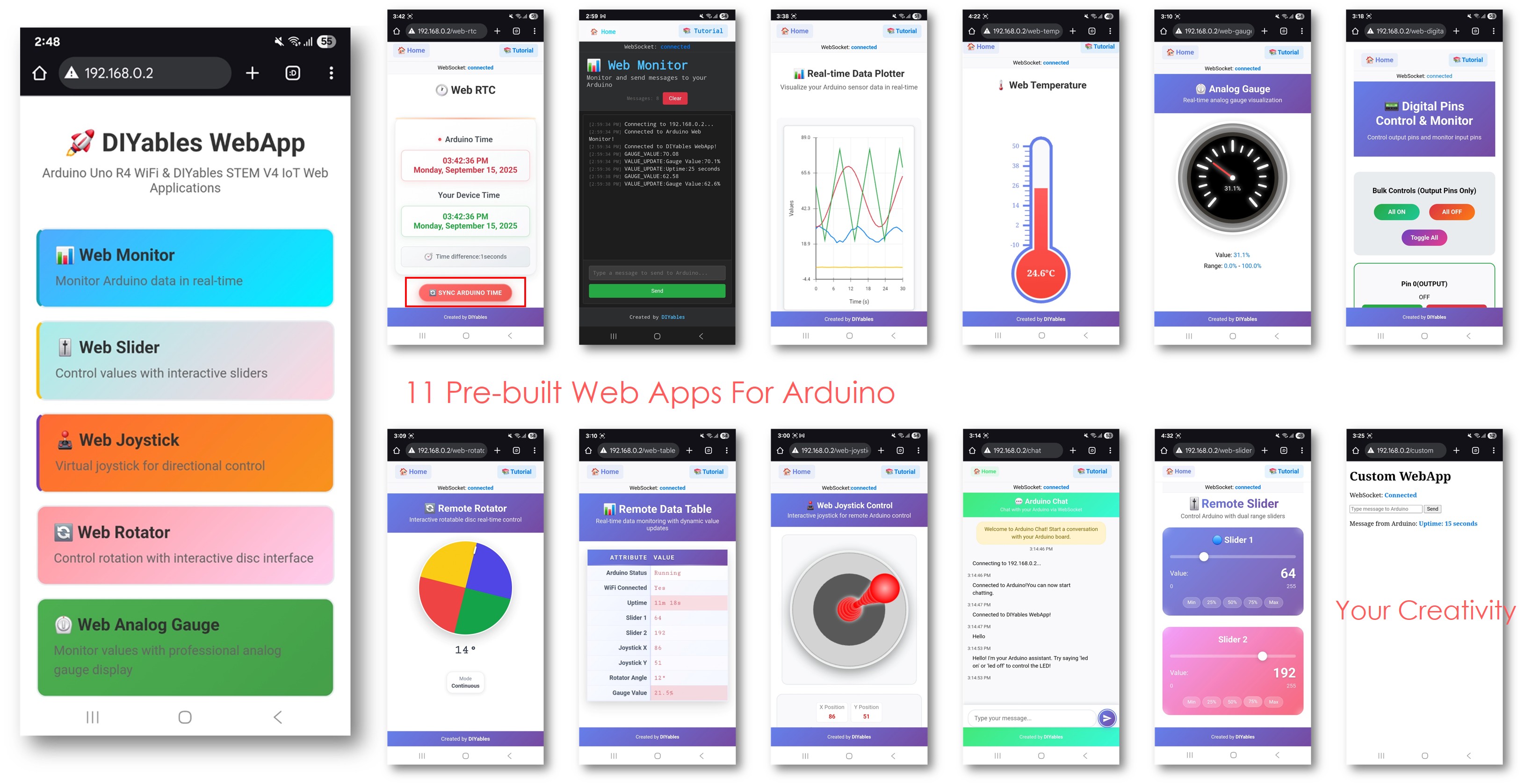
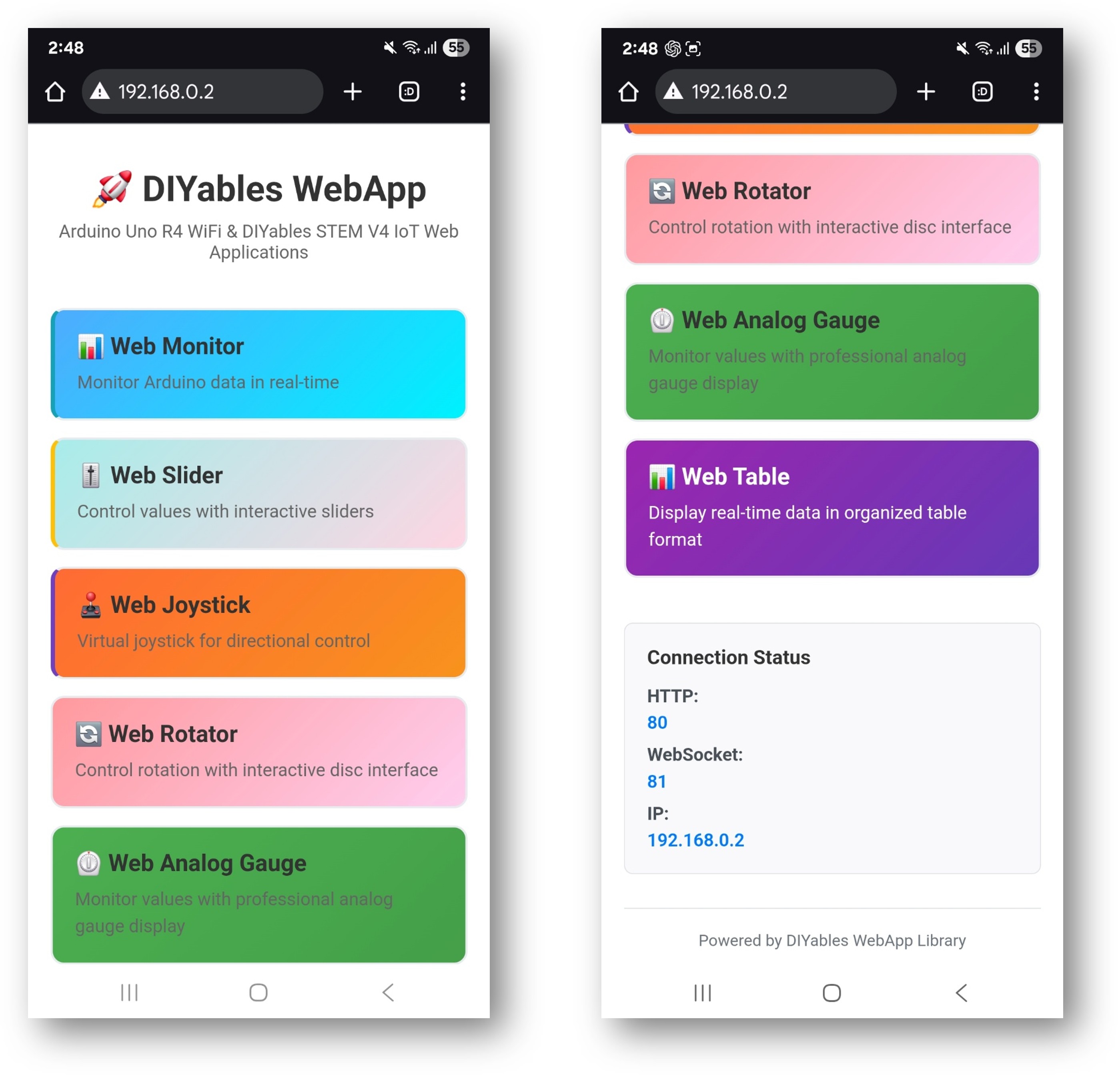
Verá la página de inicio con todas las aplicaciones web como se muestra en la imagen a continuación:
Haz clic en cualquier enlace de la aplicación web (Chat, Monitor Web, Pines digitales Web, Deslizadores Web, Joystick Web, etc.). Verás la interfaz de usuario de la aplicación web correspondiente.
O también puedes acceder a cada página directamente mediante la dirección IP seguida de la ruta de la aplicación. Por ejemplo: http://192.168.0.2/chat, http://192.168.0.2/web-monitor, etc.
Explora todas las aplicaciones web: prueba chatear con Arduino, monitorea la salida de serie, controla los pines digitales, ajusta los deslizadores y usa el joystick virtual para experimentar las capacidades completas de la interfaz web integrada.
Navegación de la interfaz web
Panel de la página de inicio
La página de inicio sirve como tu centro de control con enlaces a todas las aplicaciones:
Monitor Web: /webmonitor - Interfaz de comunicación en serie
Chat: /chat - Mensajería interactiva con Arduino
Pines digitales: /digital-pins - Control y monitoreo de pines
Deslizador Web: /webslider - Dos deslizadores de control analógico
Joystick Web: /webjoystick - Interfaz de control de posición 2D
URLs de la aplicación
Acceda a cada interfaz directamente:
http://[ARDUINO_IP]/ # Home page
http://[ARDUINO_IP]/webmonitor # Serial monitor interface
http://[ARDUINO_IP]/chat # Chat interface
http://[ARDUINO_IP]/digital-pins # Pin control
http://[ARDUINO_IP]/webslider # Slider controls
http://[ARDUINO_IP]/webjoystick # Joystick control
Personalización Creativa - Desata tu innovación
Este ejemplo completo brinda una base para tus proyectos creativos. Modifica y adapta las configuraciones a continuación para crear increíbles aplicaciones de IoT que se ajusten a tu visión única.
Configuración de Pines Digitales
El ejemplo preconfigura pines específicos para diferentes propósitos:
Pines de salida (controlables a través de la web)
webDigitalPinsPage.enablePin(2, WEB_PIN_OUTPUT); // General purpose outputwebDigitalPinsPage.enablePin(3, WEB_PIN_OUTPUT); // General purpose outputwebDigitalPinsPage.enablePin(4, WEB_PIN_OUTPUT); // General purpose outputwebDigitalPinsPage.enablePin(13, WEB_PIN_OUTPUT); // Built-in LED
// Create joystick with custom settings// autoReturn=false: Joystick stays at last position when released// sensitivity=5: Only send updates when movement > 5%DIYablesWebJoystickPage webJoystickPage(false, 5);
Variables de estado
El ejemplo mantiene un estado sincronizado entre todas las interfaces:
int pinStates[16] = { LOW }; // Track pin states (pins 0-13)int currentSlider1 = 64; // Slider 1 value (0-255) - 25%int currentSlider2 = 128; // Slider 2 value (0-255) - 50%int currentJoystickX = 0; // Joystick X value (-100 to 100)int currentJoystickY = 0; // Joystick Y value (-100 to 100)
Comandos de chat integrados
La interfaz de chat incluye varios comandos preprogramados:
Comandos básicos
hola - Respuesta de saludo amistoso
tiempo - Muestra el tiempo de actividad de Arduino en segundos
estado - Informa sobre el estado de Arduino y del LED
ayuda - Enumera los comandos disponibles
Comandos de Control
LED encendido - Enciende el LED incorporado
LED apagado - Apaga el LED incorporado
Ejemplo de sesión de chat
User: hello
Arduino: Hello! I'm your Arduino. How can I help you?
User: led on
Arduino: Built-in LED is now ON!
User: time
Arduino: I've been running for 1245 seconds.
User: status
Arduino: Status: Running smoothly! LED is ON
// Science experiment control systemconstint HEATING_ELEMENT = 9;constint COOLING_FAN = 10;constint STIRRER_MOTOR = 11;constint TEMP_SENSOR_PIN = A0;constint PH_SENSOR_PIN = A1;void setupScienceExperiment() {// Sliders for temperature and stirring control webSliderPage.onSliderValueFromWeb([](int slider1, int slider2) {// Slider 1 controls target temperature (mapped to heating/cooling)int targetTemp = map(slider1, 0, 255, 20, 80); // 20-80°C range// Slider 2 controls stirrer speedanalogWrite(STIRRER_MOTOR, slider2);// Simple temperature control logicint currentTemp = readTemperature();if (currentTemp < targetTemp) {analogWrite(HEATING_ELEMENT, 200); // Heat onanalogWrite(COOLING_FAN, 0); // Fan off } elseif (currentTemp > targetTemp + 2) {analogWrite(HEATING_ELEMENT, 0); // Heat offanalogWrite(COOLING_FAN, 255); // Fan on } else {analogWrite(HEATING_ELEMENT, 0); // Both off (maintain)analogWrite(COOLING_FAN, 0); }Serial.println("Target: " + String(targetTemp) + "°C, Current: " + String(currentTemp) + "°C"); });// Chat interface for experiment control and data chatPage.onChatMessage([](constString& message) {String msg = message; msg.toLowerCase();if (msg.indexOf("data") >= 0) {int temp = readTemperature();float ph = readPH();String data = "Temperature: " + String(temp) + "°C, pH: " + String(ph, 2); chatPage.sendToChat(data);return; }if (msg.indexOf("start") >= 0) {// Begin experiment sequence chatPage.sendToChat("🔬 Experiment started! Monitoring conditions...");return; }if (msg.indexOf("stop") >= 0) {// Emergency stopanalogWrite(HEATING_ELEMENT, 0);analogWrite(COOLING_FAN, 0);analogWrite(STIRRER_MOTOR, 0); chatPage.sendToChat("⚠️ Experiment stopped - all systems OFF");return; } chatPage.sendToChat("Science commands: data, start, stop"); });// Monitor for automatic data logging webMonitorPage.onWebMonitorMessage([](const String& message) {if (message == "log") {int temp = readTemperature();float ph = readPH();String logEntry = String(millis()) + "," + String(temp) + "," + String(ph, 2); webMonitorPage.sendToWebMonitor(logEntry); } });}intreadTemperature() {// Read temperature sensor (example implementation)int sensorValue = analogRead(TEMP_SENSOR_PIN);returnmap(sensorValue, 0, 1023, 0, 100); // Convert to temperature}float readPH() {// Read pH sensor (example implementation)int sensorValue = analogRead(PH_SENSOR_PIN);returnmap(sensorValue, 0, 1023, 0, 14) / 10.0; // Convert to pH}
Técnicas Avanzadas de Integración
Sincronización de estado
void synchronizeAllStates() {// Ensure all interfaces show current state webSliderPage.sendToWebSlider(currentSlider1, currentSlider2); webJoystickPage.sendToWebJoystick(currentJoystickX, currentJoystickY);// Update all pin statesfor (int pin = 0; pin <= 13; pin++) {if (webDigitalPinsPage.isPinEnabled(pin)) { webDigitalPinsPage.updatePinState(pin, pinStates[pin]); } }Serial.println("All interface states synchronized");}
Comunicación entre interfaces
void setupCrossInterfaceCommunication() {// Joystick position affects slider maximum values webJoystickPage.onJoystickValueFromWeb([](int x, int y) {// Calculate distance from centerfloat distance = sqrt(x*x + y*y);// Limit slider maximum based on joystick distanceif (distance > 50) {// Reduce maximum slider values when joystick is far from centerint maxValue = map(distance, 50, 100, 255, 128);// You could implement dynamic slider limiting here } });// Pin states affect available chat commands webDigitalPinsPage.onPinWrite([](int pin, int state) {if (pin == 2 && state == HIGH) { chatPage.sendToChat("📢 System armed - additional commands available"); } elseif (pin == 2 && state == LOW) { chatPage.sendToChat("📢 System disarmed - limited commands only"); } });}
Solución de problemas
Problemas comunes
1. Algunas interfaces no cargan
Verificar que todas las aplicaciones estén agregadas al servidor en setup()
Verificar las conexiones WebSocket en la consola del navegador
Asegurar suficiente memoria para todas las interfaces
2. Indica las inconsistencias entre interfaces
Implementar funciones de devolución de llamada para la sincronización del estado
Usar variables globales compartidas para el seguimiento del estado
Llamar a las funciones de sincronización después de cambios importantes en el estado
3. Problemas de rendimiento con múltiples interfaces
Reducir las frecuencias de actualización de interfaces no críticas
Implementar actualizaciones selectivas basadas en la interfaz activa
Considerar deshabilitar interfaces no utilizadas para proyectos específicos
4. Limitaciones de memoria
Monitorear la memoria disponible con Serial.print(freeMemory())
Desactiva las interfaces no utilizadas si la memoria es limitada
Optimiza las funciones de callback para minimizar el uso de memoria
Deslizadores para el control de velocidad y temperatura
Joystick para sistemas de posicionamiento
Chat para informes de estado y comandos
Monitor para registro de datos
Plantilla de Laboratorio Educativo
Deslizadores para parámetros del experimento
Pines digitales para el control del equipo
Chat para la interacción entre estudiantes
Monitor para la recopilación de datos
Monitoreo de sensores en tiempo real
Plantilla de Automatización del Hogar
Pines digitales para el control de iluminación y de electrodomésticos
Deslizadores para el atenuado y el control del clima
Monitoreo de seguridad mediante pines de entrada
Chat para comandos de voz
Monitor para el registro del estado del sistema
Plantilla de Desarrollo de Robótica
Joystick para el control del movimiento
Deslizadores para la velocidad y la posición del servo
Pines digitales para entradas de sensores
Chat para la interfaz de comandos
Monitor para depuración y telemetría
Optimización del rendimiento
Gestión de la memoria
void optimizeMemoryUsage() {// Disable unused interfaces to save memory// server.addApp(&homePage); // Always keep home page// server.addApp(&webMonitorPage); // Keep for debugging// server.addApp(&chatPage); // Optional// server.addApp(&webDigitalPinsPage); // Based on project needs// server.addApp(&webSliderPage); // Based on project needs// server.addApp(&webJoystickPage); // Based on project needs}
Control de la Frecuencia de Actualización
void controlUpdateFrequency() {staticunsignedlong lastSlowUpdate = 0;staticunsignedlong lastFastUpdate = 0;// Fast updates for critical controls (10ms)if (millis() - lastFastUpdate > 10) {// Update joystick and emergency controls lastFastUpdate = millis(); }// Slow updates for monitoring (1000ms)if (millis() - lastSlowUpdate > 1000) {// Update sensor readings and status lastSlowUpdate = millis(); }}
Próximos pasos
Después de dominar el ejemplo de MultipleWebApps:
Personaliza para tu proyecto: Elimina interfaces no utilizadas y agrega lógica específica del proyecto
Agregar sensores: Integra lecturas reales de sensores para el monitoreo de entrada
Implementar seguridad: Agrega paradas de emergencia y interbloqueos de seguridad
Crear comandos personalizados: Extiende la interfaz de chat con comandos específicos del proyecto
Agregar registro de datos: Utiliza monitor web para almacenamiento permanente de datos
Optimización móvil: Prueba y optimiza para el uso en dispositivos móviles
Soporte
Para ayuda adicional:
Revisa la documentación de los ejemplos individuales (Chat_Example.txt, WebMonitor_Example.txt, etc.)
Revisa la documentación de la API
Visita los tutoriales de DIYables: https://newbiely.com/tutorials/arduino-uno-r4/arduino-uno-r4-diyables-webapps
Foros de la comunidad de Arduino
Este ejemplo completo proporciona la base para prácticamente cualquier proyecto de Arduino controlado por la web. ¡Comienza con esta plantilla y personalízala para tus necesidades específicas!
No dude en compartir el enlace de este tutorial. Sin embargo, por favor no use nuestro contenido en otros sitios web. Hemos invertido mucho esfuerzo y tiempo en crear el contenido, ¡por favor respete nuestro trabajo!