Arduino Nano ESP32 - Servidor Web con Varias Páginas
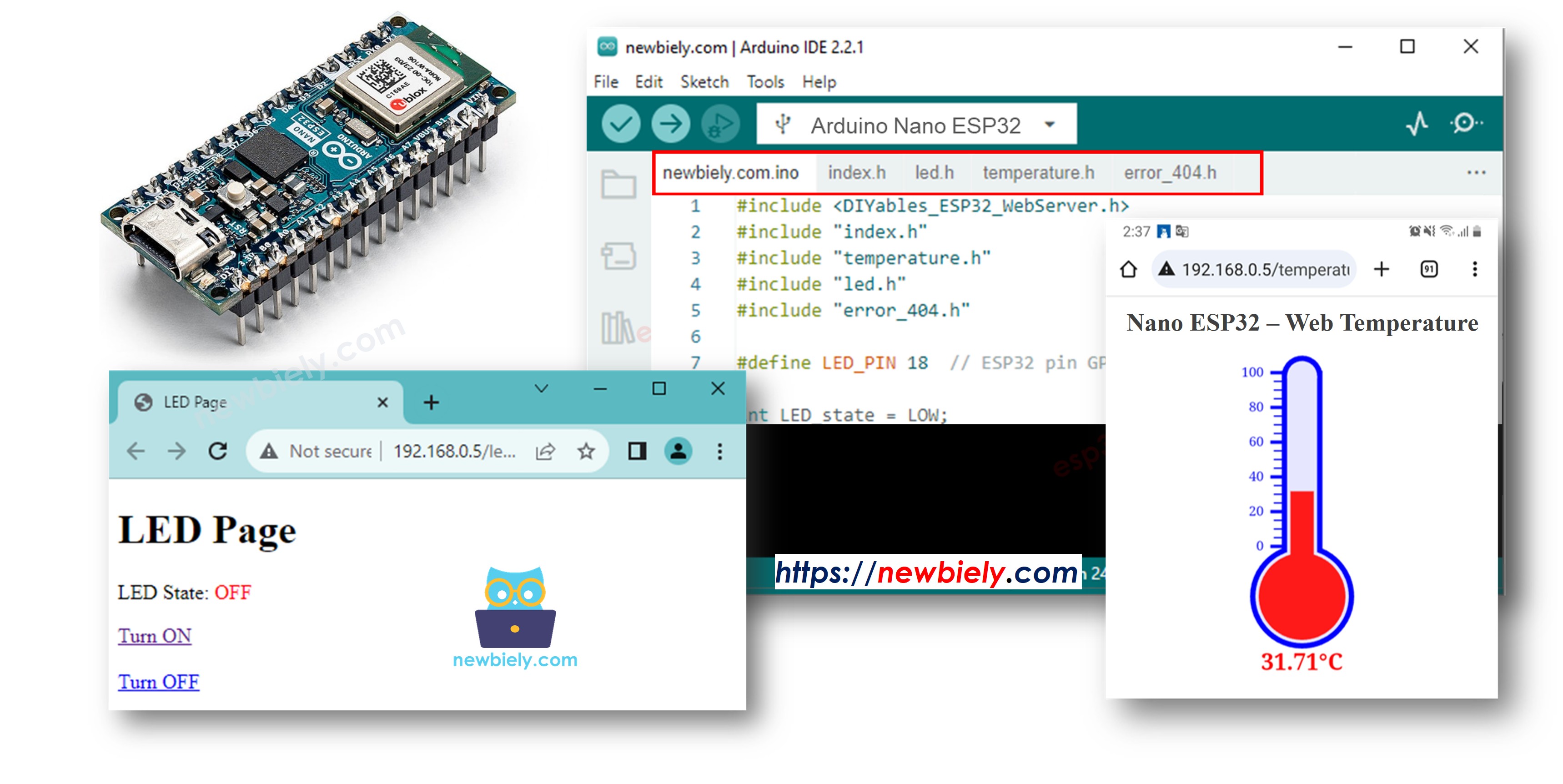
En este tutorial, descubriremos cómo convertir un Arduino Nano ESP32 en un servidor web que pueda manejar varias páginas a la vez, como index.html, temperature.html, led.html, error_404.html y error_405.html...
Al seguir este tutorial, podrás convertir tu Arduino Nano ESP32 en un servidor web con algunas funciones geniales:
Varias páginas web están activas simultáneamente.
El contenido HTML (incluyendo HTML, CSS y Javascript) de cada página se mantiene por separado en su propio archivo en el IDE de Arduino.
El contenido HTML puede actualizarse dinámicamente con valores en tiempo real de sensores, haciendo que las páginas web sean dinámicas y receptivas.
El servidor web permite controlar algo conectado al Arduino Nano ESP32 a través de la web.
El servidor web maneja códigos de error HTTP como 404 No Encontrado
Puede parecer complicado, ¡pero no te preocupes! Este tutorial ofrece orientación paso a paso y el código está diseñado para ser fácil de entender para principiantes, asegurando que puedas comprenderlo fácilmente y crear tu propio servidor web con Arduino Nano ESP32.
Divulgación: Algunos de los enlaces proporcionados en esta sección son enlaces de afiliado de Amazon. Podemos recibir una comisión por las compras realizadas a través de estos enlaces sin costo adicional para usted. Apreciamos su apoyo.
Acerca de Arduino Nano ESP32 y el servidor web
Si no estás familiarizado con Arduino Nano ESP32 y con el servidor web (incluido el pinout, cómo funciona y la programación), puedes aprender sobre ellos a través de los siguientes tutoriales:
Código Arduino Nano ESP32 - Servidor web de múltiples páginas
A continuación se muestra el código completo de Arduino Nano ESP32 que crea un servidor web con varias páginas. Para mantenerlo simple, el contenido HTML de cada página es muy simple y está incrustado directamente en el código de Arduino Nano ESP32. En otra parte, aprenderemos cómo separar los contenidos HTML de cada página en archivos separados, lo que hará que el código sea más organizado y manejable.
/* * Este código de Arduino Nano ESP32 fue desarrollado por es.newbiely.com * Este código de Arduino Nano ESP32 se proporciona al público sin ninguna restricción. * Para tutoriales completos y diagramas de cableado, visite: * https://es.newbiely.com/tutorials/arduino-nano-esp32/arduino-nano-esp32-web-server-multiple-pages*/#include <DIYables_ESP32_WebServer.h>#define LED_PIN D5 // The Arduino Nano ESP32 pin connected to LEDint LED_state = LOW;floatgetTemperature() {// YOUR SENSOR IMPLEMENTATION HERE// simulate the temperature valuefloat temp_x100 = random(0, 10000); // a ramdom value from 0 to 10000return temp_x100 / 100; // return the simulated temperature value from 0 to 100 in float}// WiFi credentialsconstchar WIFI_SSID[] = "YOUR_WIFI_SSID";constchar WIFI_PASSWORD[] = "YOUR_WIFI_PASSWORD";// Create web server instanceDIYables_ESP32_WebServer server;// Page handlersvoid handleHome(WiFiClient& client, const String& method, const String& request, const QueryParams& params, const String& jsonData) {Serial.println("Arduino Nano ESP32 Web Server: home page"); server.sendResponse(client, "This is the ESP32 home page");}void handleTemperature(WiFiClient& client, const String& method, const String& request, const QueryParams& params, const String& jsonData) {Serial.println("Arduino Nano ESP32 Web Server: temperature page");float temperature = getTemperature();String reponse = "Temperature: " + String(temperature); server.sendResponse(client, reponse.c_str());}void handleLed(WiFiClient& client, constString& method, constString& request, const QueryParams& params, constString& jsonData) {Serial.println("Arduino Nano ESP32 Web Server: LED page");// Check for the 'state' parameter in the query stringString state = "";for (int i = 0; i < params.count; i++) {if (String(params.params[i].key) == "state") { state = params.params[i].value;if (state == "on") { LED_state = HIGH; } elseif (state == "off") { LED_state = LOW; }// control LED heredigitalWrite(LED_PIN, LED_state);Serial.print(" => turning LED to ");Serial.print(state);Serial.println();break; } }String reponse = "LED state: " + String(LED_state); server.sendResponse(client, reponse.c_str());}void handleNotFound(WiFiClient& client, constString& method, constString& request, const QueryParams& params, constString& jsonData) {String response = "<!DOCTYPE html><html><head><meta charset=\"UTF-8\"><title>404 Not Found</title></head><body>"; response += "<h1>404 - Page Not Found</h1>"; response += "<p>Sorry, we couldn't find that page!</p>"; response += "<a href=\"/\">Return to Home</a></body></html>"; server.sendResponse(client, response.c_str());}voidsetup() {Serial.begin(9600);delay(1000);pinMode(LED_PIN, OUTPUT);Serial.println("ESP32 Web Server");// Configure routes server.addRoute("/", handleHome); server.addRoute("/temperature.html", handleTemperature); server.addRoute("/led.html", handleLed);// Set custom 404 handler server.setNotFoundHandler(handleNotFound);// Start web server with WiFi connection server.begin(WIFI_SSID, WIFI_PASSWORD);}voidloop() { server.handleClient();}
Pasos R\u00e1pidos
Para empezar con Arduino Nano ESP32, siga estos pasos:
Tenga en cuenta que debe cambiar 192.168.0.2 por la dirección IP que obtuvo en el Monitor Serial.
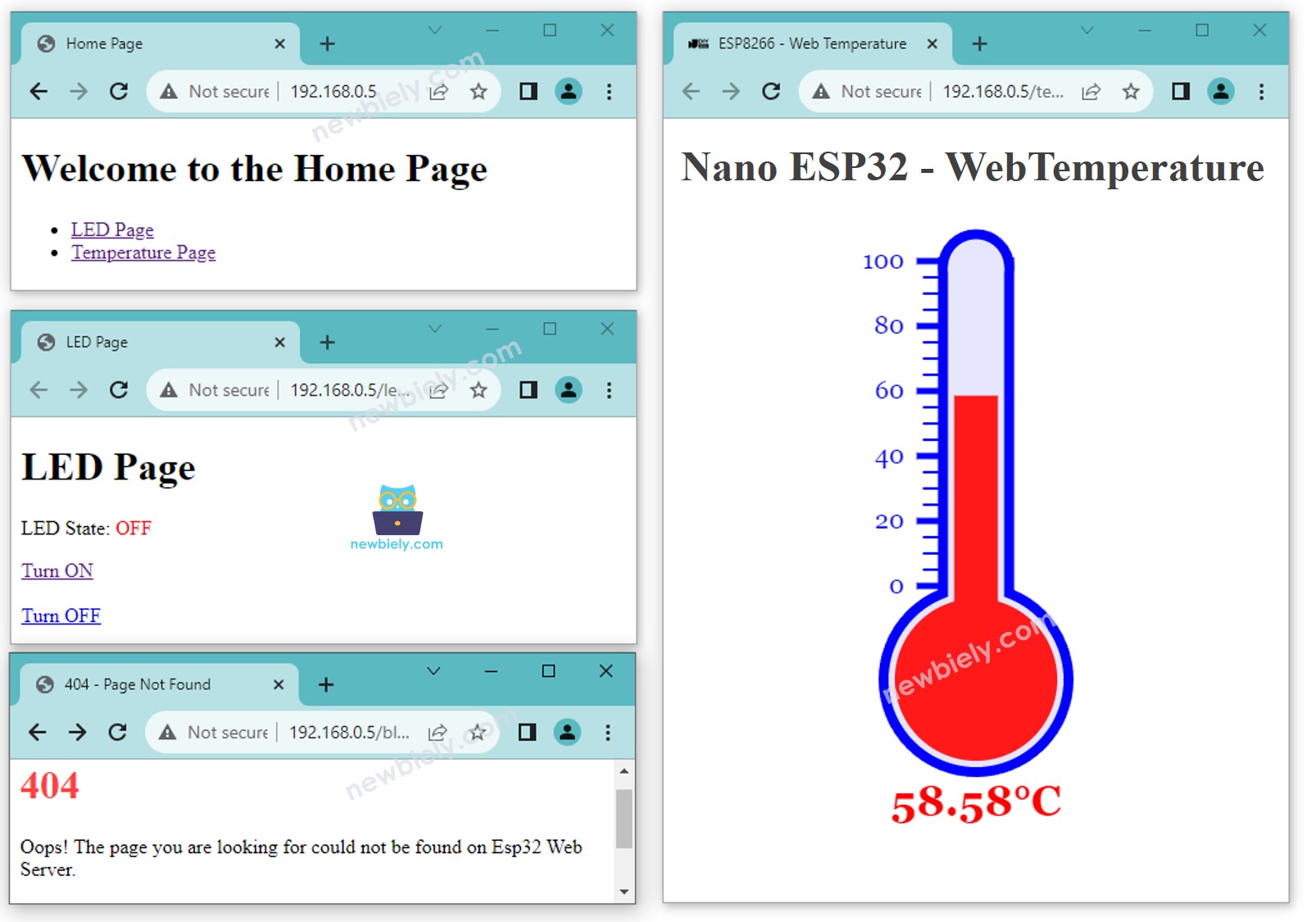
Verá las siguientes páginas: página de inicio, página LED, página de temperatura y página no encontrada.
También puede ver la salida en el Monitor Serial.
Newbiely | Arduino IDE 2.3.8
──
☐
✕
File
Edit
Sketch
Tools
Help
Arduino Nano ESP32
Newbiely.ino
···
8Serial.println("Hello World!");
Output
Serial Monitor
Message (Enter to send message to 'Arduino Nano ESP32' on 'COM15')
New Line
9600 baud
Connecting to WiFi...
Connected to WiFi
Arduino Nano ESP32 Web Server's IP address: 192.168.0.2
Arduino Nano ESP32 Web server started
Web Server: home page
Web Server: LED page
Web Server: LED page => turning LED to on
Web Server: LED page => turning LED to off
Web Server: temperature page
Web Server: Not Found
Ln 11, Col 1
Arduino Nano ESP32 on COM15
2
El código anterior tiene un contenido HTML muy simple para cada página. Pero si queremos crear una interfaz elegante con mucho HTML, el código puede volverse grande y desordenado. Para hacerlo más sencillo, aprenderemos a separar el HTML del código de Arduino Nano ESP32. Esto nos permitirá mantener el HTML en archivos separados, lo que facilita su gestión y su uso.
Código de Arduino Nano ESP32 - Servidor web completo de varias páginas
Abre el IDE de Arduino.
Crea un nuevo sketch y asígnale un nombre, por ejemplo, ESP32WebServer.ino.
Copia el código proporcionado y pégalo en ese archivo.
/* * Este código de Arduino Nano ESP32 fue desarrollado por es.newbiely.com * Este código de Arduino Nano ESP32 se proporciona al público sin ninguna restricción. * Para tutoriales completos y diagramas de cableado, visite: * https://es.newbiely.com/tutorials/arduino-nano-esp32/arduino-nano-esp32-web-server-multiple-pages*/#include <DIYables_ESP32_WebServer.h>#include"index.h"#include"temperature.h"#include"led.h"#include"error_404.h"#define LED_PIN D5 // The Arduino Nano ESP32 pin connected to LEDint LED_state = LOW;floatgetTemperature() {// YOUR SENSOR IMPLEMENTATION HERE// simulate the temperature valuefloat temp_x100 = random(0, 10000); // a ramdom value from 0 to 10000return temp_x100 / 100; // return the simulated temperature value from 0 to 100 in float}// WiFi credentialsconstchar WIFI_SSID[] = "YOUR_WIFI_SSID";constchar WIFI_PASSWORD[] = "YOUR_WIFI_PASSWORD";// Create web server instanceDIYables_ESP32_WebServer server;// Page handlersvoid handleHome(WiFiClient& client, const String& method, const String& request, const QueryParams& params, const String& jsonData) {Serial.println("Arduino Nano ESP32 Web Server: home page"); server.sendResponse(client, HTML_CONTENT_HOME);}void handleTemperature(WiFiClient& client, const String& method, const String& request, const QueryParams& params, const String& jsonData) {Serial.println("Arduino Nano ESP32 Web Server: temperature page");float temperature = getTemperature();String html = HTML_CONTENT_TEMPERATURE; // Use the HTML content from the temperature.h file html.replace("%TEMPERATURE_VALUE%", String(temperature)); // update the temperature value server.sendResponse(client, html.c_str());}void handleLed(WiFiClient& client, const String& method, const String& request, const QueryParams& params, const String& jsonData) {Serial.println("Arduino Nano ESP32 Web Server: LED page");// Check for the 'state' parameter in the query stringString state = "";for (int i = 0; i < params.count; i++) {if (String(params.params[i].key) == "state") { state = params.params[i].value;if (state == "on") { LED_state = HIGH; } elseif (state == "off") { LED_state = LOW; }// control LED heredigitalWrite(LED_PIN, LED_state);Serial.print(" => turning LED to ");Serial.print(state);Serial.println();break; } }String html = HTML_CONTENT_LED; // Use the HTML content from the led.h file html.replace("%LED_STATE%", LED_state ? "ON" : "OFF"); // update the LED state server.sendResponse(client, html.c_str());}void handleNotFound(WiFiClient& client, const String& method, const String& request, const QueryParams& params, const String& jsonData) {// Handle 404 Not Found errorSerial.println("Arduino Nano ESP32 Web Server: Not Found");// Use the HTML content from the error_404.h file server.sendResponse(client, HTML_CONTENT_404);}voidsetup() {Serial.begin(9600);delay(1000);pinMode(LED_PIN, OUTPUT);Serial.println("Arduino Nano ESP32 Web Server");// Configure routes server.addRoute("/", handleHome); server.addRoute("/temperature.html", handleTemperature); server.addRoute("/led.html", handleLed);// Set custom 404 handler server.setNotFoundHandler(handleNotFound);// Start web server with WiFi connection server.begin(WIFI_SSID, WIFI_PASSWORD);}voidloop() { server.handleClient();}
Cambia la información de WiFi (SSID y contraseña) en el código por la tuya
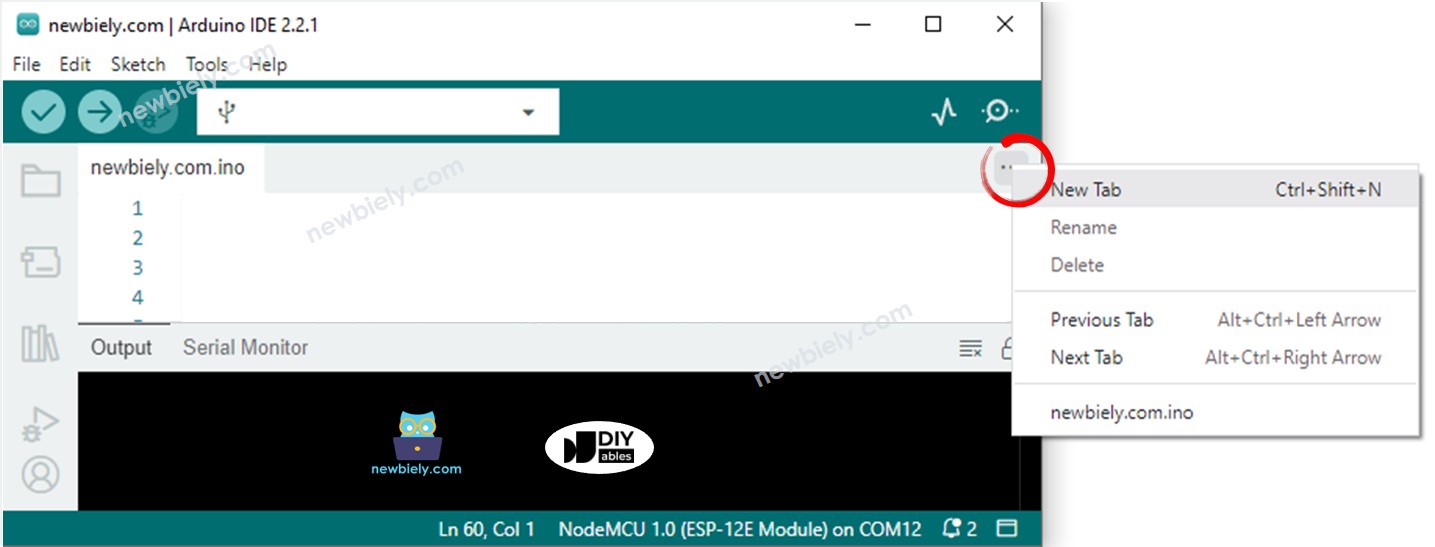
Crea el archivo index.h en el IDE de Arduino haciendo lo siguiente:
O haz clic en el botón justo debajo del icono del monitor serie y elige Nueva pestaña, o usa las teclas Ctrl+Shift+N
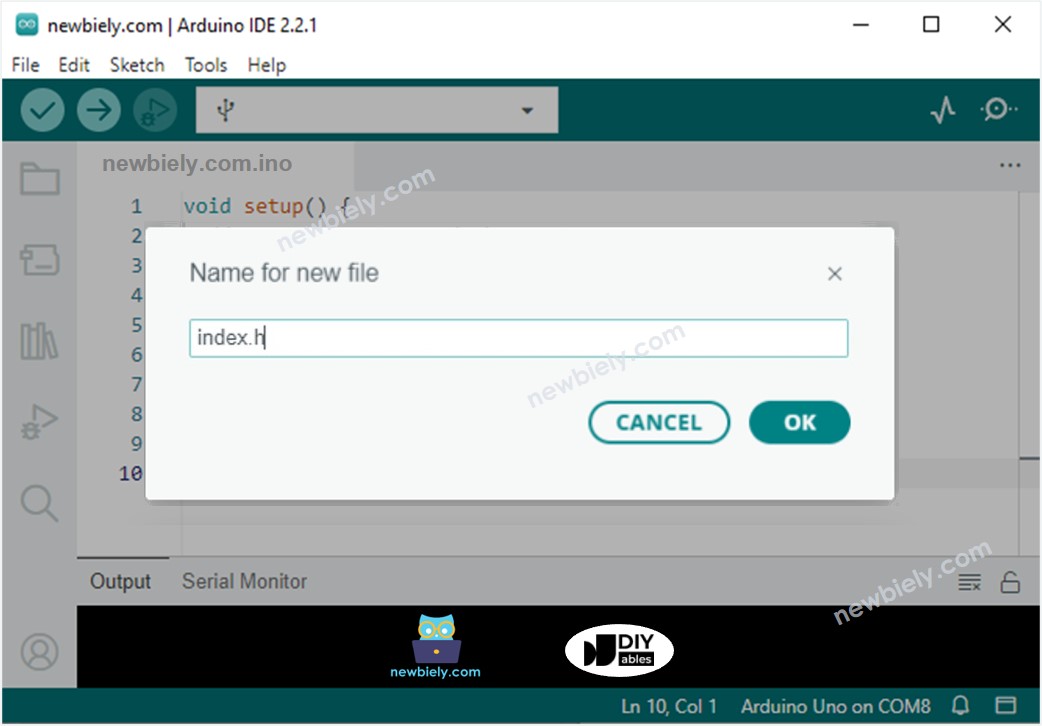
Escribe el nombre del archivo index.h y haz clic en el botón Aceptar
Copia el código de abajo y pégalo en el archivo index.h.
/* * Este código de Arduino Nano ESP32 fue desarrollado por es.newbiely.com * Este código de Arduino Nano ESP32 se proporciona al público sin ninguna restricción. * Para tutoriales completos y diagramas de cableado, visite: * https://es.newbiely.com/tutorials/arduino-nano-esp32/arduino-nano-esp32-web-server-multiple-pages*/constchar *HTML_CONTENT_HOME = R"=====(<!DOCTYPE html><html lang="en"><head> <meta charset="UTF-8"> <meta name="viewport" content="width=device-width, initial-scale=1.0"> <link rel="icon" href="data:,"> <title>Home Page</title></head><body> <h1>Welcome to the Home Page</h1> <ul> <li><a href="/led.html">LED Page</a></li> <li><a href="/temperature.html">Temperature Page</a></li> </ul></body></html>)=====";
De manera similar, cree el archivo led.h en el IDE de Arduino con el siguiente contenido.
/* * Este código de Arduino Nano ESP32 fue desarrollado por es.newbiely.com * Este código de Arduino Nano ESP32 se proporciona al público sin ninguna restricción. * Para tutoriales completos y diagramas de cableado, visite: * https://es.newbiely.com/tutorials/arduino-nano-esp32/arduino-nano-esp32-web-server-multiple-pages*/constchar *HTML_CONTENT_LED = R"=====(<!DOCTYPE html><html lang="en"><head> <meta charset="UTF-8"> <meta name="viewport" content="width=device-width, initial-scale=1.0"> <link rel="icon" href="data:,"> <title>LED Page</title></head><body> <h1>LED Page</h1> <p>LED State: <span style="color: red;">%LED_STATE%</span></p> <a href='/led.html?state=on'>Turn ON</a> <br><br> <a href='/led.html?state=off'>Turn OFF</a></body></html>)=====";
Del mismo modo, crea el archivo temperature.h en el IDE de Arduino con el siguiente contenido.
/* * Este código de Arduino Nano ESP32 fue desarrollado por es.newbiely.com * Este código de Arduino Nano ESP32 se proporciona al público sin ninguna restricción. * Para tutoriales completos y diagramas de cableado, visite: * https://es.newbiely.com/tutorials/arduino-nano-esp32/arduino-nano-esp32-web-server-multiple-pages*/constchar *HTML_CONTENT_TEMPERATURE = R"=====(<!DOCTYPE html><html><head><title>Arduino Nano ESP32 - Web Temperature</title><meta name="viewport" content="width=device-width, initial-scale=0.7, maximum-scale=0.7"><meta charset="utf-8"><link rel="icon" href="https://diyables.io/images/page/diyables.svg"><style>body { font-family: "Georgia"; text-align: center; font-size: width/2pt;}h1 { font-weight: bold; font-size: width/2pt;}h2 { font-weight: bold; font-size: width/2pt;}button { font-weight: bold; font-size: width/2pt;}</style><script>var cvs_width = 200, cvs_height = 450;function init() { var canvas = document.getElementById("cvs"); canvas.width = cvs_width; canvas.height = cvs_height + 50; var ctx = canvas.getContext("2d"); ctx.translate(cvs_width/2, cvs_height - 80); update_view(%TEMPERATURE_VALUE%);}function update_view(temp) { var canvas = document.getElementById("cvs"); var ctx = canvas.getContext("2d"); var radius = 70; var offset = 5; var width = 45; var height = 330; ctx.clearRect(-cvs_width/2, -350, cvs_width, cvs_height); ctx.strokeStyle="blue"; ctx.fillStyle="blue";//5-step Degree var x = -width/2; ctx.lineWidth=2;for (var i = 0; i <= 100; i+=5) { var y = -(height - radius)*i/100 - radius - 5; ctx.beginPath(); ctx.lineTo(x, y); ctx.lineTo(x - 20, y); ctx.stroke(); }//20-step Degree ctx.lineWidth=5;for (var i = 0; i <= 100; i+=20) { var y = -(height - radius)*i/100 - radius - 5; ctx.beginPath(); ctx.lineTo(x, y); ctx.lineTo(x - 25, y); ctx.stroke(); ctx.font="20px Georgia"; ctx.textBaseline="middle"; ctx.textAlign="right"; ctx.fillText(i.toString(), x - 35, y); }// shape ctx.lineWidth=16; ctx.beginPath(); ctx.arc(0, 0, radius, 0, 2 * Math.PI); ctx.stroke(); ctx.beginPath(); ctx.rect(-width/2, -height, width, height); ctx.stroke(); ctx.beginPath(); ctx.arc(0, -height, width/2, 0, 2 * Math.PI); ctx.stroke(); ctx.fillStyle="#e6e6ff"; ctx.beginPath(); ctx.arc(0, 0, radius, 0, 2 * Math.PI); ctx.fill(); ctx.beginPath(); ctx.rect(-width/2, -height, width, height); ctx.fill(); ctx.beginPath(); ctx.arc(0, -height, width/2, 0, 2 * Math.PI); ctx.fill(); ctx.fillStyle="#ff1a1a"; ctx.beginPath(); ctx.arc(0, 0, radius - offset, 0, 2 * Math.PI); ctx.fill(); temp = Math.round(temp * 100) / 100; var y = (height - radius)*temp/100.0 + radius + 5; ctx.beginPath(); ctx.rect(-width/2 + offset, -y, width - 2*offset, y); ctx.fill(); ctx.fillStyle="red"; ctx.font="bold 34px Georgia"; ctx.textBaseline="middle"; ctx.textAlign="center"; ctx.fillText(temp.toString() + "°C", 0, 100);}window.onload = init;</script></head><body><h1>Arduino Nano ESP32 - Web Temperature</h1><canvas id="cvs"></canvas></body></html>)=====";
Del mismo modo, crea el archivo error_404.h en el IDE de Arduino con el siguiente contenido.
/* * Este código de Arduino Nano ESP32 fue desarrollado por es.newbiely.com * Este código de Arduino Nano ESP32 se proporciona al público sin ninguna restricción. * Para tutoriales completos y diagramas de cableado, visite: * https://es.newbiely.com/tutorials/arduino-nano-esp32/arduino-nano-esp32-web-server-multiple-pages*/constchar *HTML_CONTENT_404 = R"=====(<!DOCTYPE html><html lang="en"><head> <meta charset="UTF-8"> <meta name="viewport" content="width=device-width, initial-scale=1.0"> <link rel="icon" href="data:,"> <title>404 - Page Not Found</title> <style> h1 {color: #ff4040;} </style></head><body> <h1>404</h1> <p>Oops! The page you are looking for could not be found on Esp32 Web Server.</p> <p>Please check the URL or go back to the <a href="/">homepage</a>.</p> <p>Or check <a href="https://esp32io.com/tutorials/esp32-web-server-multiple-pages"> Esp32 Web Server</a> tutorial.</p></body></html>)=====";
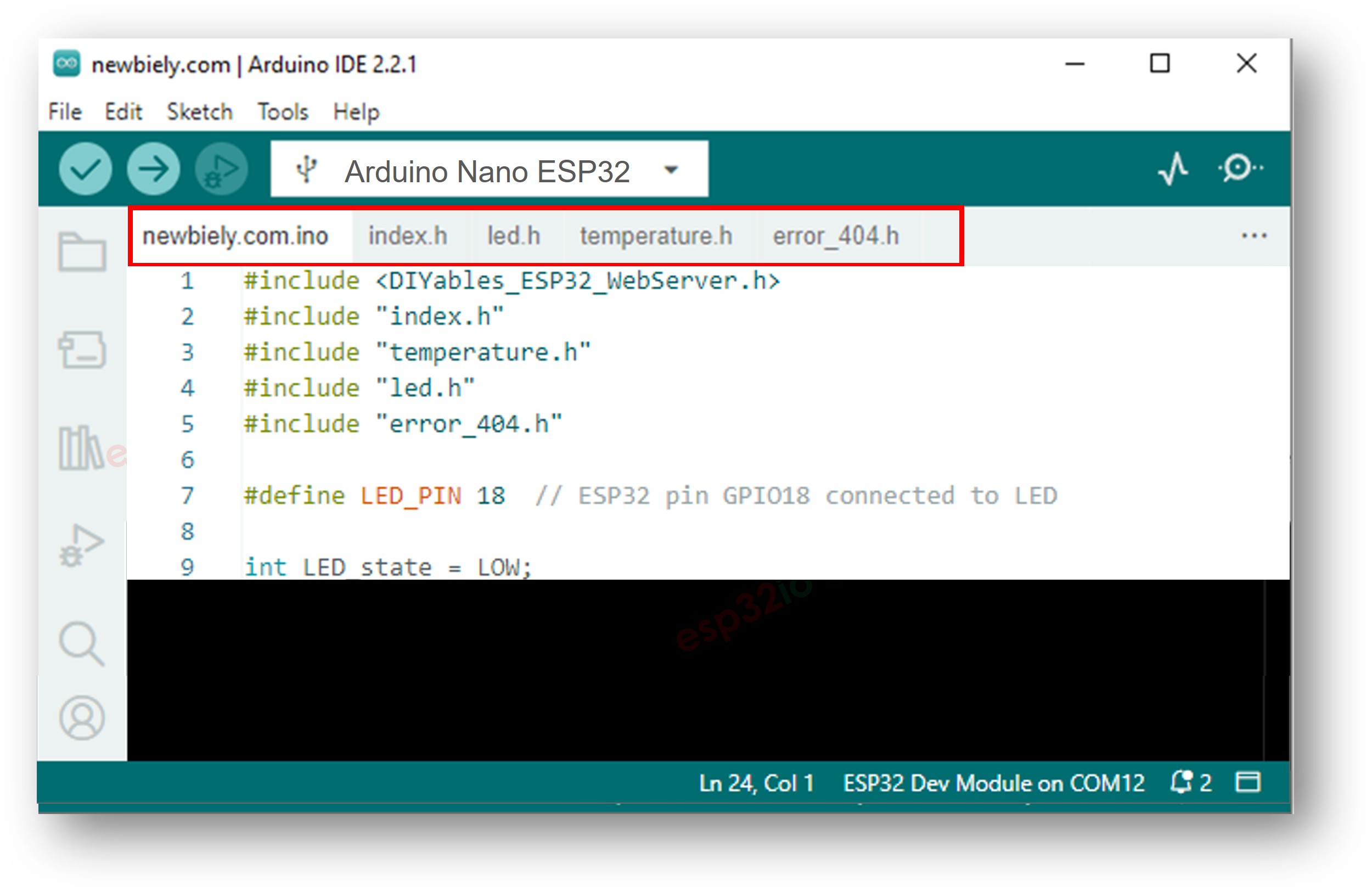
Ahora tienes múltiples archivos en Arduino IDE como se muestra a continuación:
Haz clic en el botón Subir del IDE de Arduino para subir el código al Arduino Nano ESP32
Accede a las páginas web de la placa Arduino Nano ESP32 a través de tu navegador web una por una como antes. Verás todas las páginas web como se muestran a continuación:
No dude en compartir el enlace de este tutorial. Sin embargo, por favor no use nuestro contenido en otros sitios web. Hemos invertido mucho esfuerzo y tiempo en crear el contenido, ¡por favor respete nuestro trabajo!