
Arduino Nano ESP32 - Botón - Antirrebote

Al pulsar o soltar un botón, o cuando un interruptor se cambia entre ON y OFF, su estado cambia de LOW a HIGH (o de HIGH a LOW) una vez. ¿Es correcto?

⇒ No, no lo es. Eso se debe a que, en el mundo físico, cuando haces una única pulsación sobre un botón, el estado del botón se alterna rápidamente entre LOW y HIGH varias veces en lugar de una vez. Esta es la característica mecánica y física. Este fenómeno recibe el nombre de: chattering. El fenómeno de chattering hace que el MCU (p. ej. ESP32) lea múltiples pulsaciones de botón en respuesta a una única pulsación real. Esto provoca un mal funcionamiento. El proceso para eliminar este fenómeno se llama debounce. Este tutorial muestra cómo hacerlo.
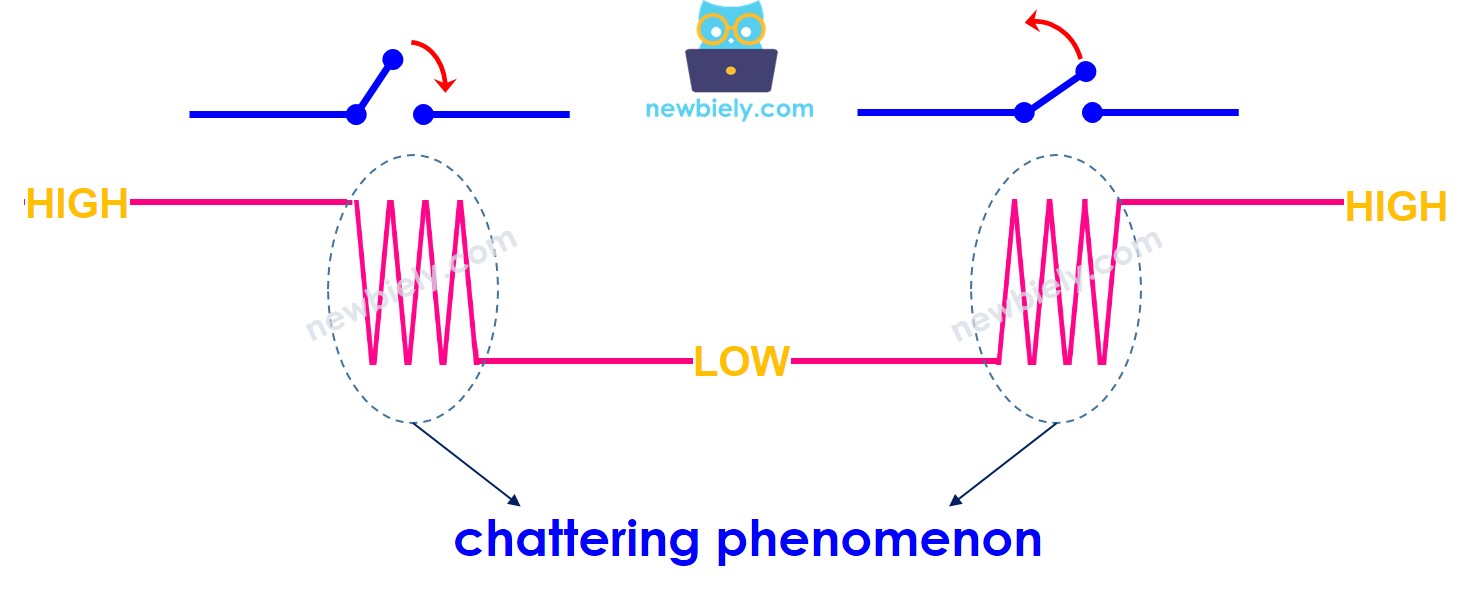
Fenómeno de parpadeo en Arduino Nano ESP32

Este tutorial proporciona:

Acerca de Botón

Tenemos tutoriales específicos sobre el botón. El tutorial contiene información detallada y instrucciones paso a paso sobre el pinout de hardware, el principio de funcionamiento, el cableado hacia el ESP32 y el código para Arduino Nano ESP32. Obtenga más información sobre ellos en los siguientes enlaces:

Diagrama de Cableado
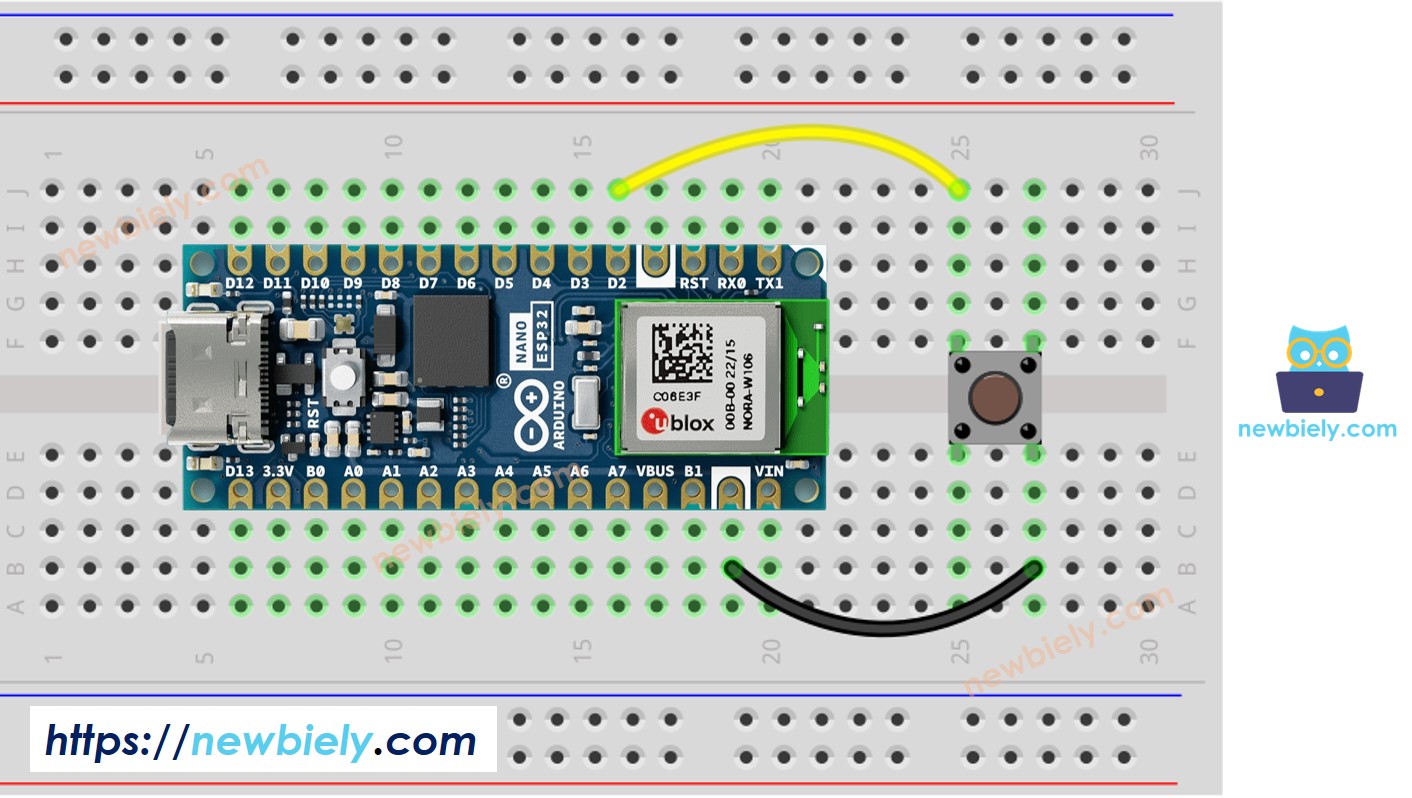
Diagrama de cableado del botón para Arduino Nano ESP32

This image is created using Fritzing. Click to enlarge image

Para dejarlo claro, ejecutemos el código de Arduino Nano ESP32 SIN y CON debounce, y comparemos sus resultados

Lectura de un botón sin antirrebote

Pasos R\u00e1pidos

Para empezar con Arduino Nano ESP32, siga estos pasos:

  • Si eres nuevo en Arduino Nano ESP32, consulta el tutorial sobre cómo configurar el entorno para Arduino Nano ESP32 en el IDE de Arduino.
  • Conecte los componentes según el diagrama proporcionado.
  • Conecte la placa Arduino Nano ESP32 a su computadora con un cable USB.
  • Inicie el IDE de Arduino en su computadora.
  • Seleccione la placa Arduino Nano ESP32 y su puerto COM correspondiente.
  • Copie el código que aparece a continuación y péguelo en el IDE de Arduino.
/* * Este código de Arduino Nano ESP32 fue desarrollado por es.newbiely.com * Este código de Arduino Nano ESP32 se proporciona al público sin ninguna restricción. * Para tutoriales completos y diagramas de cableado, visite: * https://es.newbiely.com/tutorials/arduino-nano-esp32/arduino-nano-esp32-button-debounce */ #define BUTTON_PIN D2 // Arduino Nano ESP32 pin D2 pin connected to button int prev_state = LOW; // The previous state from the input pin int button_state; // The current reading from the input pin void setup() { // Initialize the Serial to communicate with the Serial Monitor. Serial.begin(9600); // initialize the button pin as an pull-up input (HIGH when the switch is open and LOW when the switch is closed) pinMode(BUTTON_PIN, INPUT_PULLUP); } void loop() { // read the state of the switch/button: button_state = digitalRead(BUTTON_PIN); if (prev_state == HIGH && button_state == LOW) Serial.println("The button is pressed"); else if (prev_state == LOW && button_state == HIGH) Serial.println("The button is released"); // save the the last state prev_state = button_state; }
  • Compilar y subir código a la placa Arduino Nano ESP32 haciendo clic en Subir botón en el IDE de Arduino
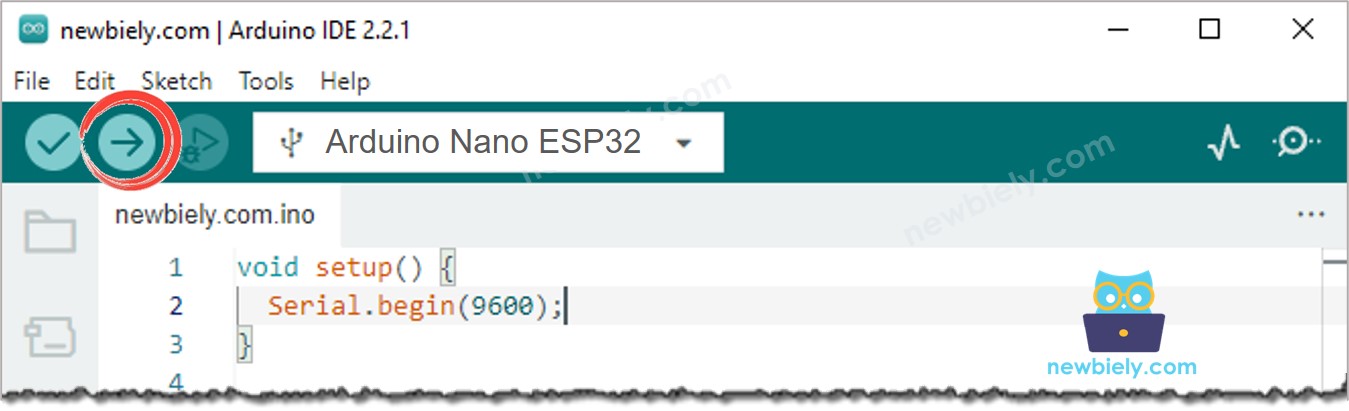
Subir código al IDE de Arduino
  • Abrir el monitor serial en el IDE de Arduino
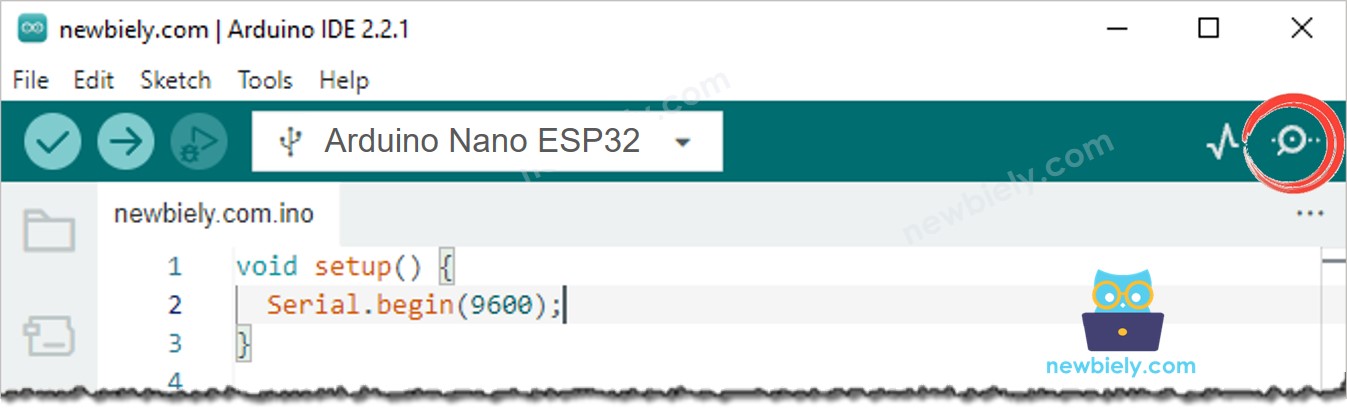
Cómo abrir el monitor serie en el IDE de Arduino
  • Presione el botón una vez, manténgalo presionado durante varios segundos y luego suéltelo.
  • Revise el resultado en el Monitor Serial. Se muestra a continuación:
COM6
Send
The button is pressed The button is pressed The button is pressed The button is released The button is released
Autoscroll Show timestamp
Clear output
9600 baud  
Newline  

⇒ Como puedes ver, solo hiciste una única pulsación y liberación, pero Arduino Nano ESP32 lee varias pulsaciones y liberaciones.

※ Nota:

El fenómeno de chattering no ocurre todo el tiempo. Si no ocurre, por favor pruebe la prueba anterior varias veces.

Lectura de botón con anti-rebote

Pasos R\u00e1pidos

/* * Este código de Arduino Nano ESP32 fue desarrollado por es.newbiely.com * Este código de Arduino Nano ESP32 se proporciona al público sin ninguna restricción. * Para tutoriales completos y diagramas de cableado, visite: * https://es.newbiely.com/tutorials/arduino-nano-esp32/arduino-nano-esp32-button-debounce */ #define BUTTON_PIN D2 // Arduino Nano ESP32 pin D2 pin connected to button #define DEBOUNCE_TIME 50 // The debounce time in millisecond, increase this time if it still chatters int prev_state_steady = LOW; // The previous steady state from the input pin int prev_state_flick = LOW; // The previous flickerable state from the input pin int button_state; // The current reading from the input pin unsigned long last_debounce_time = 0; // The last time the output pin was toggled void setup() { // Initialize the Serial to communicate with the Serial Monitor. Serial.begin(9600); // initialize the button pin as an pull-up input (HIGH when the switch is open and LOW when the switch is closed) pinMode(BUTTON_PIN, INPUT_PULLUP); } void loop() { // read the state of the switch/button: button_state = digitalRead(BUTTON_PIN); // check to see if you just pressed the button // (i.e. the input went from LOW to HIGH), and you've waited long enough // since the last press to ignore any noise: // If the switch/button changed, due to noise or pressing: if (button_state != prev_state_flick) { // reset the debouncing timer last_debounce_time = millis(); // save the the last flickerable state prev_state_flick = button_state; } if ((millis() - last_debounce_time) > DEBOUNCE_TIME) { // whatever the reading is at, it's been there for longer than the debounce // delay, so take it as the actual current state: // if the button state has changed: if(prev_state_steady == HIGH && button_state == LOW) Serial.println("The button is pressed"); else if(prev_state_steady == LOW && button_state == HIGH) Serial.println("The button is released"); // save the the last steady state prev_state_steady = button_state; } }
  • Compilar y subir código a la placa Arduino Nano ESP32 haciendo clic en Subir botón en el IDE de Arduino
  • Abrir el Monitor Serial en el IDE de Arduino
  • Mantén pulsado el botón durante varios segundos y luego suéltalo.
  • Consulta el resultado en el Monitor Serial. Se ve como lo siguiente:
COM6
Send
The button is pressed The button is released
Autoscroll Show timestamp
Clear output
9600 baud  
Newline  

⇒ Como se puede ver, hiciste una pulsación y liberación, y Arduino Nano ESP32 leyó una pulsación y liberación. El rebote ha sido eliminado.

Lo Hicimos Fácil - Código de Antirrebote de Botón para Arduino Nano ESP32 con Biblioteca

Para facilitar a los principiantes, especialmente al gestionar el antirrebote de varios botones, hemos creado una biblioteca de botones llamada ezButton. Puedes informarte sobre la biblioteca ezButton aquí.

Código de antirrebote de botón para Arduino Nano ESP32 para un solo botón

/* * Este código de Arduino Nano ESP32 fue desarrollado por es.newbiely.com * Este código de Arduino Nano ESP32 se proporciona al público sin ninguna restricción. * Para tutoriales completos y diagramas de cableado, visite: * https://es.newbiely.com/tutorials/arduino-nano-esp32/arduino-nano-esp32-button-debounce */ #include <ezButton.h> #define DEBOUNCE_TIME 50 // the debounce time in millisecond, increase this time if it still chatters ezButton button(D2); // create ezButton object for pin D2 void setup() { Serial.begin(9600); button.setDebounceTime(DEBOUNCE_TIME); // set debounce time to 50 milliseconds } void loop() { button.loop(); // MUST call the loop() function first if (button.isPressed()) Serial.println("The button is pressed"); if (button.isReleased()) Serial.println("The button is released"); }

Código de antirrebote de botones para Arduino Nano ESP32 con varios botones

Escribamos código de anti-rebote para tres botones.

El diagrama de cableado
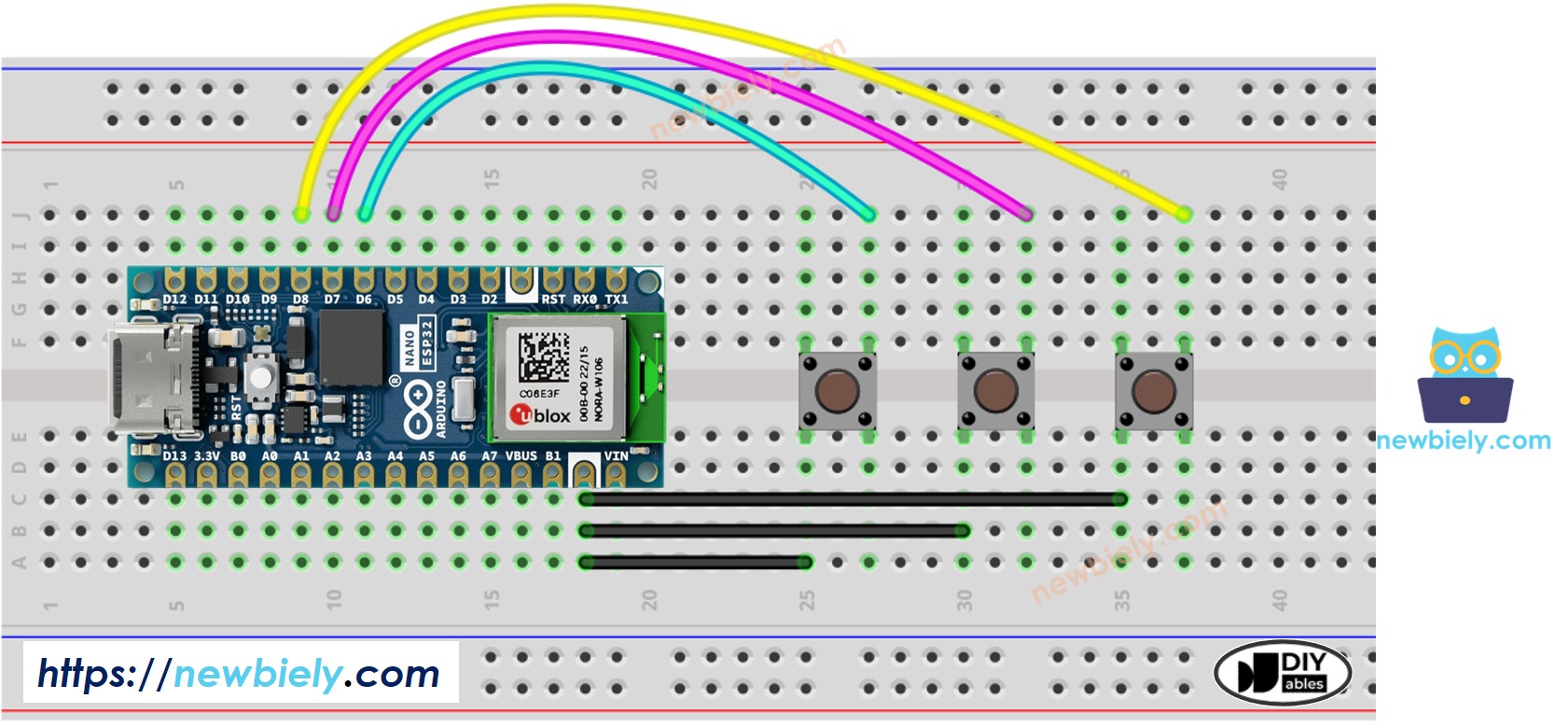
Diagrama de cableado de la biblioteca de botones para Arduino Nano ESP32

This image is created using Fritzing. Click to enlarge image

/* * Este código de Arduino Nano ESP32 fue desarrollado por es.newbiely.com * Este código de Arduino Nano ESP32 se proporciona al público sin ninguna restricción. * Para tutoriales completos y diagramas de cableado, visite: * https://es.newbiely.com/tutorials/arduino-nano-esp32/arduino-nano-esp32-button-debounce */ #include <ezButton.h> #define DEBOUNCE_TIME 50 // the debounce time in millisecond, increase this time if it still chatters ezButton button1(D6); // create ezButton object for pin D6 ezButton button2(D7); // create ezButton object for pin D7 ezButton button3(D8); // create ezButton object for pin D8 void setup() { Serial.begin(9600); button1.setDebounceTime(DEBOUNCE_TIME); // set debounce time to 50 milliseconds button2.setDebounceTime(DEBOUNCE_TIME); // set debounce time to 50 milliseconds button3.setDebounceTime(DEBOUNCE_TIME); // set debounce time to 50 milliseconds } void loop() { button1.loop(); // MUST call the loop() function first button2.loop(); // MUST call the loop() function first button3.loop(); // MUST call the loop() function first if (button1.isPressed()) Serial.println("The button 1 is pressed"); if (button1.isReleased()) Serial.println("The button 1 is released"); if (button2.isPressed()) Serial.println("The button 2 is pressed"); if (button2.isReleased()) Serial.println("The button 2 is released"); if (button3.isPressed()) Serial.println("The button 3 is pressed"); if (button3.isReleased()) Serial.println("The button 3 is released"); }

Video Tutorial

Estamos considerando crear tutoriales en video. Si considera que los tutoriales en video son importantes, suscríbase a nuestro canal de YouTube para motivarnos a crear los videos.

Conocimientos Adicionales

  • DEBOUNCE_TIME depende del hardware. Diferentes dispositivos de hardware pueden usar valores diferentes.
  • El rebote también debe aplicarse para interruptor de encendido/apagado, interruptor de límite, interruptor de láminas y sensor táctil ...

※ NUESTROS MENSAJES

  • No dude en compartir el enlace de este tutorial. Sin embargo, por favor no use nuestro contenido en otros sitios web. Hemos invertido mucho esfuerzo y tiempo en crear el contenido, ¡por favor respete nuestro trabajo!